
What your videos sold
Revenue Analytics is the shopping half of your GoDAM dashboard: the order value credited to your videos and shoppable images, and how. It appears once you run a WooCommerce store with the GoDAM for Woo add-on. The base metrics (plays, watch time, engagement) are covered separately in Media Analytics; this page is only the commerce sections.
What you’ll need
- You’re on GoDAM 2.3 or later, installed and connected to your account.
- The GoDAM for Woo add-on is active, 2.2 or later, with WooCommerce and a valid GoDAM API key. Revenue, Top Products and Purchase Funnels are all WooCommerce features; without the add-on these sections do not appear.
- WordPress 6.9 or later, which GoDAM for Woo requires.
- WooCommerce 8.8 or later to credit add-to-carts made inside a video (Direct). On older WooCommerce, sales after a click-through to the product page (Assisted) are still credited.
- To install the add-on, go to GoDAM → Settings → Integrations Settings → WooCommerce and click Install GoDAM for Woo. The button shows once WooCommerce is active and your API key is valid.
- Updating an existing store? Update GoDAM to 2.3.0 first, then GoDAM for Woo to 2.2.0. If the add-on is updated first, your Shoppable Video blocks, product hotspots and reels stop showing until GoDAM is updated.
- Some real activity: videos that have been played, and at least one order, so the numbers have something to show.
Heads up: Revenue starts counting from eligible add-to-carts made after both GoDAM 2.3.0 and GoDAM for Woo 2.2.0 are active. It cannot be worked out from past orders, because the link between a video and an order is only recorded as it happens.
Where to find it
Revenue Analytics lives in two places.
Across your whole store: WordPress admin → GoDAM → Dashboard. Two shopping cards inside Insights, a Video-Attributed Revenue card, two funnels, a Top Products tab, and the Google Analytics status strip.
For one video: open GoDAM → Dashboard → Top Videos and click a video. Video to Cart, Video to Purchase, the Video-Attributed Revenue card (Direct and Assisted only) and the Purchase Funnel appear for that video alone, plus the revenue from in-video add-to-carts made through each Woo product hotspot.
Each card has its own range control (Last 7 days, Last 15 days, Last 1 month, All Time, or a custom Date Range), so you can look at one card over a different period without changing the rest of the page. The exceptions are Video to Cart and Video to Purchase, which sit inside the Insights card and follow its range.
Heads up: the numbers refresh on a schedule, not instantly. Brand-new orders can take up to about 30 minutes to appear.
Cart and purchase rates
Inside the Insights card, alongside the base metrics, two shopping numbers answer “how many viewers actually shopped?” Both are measured against people who really played a video, not just loaded the page.
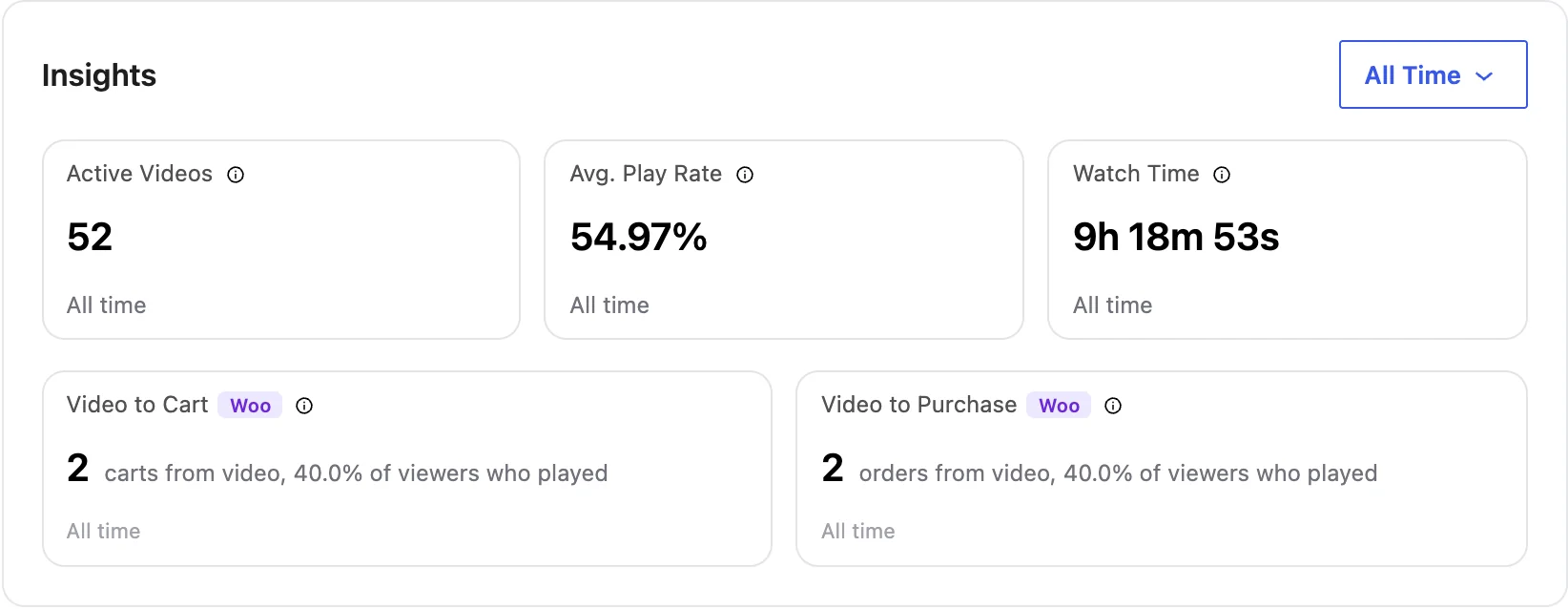
- Video to Cart is how many viewers went on to add a product to their cart.
- Video to Purchase is how many viewers went on to buy an attributed product.
Both count people, not visits, and each person is counted once no matter how many videos they watched. Each shows a count with the share of viewers beside it.
A healthy play rate but a low Video to Cart means people watch but the shopping prompt isn’t landing. Try a clearer hotspot or a stronger call to action. Pick a fixed range rather than All Time and each card also shows how it moved against the period before it.
The revenue your videos earned
The headline: order value traced back to your videos, before refunds. The bar splits it by how the sale happened, and a separate panel shows a softer kind of credit.
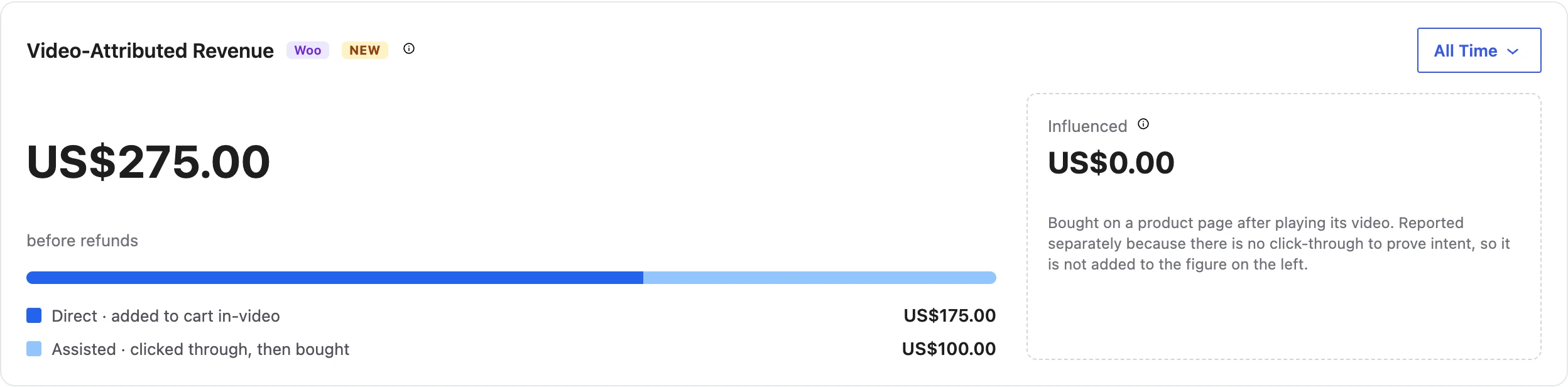
There are three ways a video earns credit for a sale. Two count toward the headline, because the shopper took a clear action; the third is shown on its own.
- Direct is added to cart right inside the video or image. The strongest signal: the shopper added the product without leaving the video or image.
- Assisted is clicked a product in the video or image, then bought on the product page. Still a clear action, so it counts toward the headline.
- Influenced is a shopper who starts a video on the product’s own page (a muted autoplay doesn’t count), then adds that product from the page and orders within 30 days, with no in-video add or click-through. Shown on its own and never added to the headline: there is no click from a video to prove intent, so it gets a softer kind of credit.
Attribution tier drops with time: Buy within 7 days and an in-video add stays Direct, buy up to 30 days and it counts as Assisted, buy later than that and the sale is not traced to the video at all.
What a single video earned
Open any video from Top Videos and the same three cards appear for that video alone: how many of its viewers added to cart, how many bought, and the money it brought in. Influenced is not shown per video: this revenue card splits Direct and Assisted only.
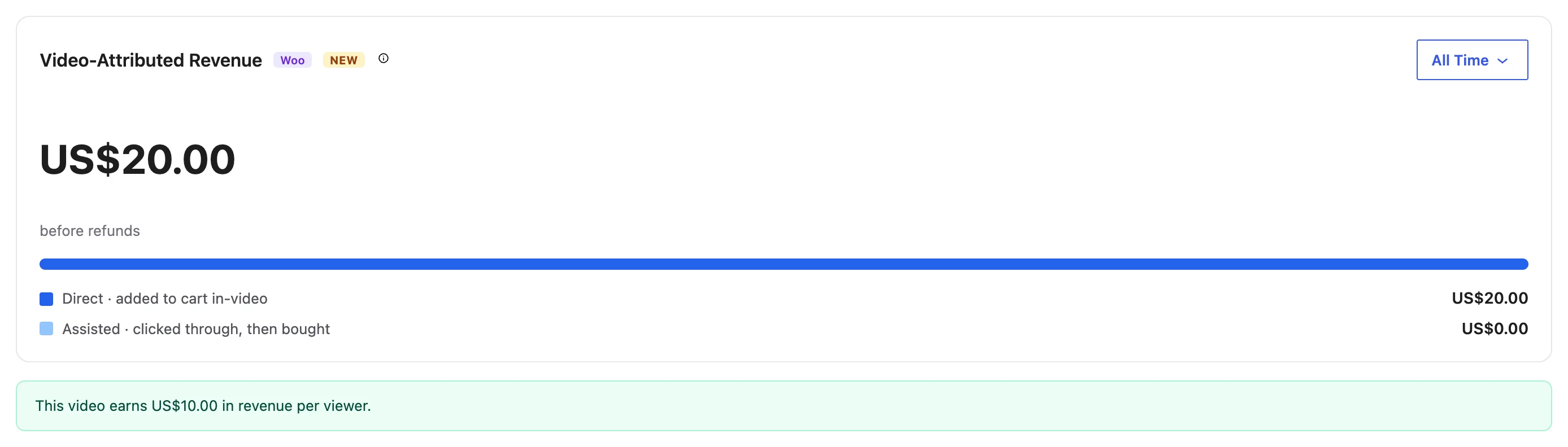
A green note appears under the card. The note “This video earns [amount] in revenue per viewer.” shows whenever the video earned revenue and had viewers in the range you picked. The note “This video’s average order value ([amount]) beats your store average ([amount]).” shows only when the video’s average order value is higher. Here “store average” means the average of all video-attributed orders on your site, not your store’s overall average order value.
Which hotspot sold it
On a video’s page, scroll to the Video Layer Timeline. The timeline marks every interactive layer at the second it appears. Click a Woo hotspot layer and the panel below shows what it sold in-video, in the UI’s words “This layer drove [amount]” (or “This hotspot drove [amount] across [N] orders” once you pick one product), alongside how many people saw it, hovered it and added from it.
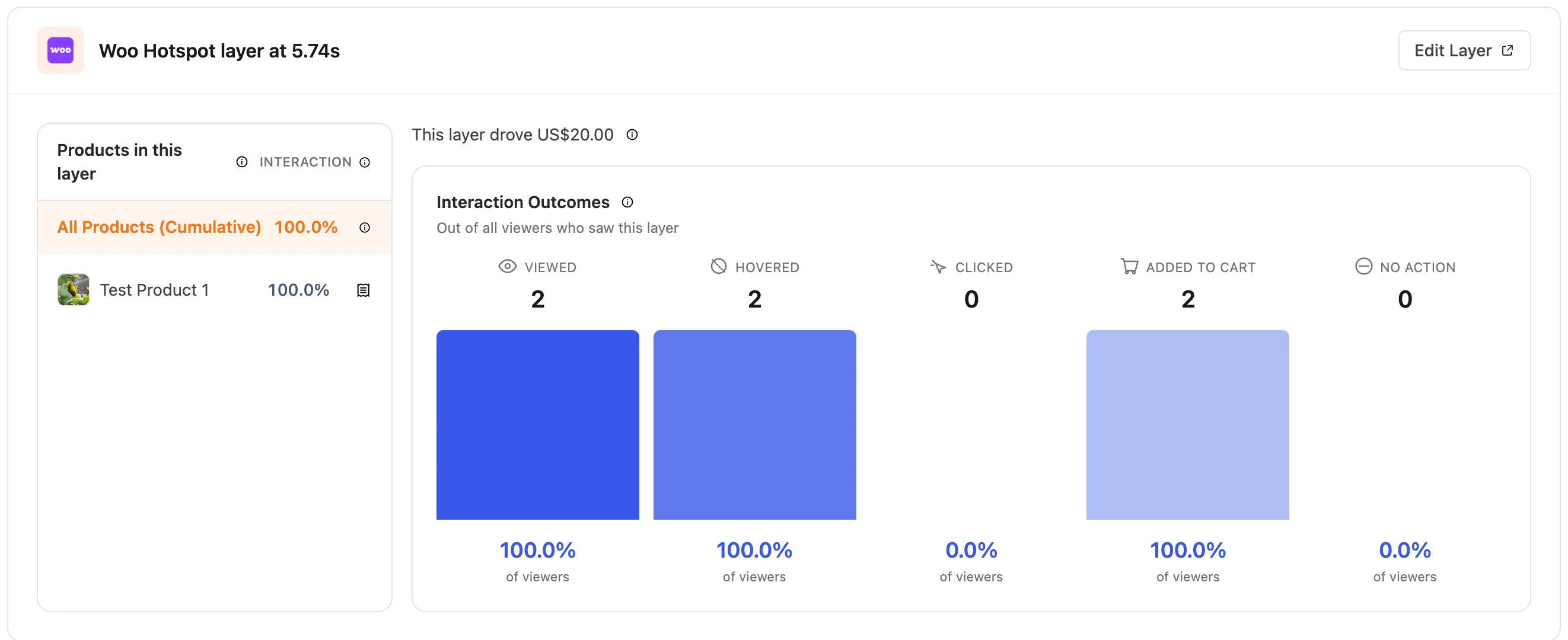
The Products in this layer list on the left lets you narrow from the whole layer to one product, so you can see which item in a multi-product hotspot is doing the selling.
How to use it: this is how you tell a hotspot that gets attention from one that gets sales. A hotspot with plenty of views and no revenue is in the right place but selling the wrong thing, or arriving at the wrong moment. Move it, change the product, or cut it.
Two things to know: It shows only Direct sales, the ones added to cart inside the video, so this figure is a floor, not a product’s full revenue, and a hotspot with no attributed orders shows no revenue line at all rather than a zero.
The purchase funnel
The funnel follows real people through three steps, played a video → added to cart → purchased, counting distinct visitors, so the bars can only get shorter.
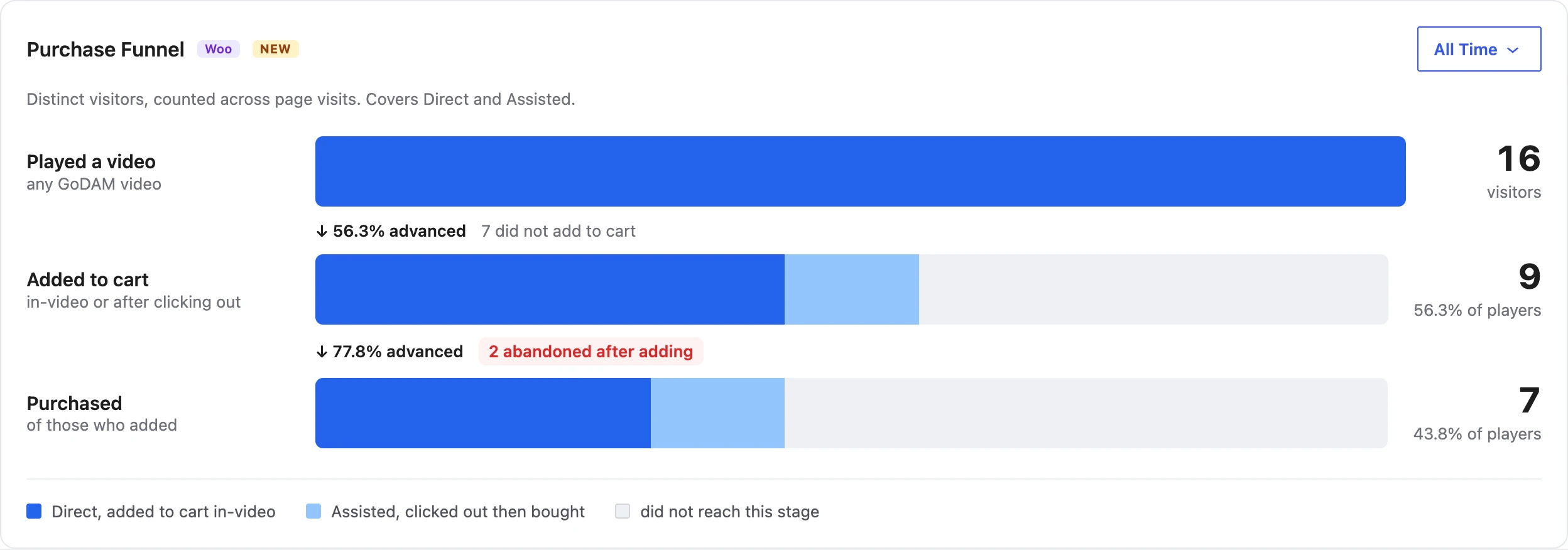
How to use it: the biggest drop is the place to fix first. A big fall from played to added means the prompt to shop needs work; a fall from added to purchased points at checkout. The “Added to cart” bar is split into the Direct part (added in-video) and the Assisted part (clicked out, then added).
The funnel only counts a purchase that happened inside the range you picked. Choose a recent window and a “Still counting” note says purchases for that range keep settling for up to 30 days, because some of those shoppers have not finished buying yet.
Which placement actually sells
You can show shopping in several ways, and the Funnel by placement card breaks out three of them: a Shoppable Video block, a Woo hotspot layer inside a video, and a Reel Pop. Each gets its own row once it has plays in the range. Averaging them together hides which one works, so this section keeps them apart. A product hotspot on a GoDAM Image block has no row here, because the funnel starts from a video play. Its sales still count toward Video-Attributed Revenue on the Dashboard, and the product shows up in Top Products with the Image Woo Layer source chip.
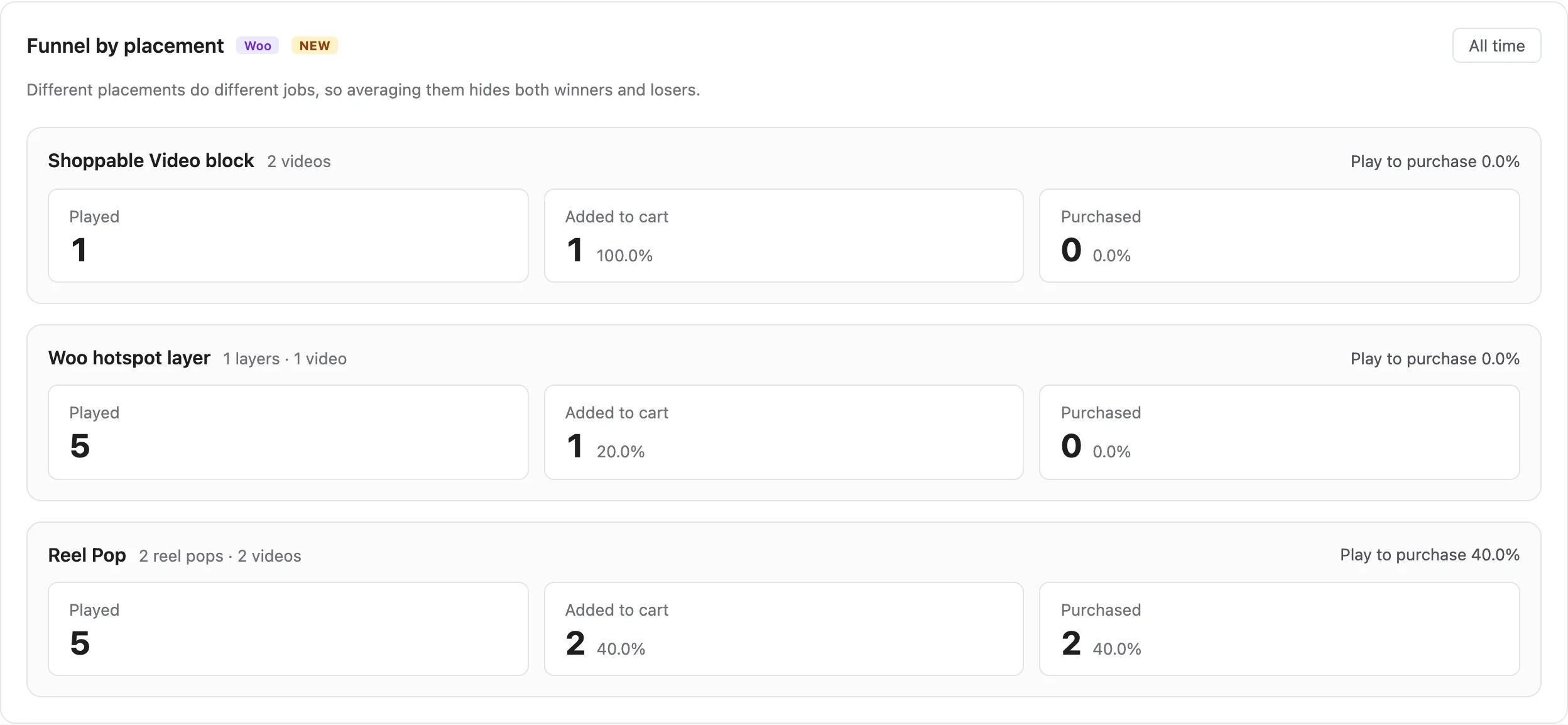
How to use it: lean into the placement that converts and rethink the ones that don’t. A placement with plays but no purchases is getting attention but not sales.
Top products
Switch to the Top Products tab for a per-product view: where each product was featured, how often it was opened from a video and added to cart, and the revenue it earned, split the same way as the headline. Products are ranked by Product Views, not by revenue.
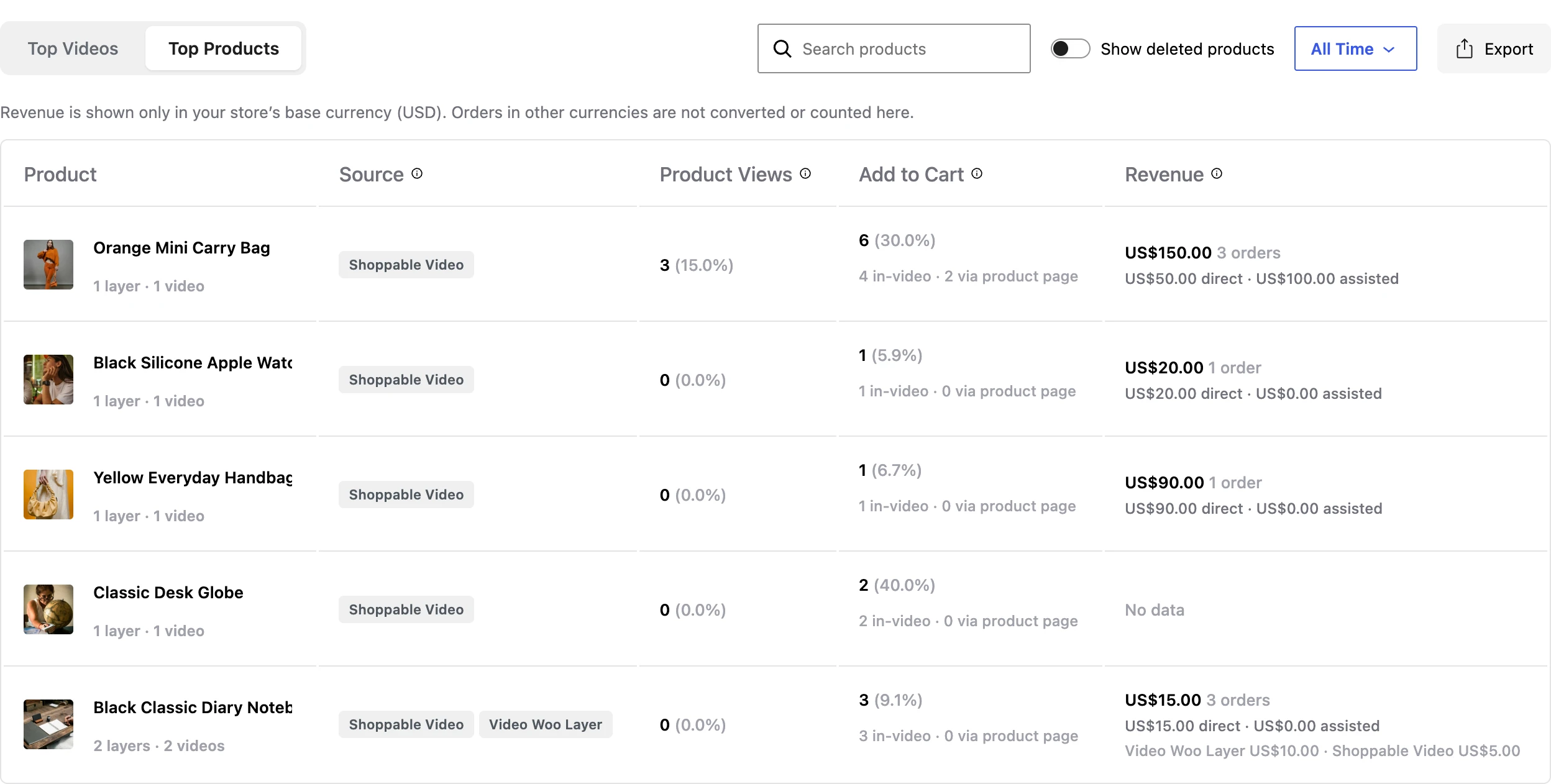
- The Source chips show where the product appeared: Video Woo Layer, Image Woo Layer, Shoppable Video, Reel Pop, or Product Gallery. A chip tells you where shoppers could see the product. It does not tell you where it sold.
- Product Views counts the sessions in which someone opened the product from a video, in other words clicked through to its product page. It is a click-through, not a view, and it counts sessions, not shoppers. The percentage beside it is opens against the number of times the product was shown.
- Add to Cart separates in-video adds (Direct) from adds made on the product page after a click (Assisted).
- Variable, grouped and external products show a grayed 0 for in-video adds, because they cannot be added to a cart from inside a video. A variable product needs the shopper to choose an option on the product page first, so it sells through the Assisted path instead. Grouped products also send the shopper to the product page. External (affiliate) products are bought on another site, so there is no WooCommerce order and they earn no revenue credit at all. Hover the grayed figure for a short explanation.
- “No data” in the revenue column means no sale has been traced to that product yet.
- Where a product has picked up Influenced revenue, it appears as a small separate line under that product’s figure.
- Use Export (top-right of the table) to download everything as a CSV with the same columns.
Send video sales to Google Analytics
GoDAM can optionally send video-credited add-to-carts and purchases to your own Google Analytics 4 through Google Tag Manager, as the standard add_to_cart and purchase ecommerce events. It is off by default. GoDAM pushes the events to your site’s data layer (window.dataLayer), so they reach GA4 only through your own Google Tag Manager or gtag setup. Each event is tagged godam_source: 'video' plus the video IDs, so you can separate video sales from the rest. To see those video fields in GA4 reports, register them as GA4 custom dimensions and map them in Tag Manager. The purchase event covers only the video-credited lines of an order, with tax and shipping set to 0.

A status strip on the dashboard tells you where this stands, and shows an “All time” count of each event GoDAM prepared to send. GoDAM cannot confirm that Google Analytics received them.
| What it says | What it means |
|---|---|
| GA4 Tracking off | Not sending. This is how it ships. Click Enable to open the setting that switches it on. |
| Sending to GA4 | Switched on. The two counts beside it are the events prepared to send so far, not a count of what Google Analytics received. |
| GoDAM is standing down | Another GA4 integration, such as Google Analytics for WooCommerce or GTM4WP, is active, so GoDAM holds back rather than sending everything twice. The counts still show what GoDAM would have sent. GoDAM detects only those two plugins on its own, so with any other GA4 setup you may get duplicate events. |
| GA4 unavailable | GoDAM could not check the status. This can happen right after an update. Refresh in a moment. |
To turn it on: click Enable on the strip, which opens GoDAM → Settings → General Settings, or go there yourself. Switch on Enable GTM Tracking and click Save. The same setting controls these events, this strip, and GoDAM’s GTM video tracking.
Understanding the numbers
| Term | What it means |
|---|---|
| A “play” | The video actually played, not just loaded on the page. A muted autoplay counts as a play. Video to Cart, Video to Purchase, and the purchase funnels are measured against these plays. Influenced is stricter: a muted autoplay does not count there. |
| Counting people | Cart and purchase figures count distinct people, so per-video numbers do not add up to the dashboard total. Revenue does add up, apart from sales through image hotspots, which have no video. |
| Direct vs Assisted timing | The clock runs from the add to cart to the order being placed. Direct only survives 7 days; from day 8 to day 30 it becomes Assisted; past 30 days nothing is traced. |
| The same shopper in two columns | The Add to Cart split is fixed at the moment of adding. The Revenue split re-decides it against the clock. So one shopper can be Direct on one card and Assisted on the other. |
| Same browser only | The link between a video and a sale is held in the shopper’s own browser. Watch on a laptop and buy on a phone, and the sale is not traced back. Clearing browsing data has the same effect. |
| Excluding tax and shipping, before refunds | Revenue is the value of the attributed units of an order line, after discounts, excluding tax, shipping and fees. An order counts once it reaches Processing or Completed. Cash on delivery counts at Processing, before payment is collected; Pending payment, On hold, Failed and custom statuses do not count until the order reaches one of those two. Refunds and cancellations are not subtracted, and the figure will not match a tax-inclusive order total. |
| Single currency | The headline adds up your store’s base currency only. Orders in another currency are counted on their own and shown as “excluding N orders in other currencies”, never converted in. Change your base currency and the headline re-scopes; the old-currency revenue moves into that excluded count and returns if you switch back. |
| Which day a sale lands on | Revenue is grouped by your store’s own timezone, the same way WooCommerce reports it, so the two reconcile. |
| Product names | A product’s name and image are looked up live from WooCommerce each time the table loads, so renaming a product also renames its past rows. By default the table lists only published products; switch on Show deleted products to include trashed and deleted ones. A permanently deleted product shows as “ID: N (Deleted Product)”. |
| Refresh | Numbers update on a schedule (up to about 30 minutes), so very recent orders may not appear right away. |
Known limits
- Assisted credit needs the add to happen on the product’s own page (a Reel Pop cart link is the one exception), so adds from shop, category, quick-view, related or cross-sell grids earn nothing.
- External (affiliate) products earn nothing, because the sale happens on another site and there is no WooCommerce order.
- Subscription renewals earn no credit; the first subscription order does.
- On marketplace stores, vendor sub-orders earn no credit; the top-level order does.
- An order counts once it reaches Processing or Completed. One that stays On hold, or that a deposit or pre-order plugin keeps in its own status, earns no credit until it gets there. A cash on delivery order counts from Processing, before the cash is collected.
- In this release, Top Products does not list a product whose only sales are Influenced.
Troubleshooting
Revenue or the funnels are missing entirely. These are WooCommerce features. Check that the GoDAM for Woo add-on is active and your API key is valid under GoDAM → Settings.
Everything is empty, and the store has been selling for months. Revenue is not backfilled. It only counts adds to cart made after both GoDAM 2.3.0 and GoDAM for Woo 2.2.0 are active, even if the add-on was installed earlier. Give it a few days of real traffic.
Revenue shows “No data” for a product. Nothing has been traced to that product yet. “No data” is not a zero; it means no matching order has come through.
The numbers look behind. Analytics update periodically (up to about 30 minutes), so brand-new plays and orders can lag. Give it a little time.
A recent range shows fewer purchases than expected. The funnel and Video to Purchase only count purchases that happened inside the range you picked, and shoppers can take up to 30 days to buy. Look for the “Still counting” note, or pick an older range.
A variable product shows 0 in-video adds. Variable, grouped and external products cannot be added to a cart from inside a video. Variable product sales can still earn Assisted credit when the shopper clicks through from the video and adds the product on its page. Grouped products earn none, because the shopper adds the individual products inside the group, not the grouped product the video linked to. External products earn none either; see Known limits.
Add to Cart shows Direct but the revenue landed in Assisted. The cart split records how the item was added; the revenue split also asks how quickly the shopper bought. An in-video add that turns into a purchase after day 7 is reported as Assisted.
An order I can see in WooCommerce earned no video credit. The shopper took longer than 30 days between adding and ordering. Or they watched on one device and bought on another. Or the sale falls under one of the Known limits.
Influenced sits in its own panel and is never added to the headline. It is a weaker signal, the shopper started a video on the product page (a muted autoplay does not count), but used the product page’s own Add to Cart, not a control inside the video, and did not click through from a video, so GoDAM reports it separately rather than claiming the video made the sale.
A product hotspot shows no revenue even though the product sold. Per-hotspot revenue only covers sales added to the cart inside the video. If the shopper clicked through and bought on the product page, the sale counts on the product and in the headline, but it’s not added in-video directly from the hotspot.
Image product hotspot sales. In-image product hotspots are tracked and appear in Top Products under the Image Woo Layer source.
A product link in a GoDAM CTA or Hotspot layer earns no credit. Only Woo hotspot layers, the Shoppable Video block, product hotspots on a GoDAM Image block and Reel Pop product CTAs earn Direct or Assisted credit. A Reel Pop CTA that points to one of your products earns Assisted credit whether it opens the product page or adds the product straight to the cart (an ?add-to-cart= link). To get credit for a product, feature it through one of those instead of a CTA or Hotspot link.
Google Analytics shows nothing from GoDAM. Check the status strip on the dashboard. If it reads “GA4 Tracking off”, switch on Enable GTM Tracking under GoDAM → Settings → General Settings and click Save. If it reads “GoDAM is standing down”, another plugin is already sending these events.
“Analytics is temporarily unavailable.” The dashboard couldn’t reach the GoDAM analytics service. This is usually temporary, refresh in a few minutes.
Coming soon
These are on our list, and your requests decide the order. Tell us which of these matter to you:
Seeing the numbers differently
- Revenue as a chart over time, instead of one total for the range you picked.
- Ranking products and videos by the revenue they earned, not only by views and clicks.
- Comparing a period against the same quarter last year.
- Clicking any revenue figure through to the exact orders behind it.
- Forecasting, so you can see where revenue is heading rather than only where it has been.
Getting the money exactly right
- Subtracting refunds from revenue, with the usual gross, tax and shipping breakdown.
- Multi-currency, converting every order into one reporting currency instead of counting the others separately.
- Subscriptions: credit for renewals, plus recurring revenue, cancellations, and what a subscriber is worth over their lifetime.
- Gift cards, deposits, bundles, and external or affiliate products.
More ways to slice it
- Return on ad spend.
- Customer-level insight: what a customer is worth over time, how often they buy again, and the split between new and returning buyers.
- Revenue broken down by device and country.
- The effect of coupons and discounts on sales credited to your videos.
More control over attribution
- An attribution window you set yourself, rather than a fixed 30 days, and a choice of attribution models, which is the rule that decides who gets the credit when several videos were involved.
- Cross-device tracking, so a click-through on a phone and a purchase on a laptop are connected.
Getting the data out
- Full data export beyond the Top Products CSV, and reports emailed to you on a schedule.
Have questions? Reach out to our support team, and we’ll be happy to help.