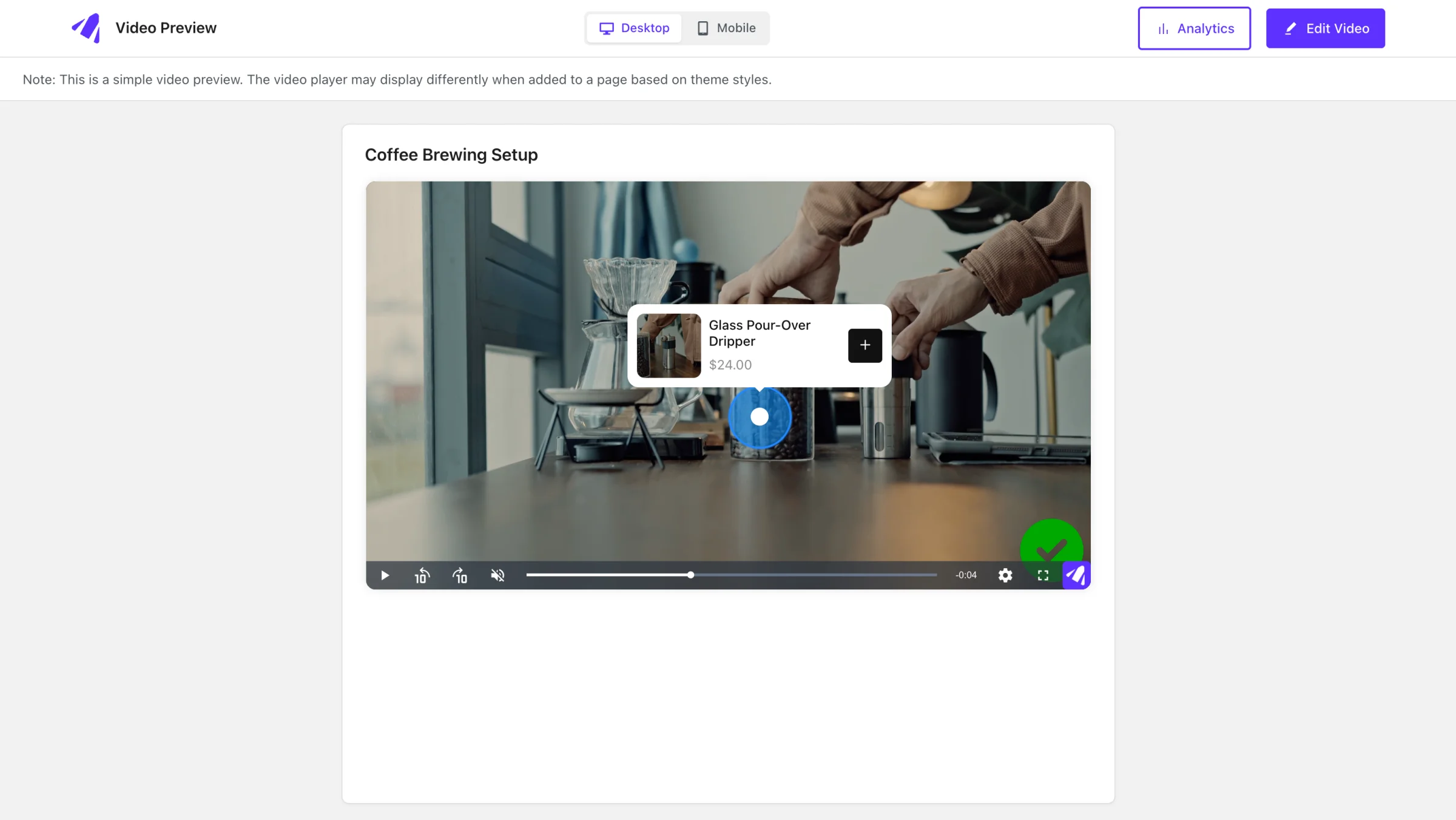
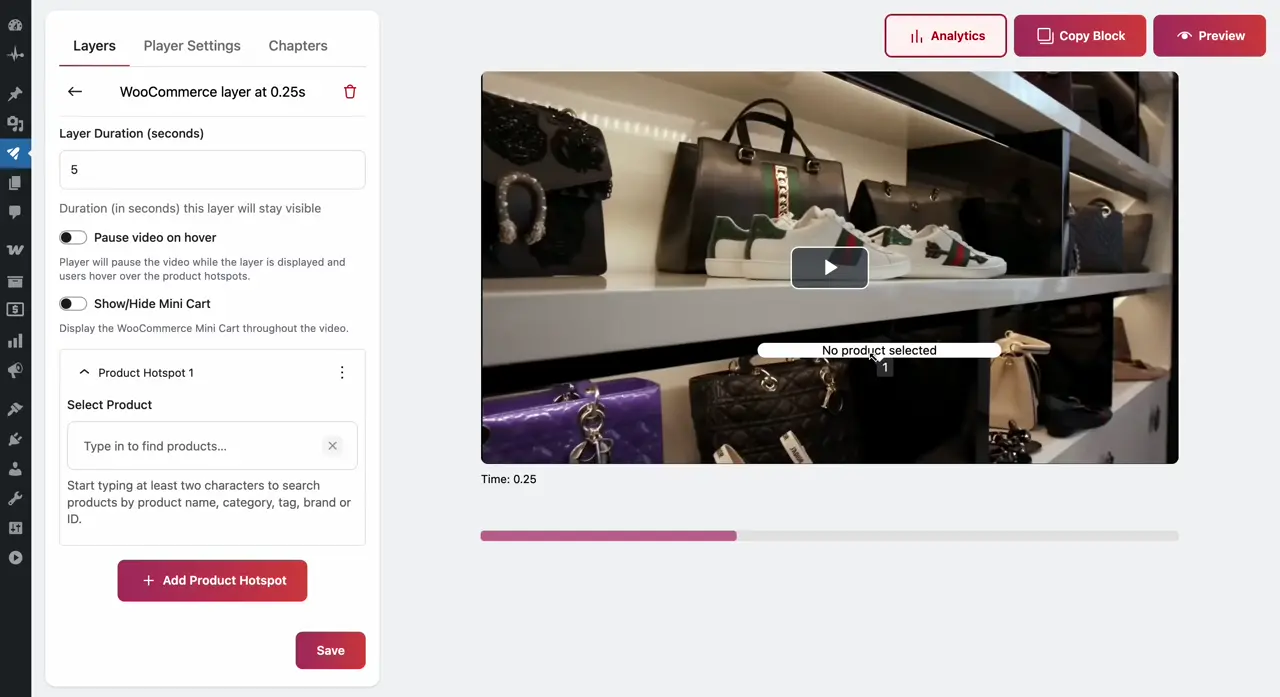
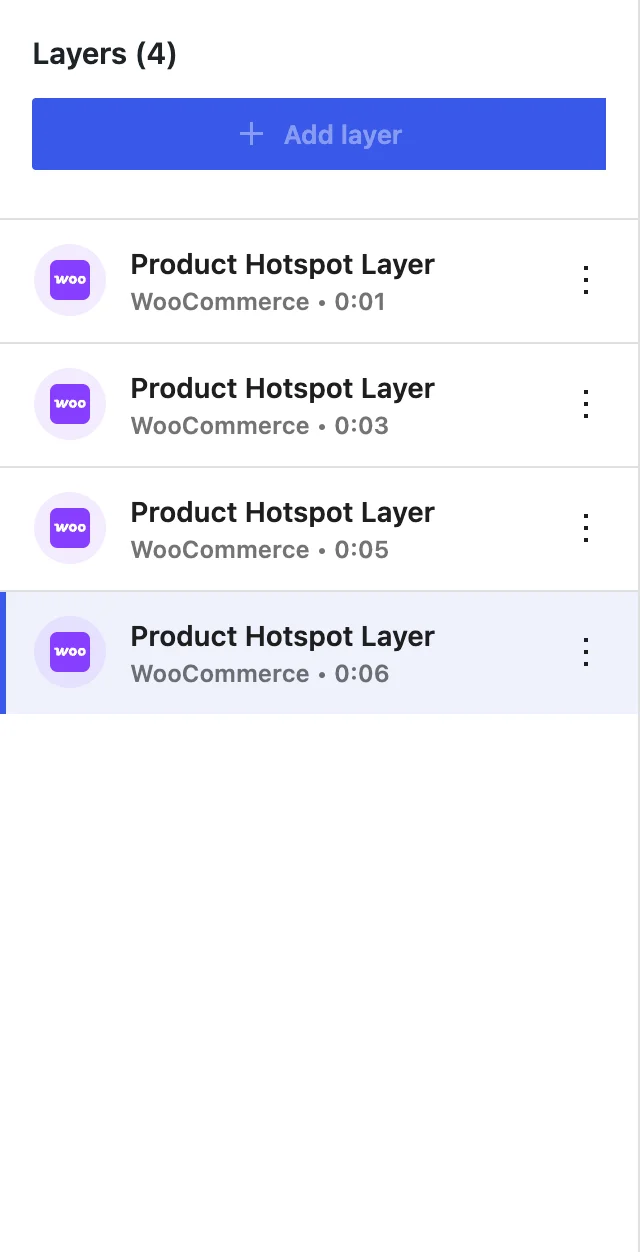
This layer works similar to Hotspots and allows you to add multiple CTAs within a single timestamp—each linked to specific product details..
You can add Product Hotspots at different coordinates within a single layer and drag them to any other coordinates of your choice, and customize them by adding icons and colour instead of using the default configuration to better match your brand or campaign.
STEPS:
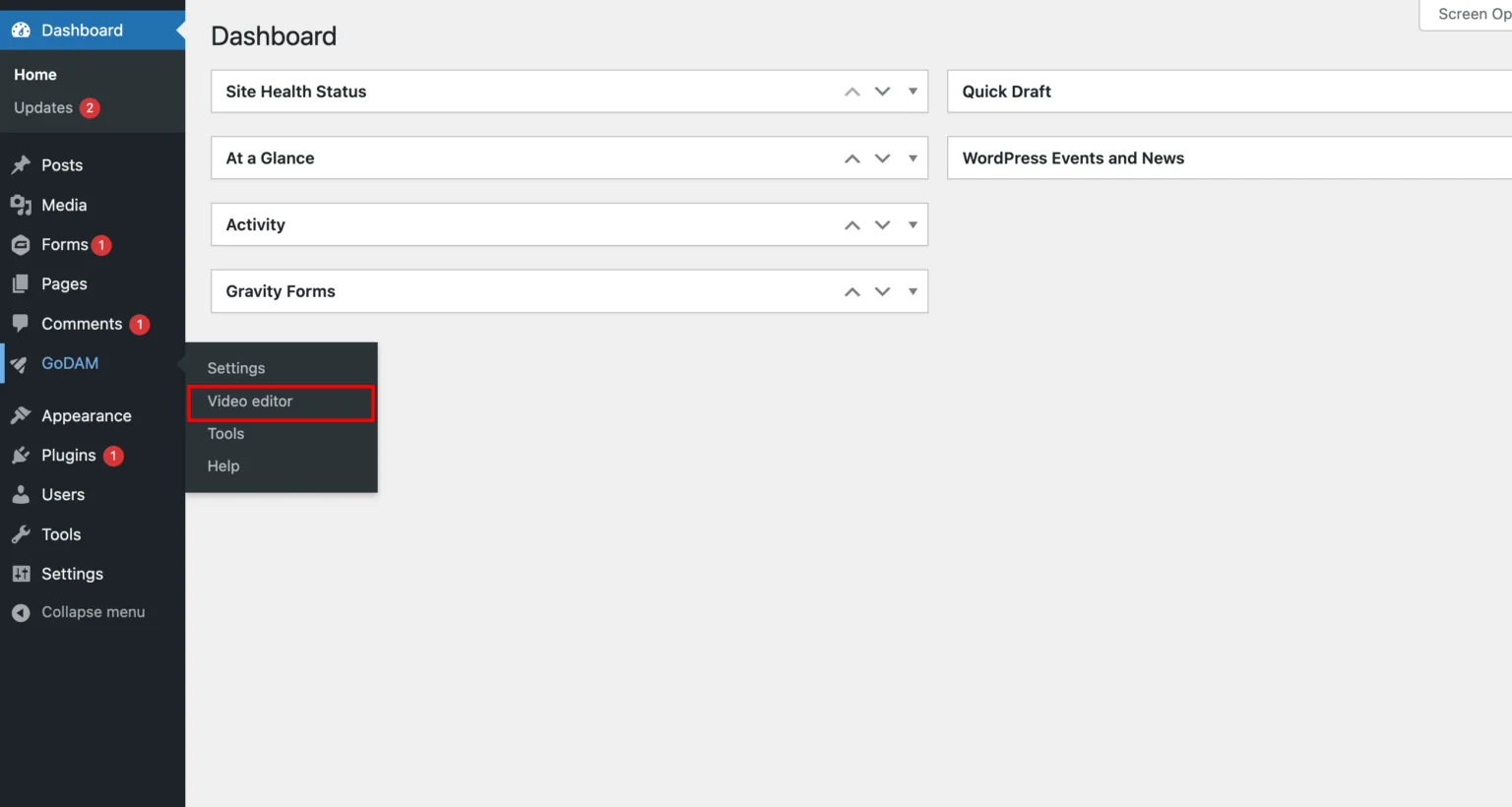
Step 1: Go to GoDAM > Media Editor
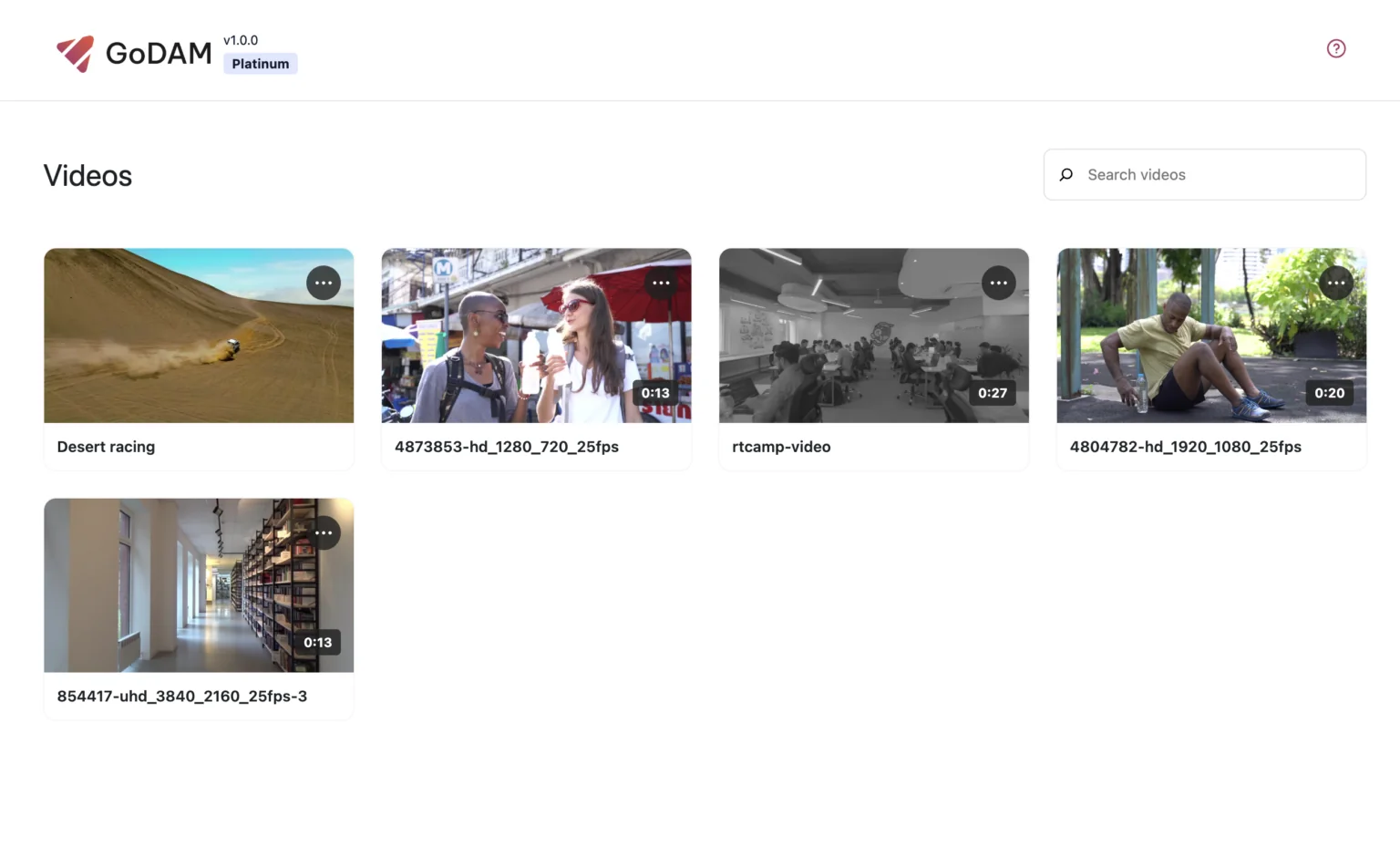
Step 2: Choose a video
Step 3: Go to the timestamp where you want to add the layer
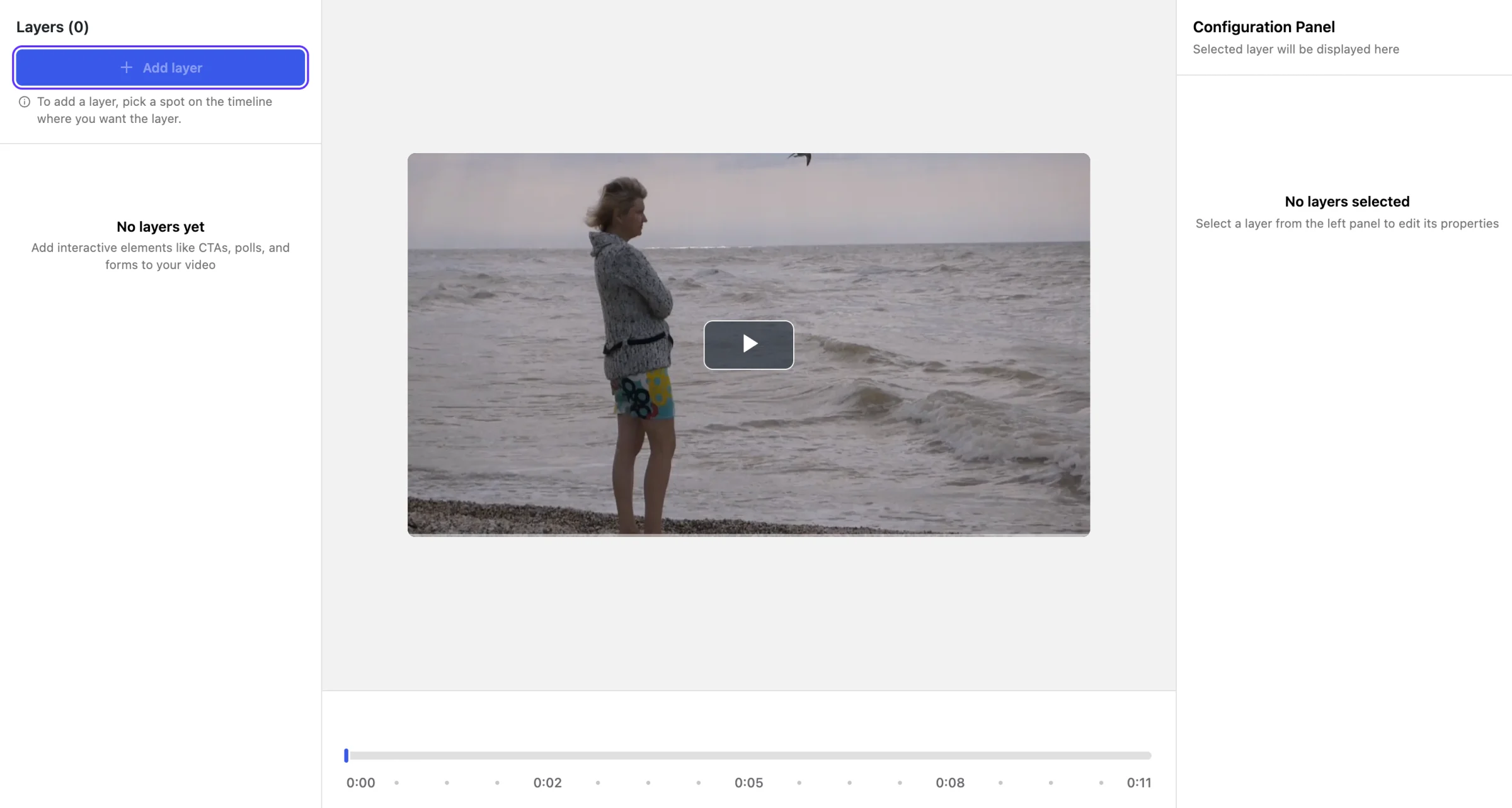
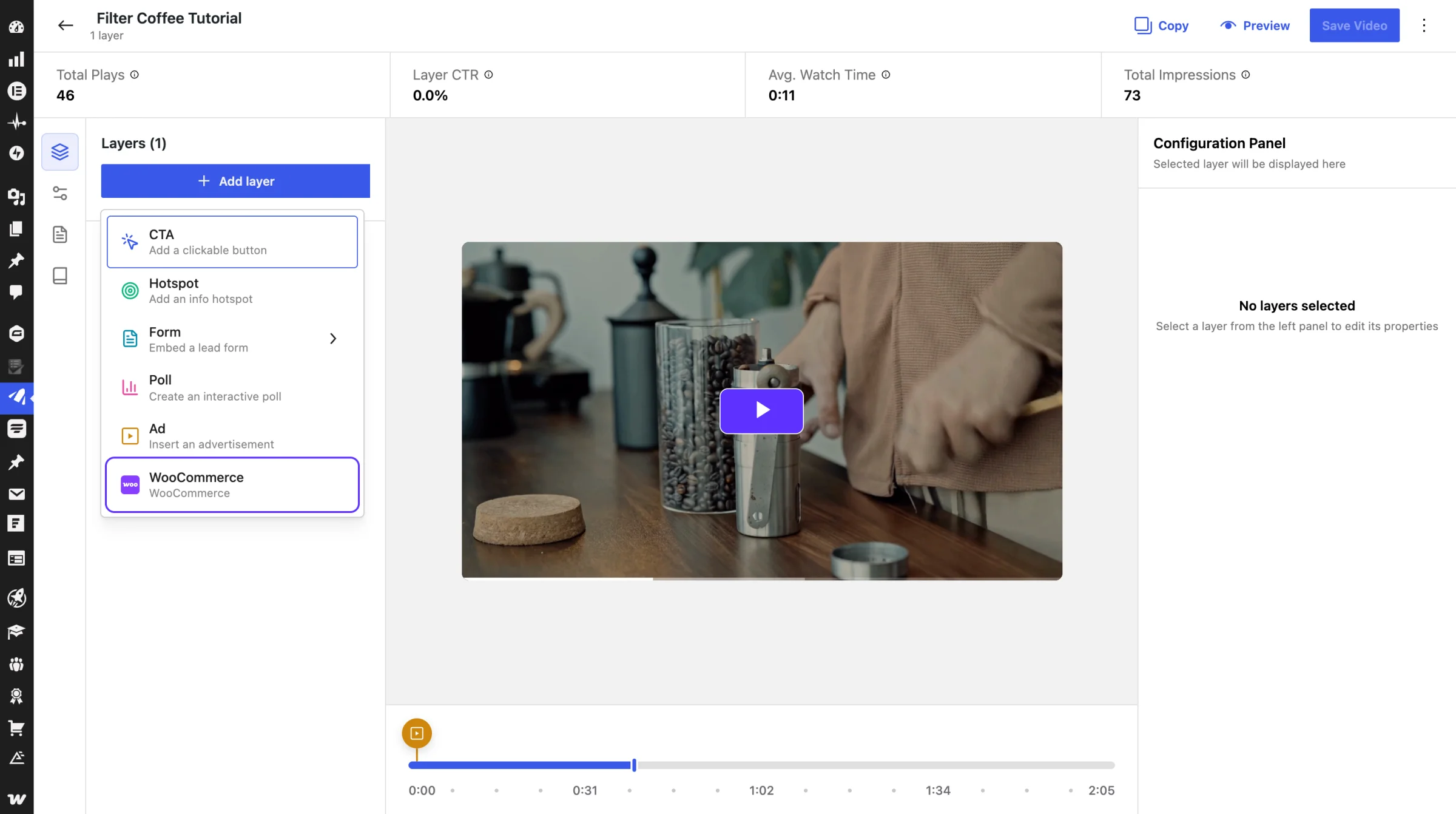
Step 4: Select WooCommerce from the popup
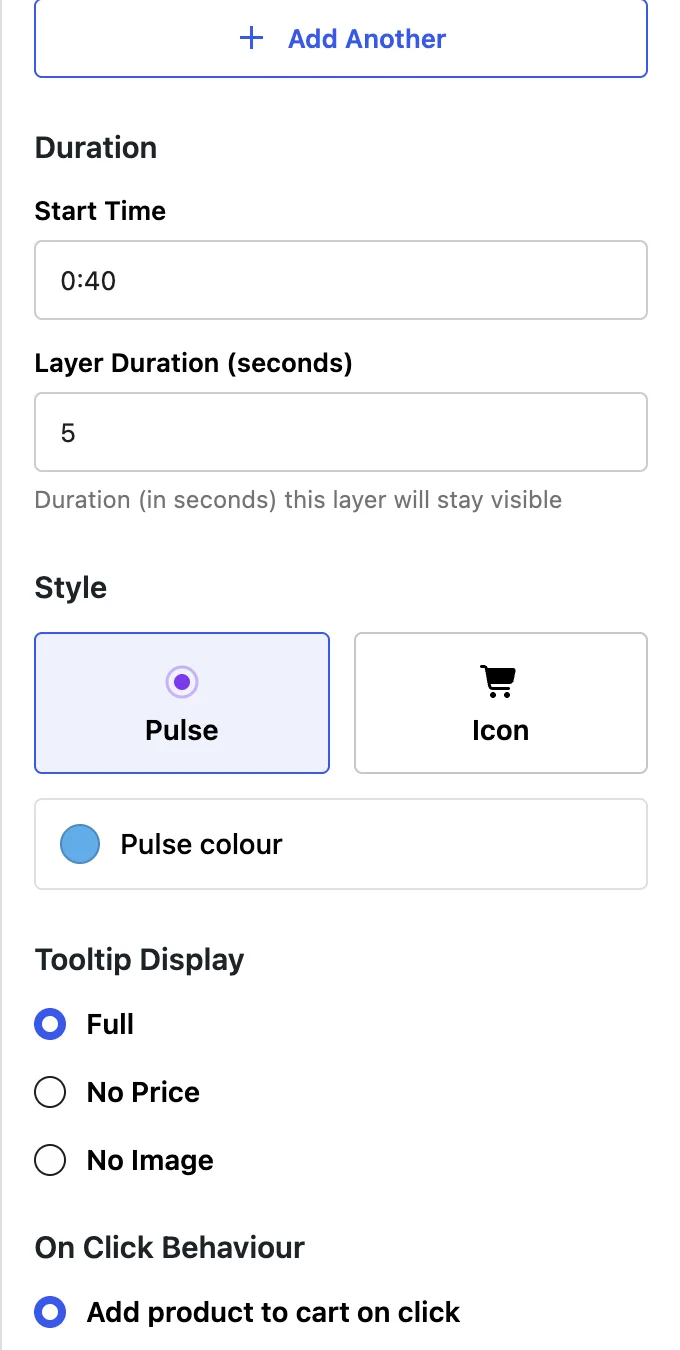
Step 5: Select the duration you want to display the product hotspots for, by default the value is 5 seconds.
Step 6: Open the Product Hotspot Drop down menu.
You can choose which product to display using the Select Product field within the Product Hotspot’s product details box.
The button on the Product Hotspot’s product details box has `+` icon if it can be added to cart directly else it has `↗` icon which redirects the user to the product page.
Under On Click Behaviour, choose Add product to cart on click (the default) or Take to product detail page on click. The choice applies to every hotspot in the layer.
Additionally, once a product is selected, the dropdown menu label automatically updates to show the product name—making it easier to recognize at a glance.
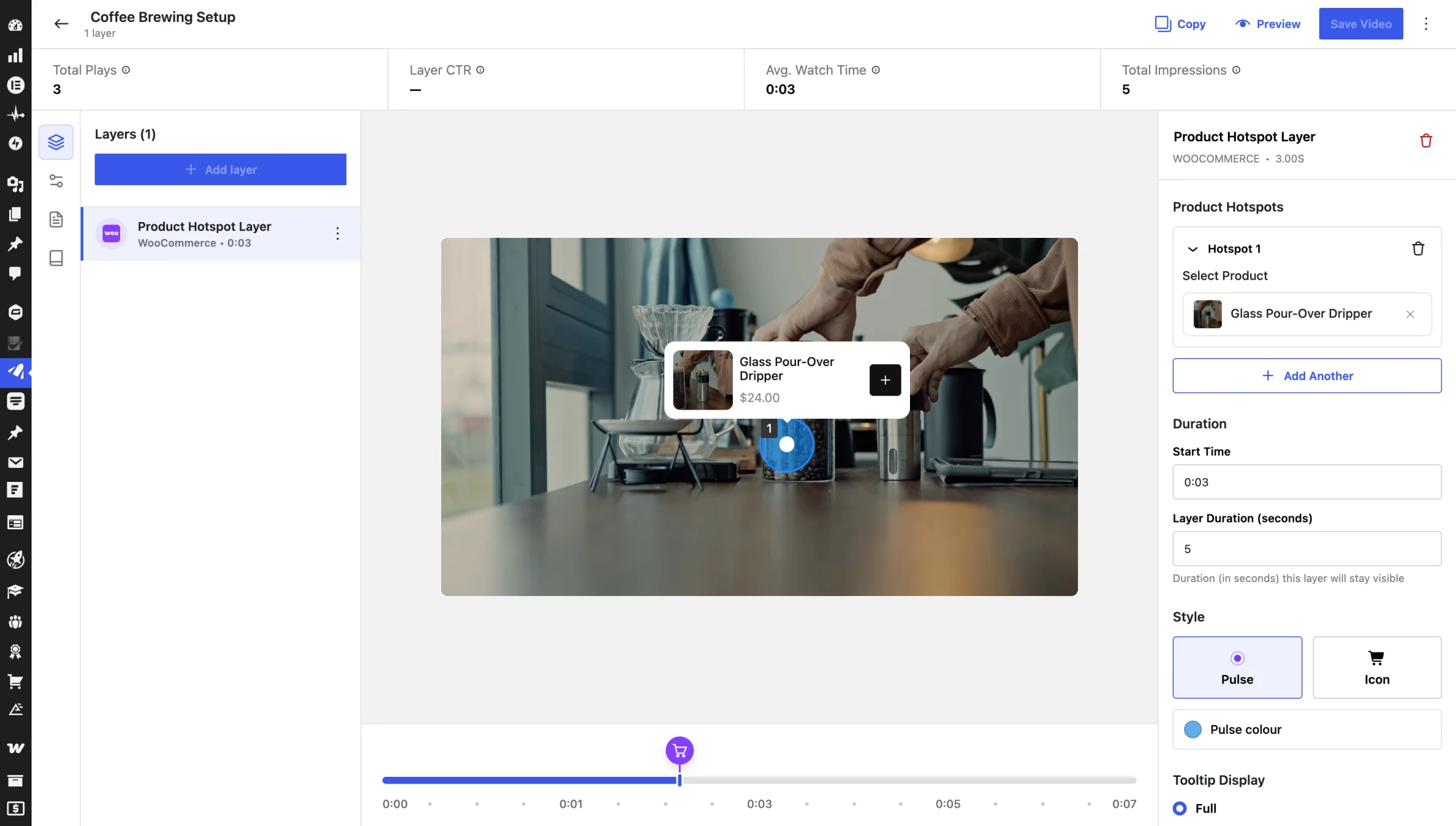
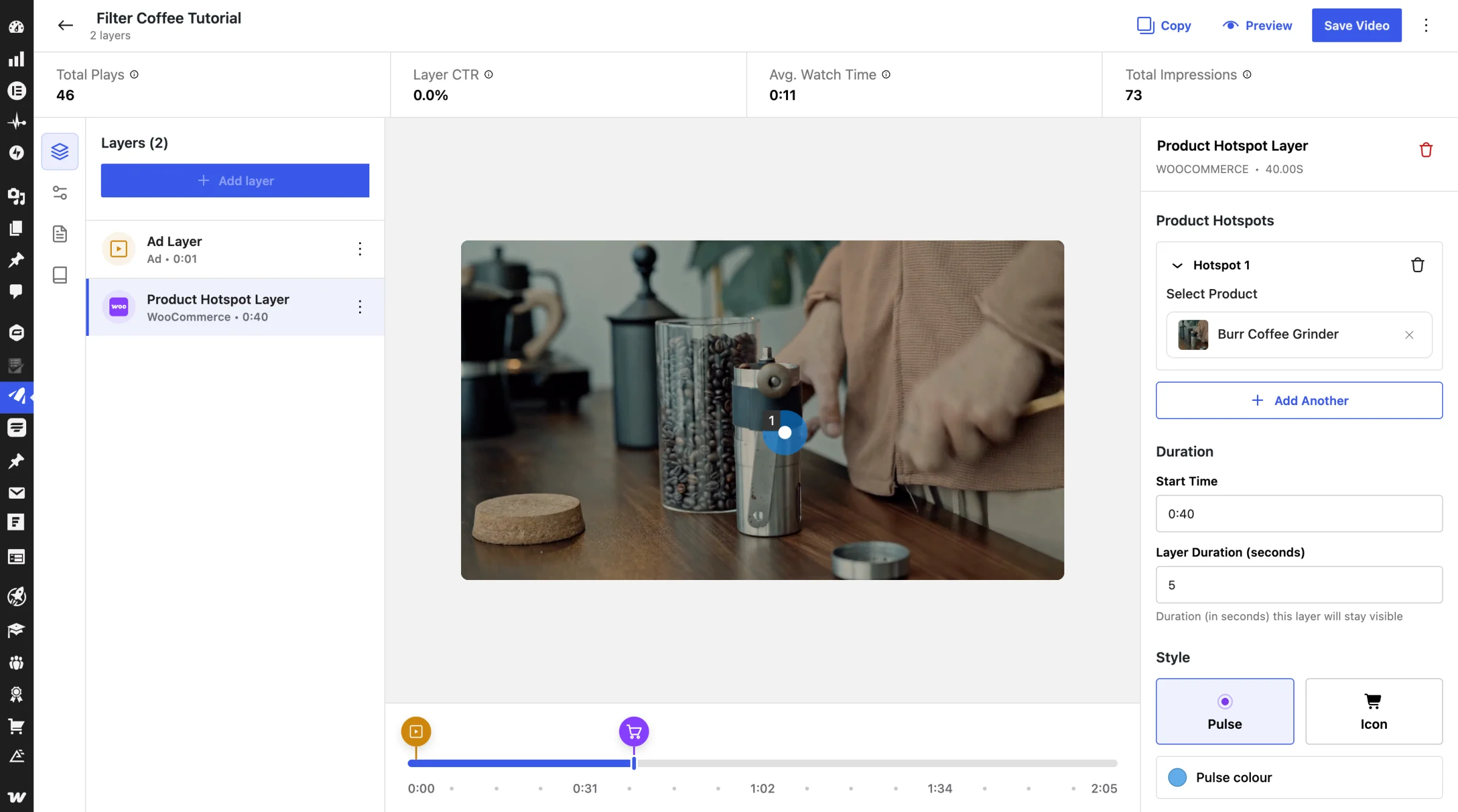
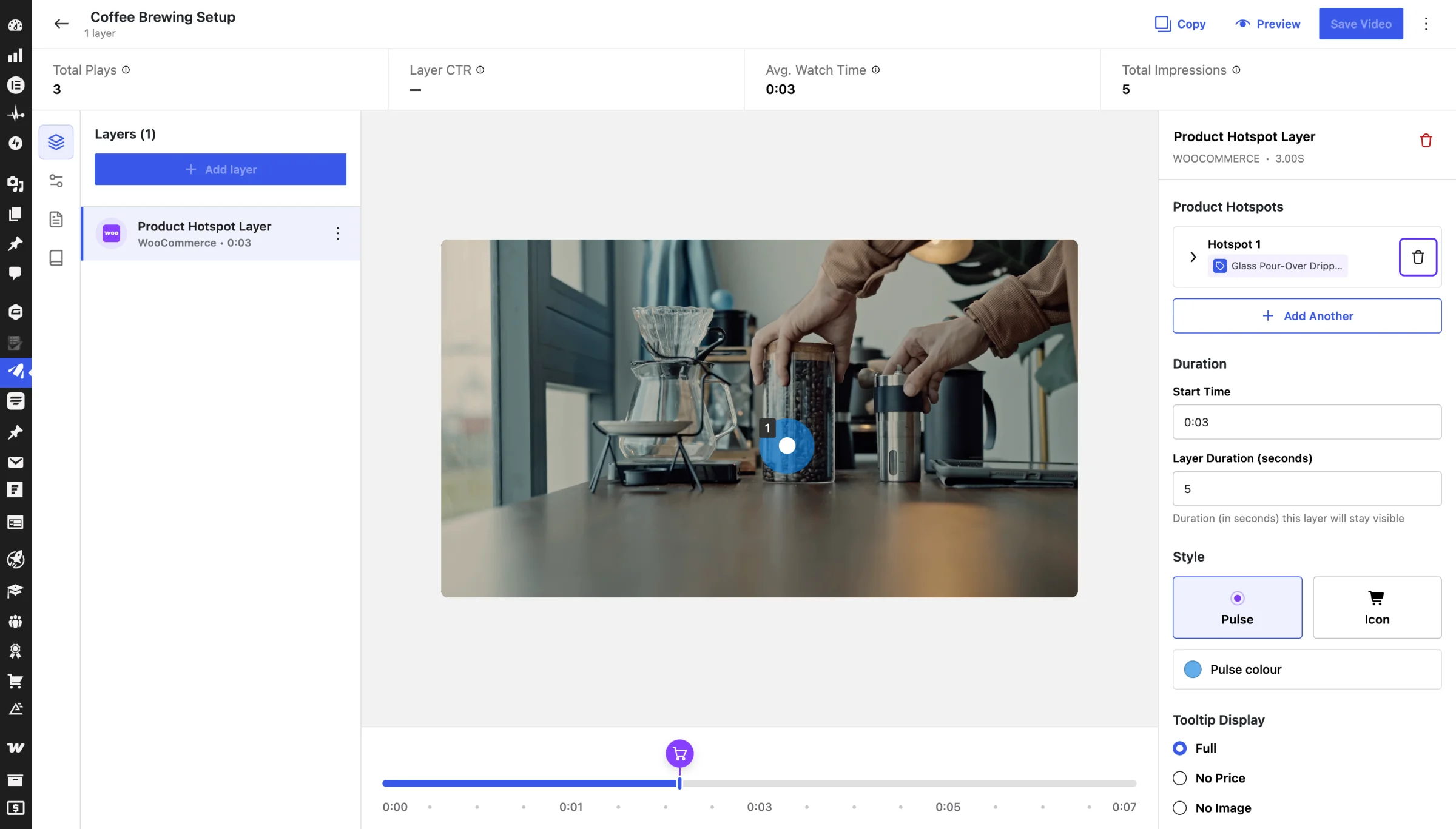
Step 7: You could further customize the product hotspot using the options mentioned in below screenshot:
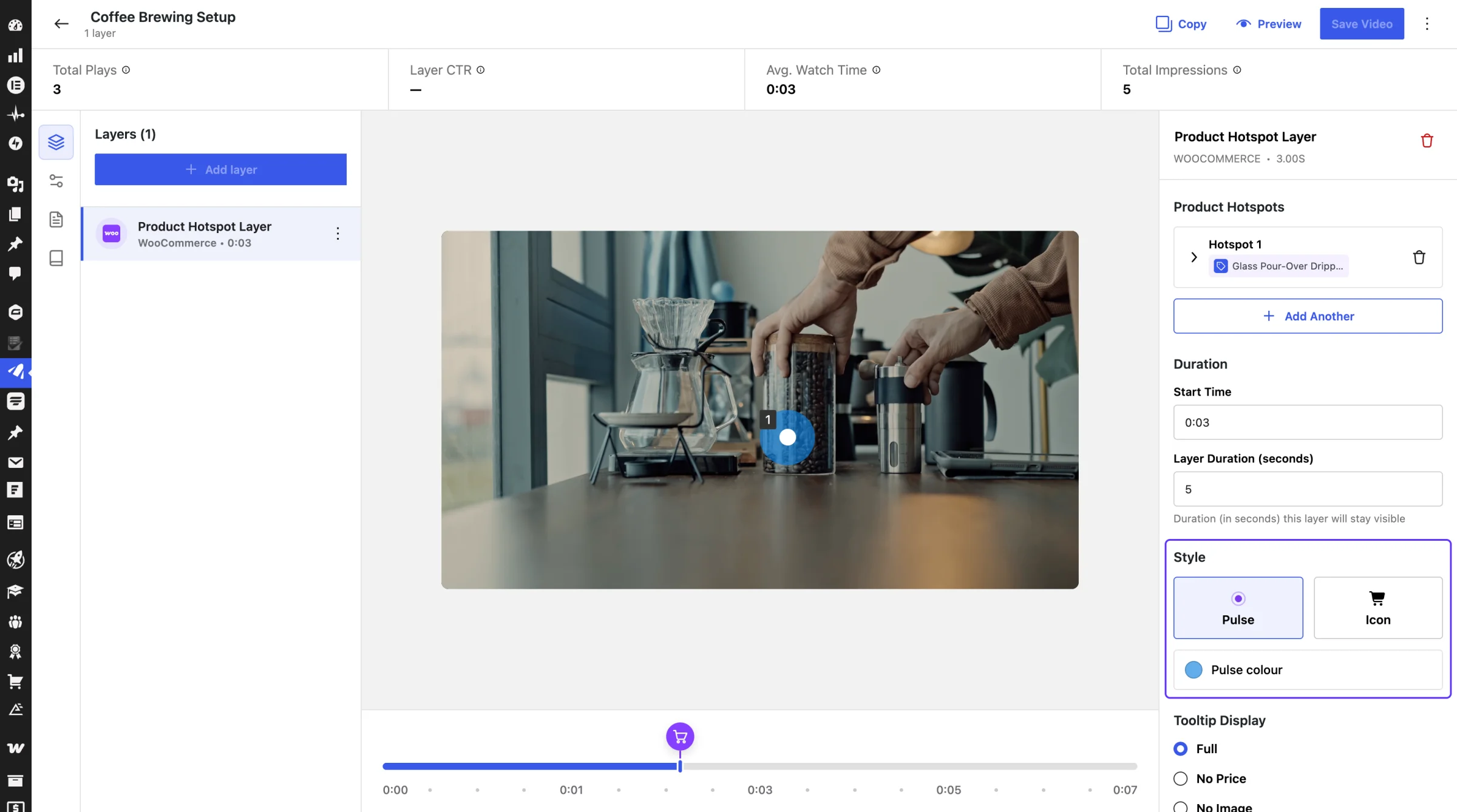
In the Style section, choose Pulse and set Pulse colour, or choose Icon and set Background (and Icon colour for library icons). Style applies to every hotspot in the layer.
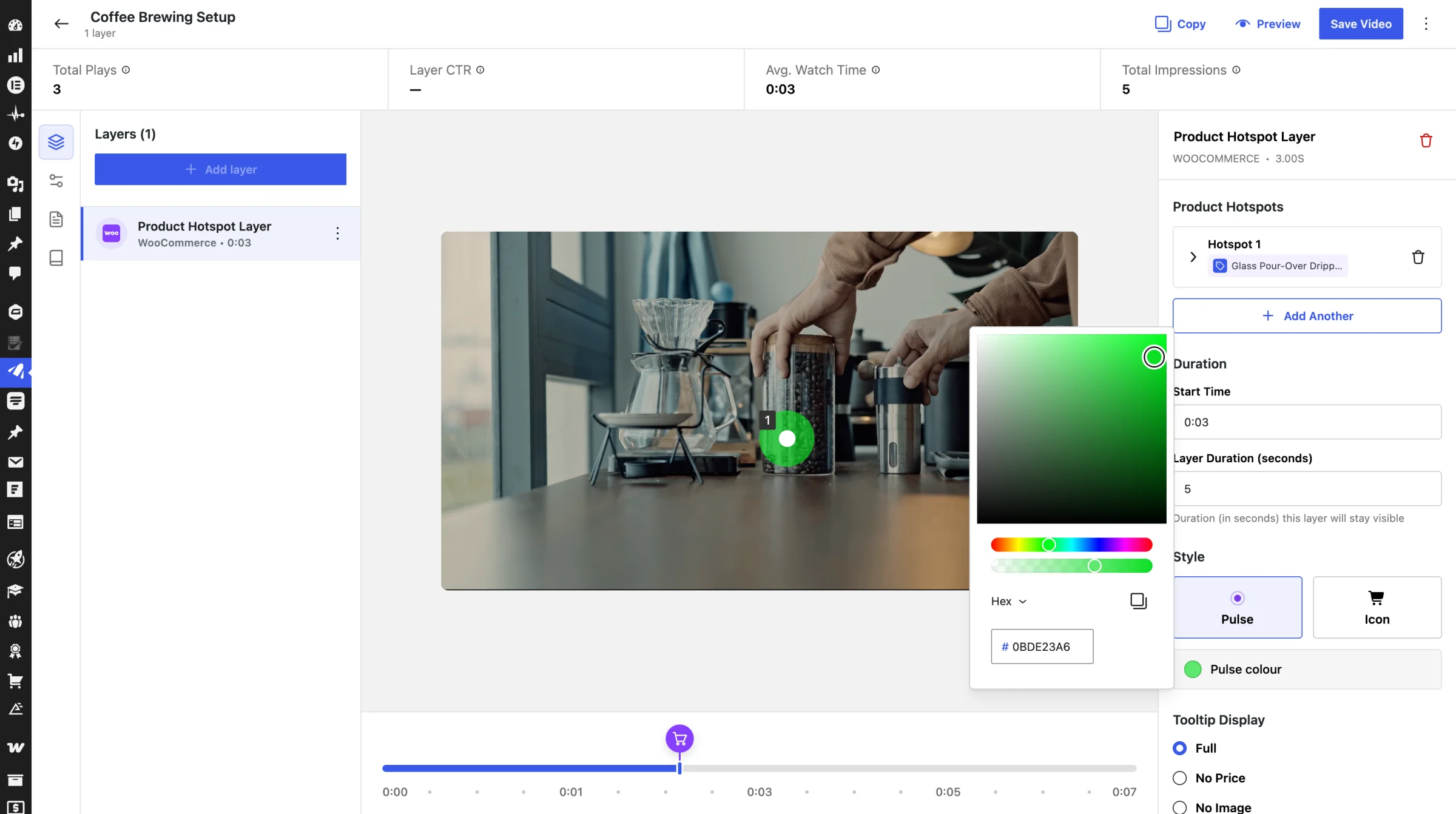
Step 8: To use an icon instead of the pulsing dot, set Style to Icon.
Step 9: Under Add Icon, click Select from library and pick an icon (the list has a search box), or click Add custom to upload your own image.
HOW TO DELETE A PRODUCT HOTSPOT?
Click the trash icon on the hotspot card (Delete Hotspot) in the Product Hotspots list.
See what your hotspots sell
A sale counts as Direct when the shopper adds a product from the hotspot inside the video, and as Assisted when they click through to the product page and buy there. Each hotspot’s in-video revenue shows in the video’s layer timeline. See Which hotspot sold it in Revenue Analytics.
FRONTEND PREVIEW