LearnDash
Make Learners Finish Your LearnDash Videos
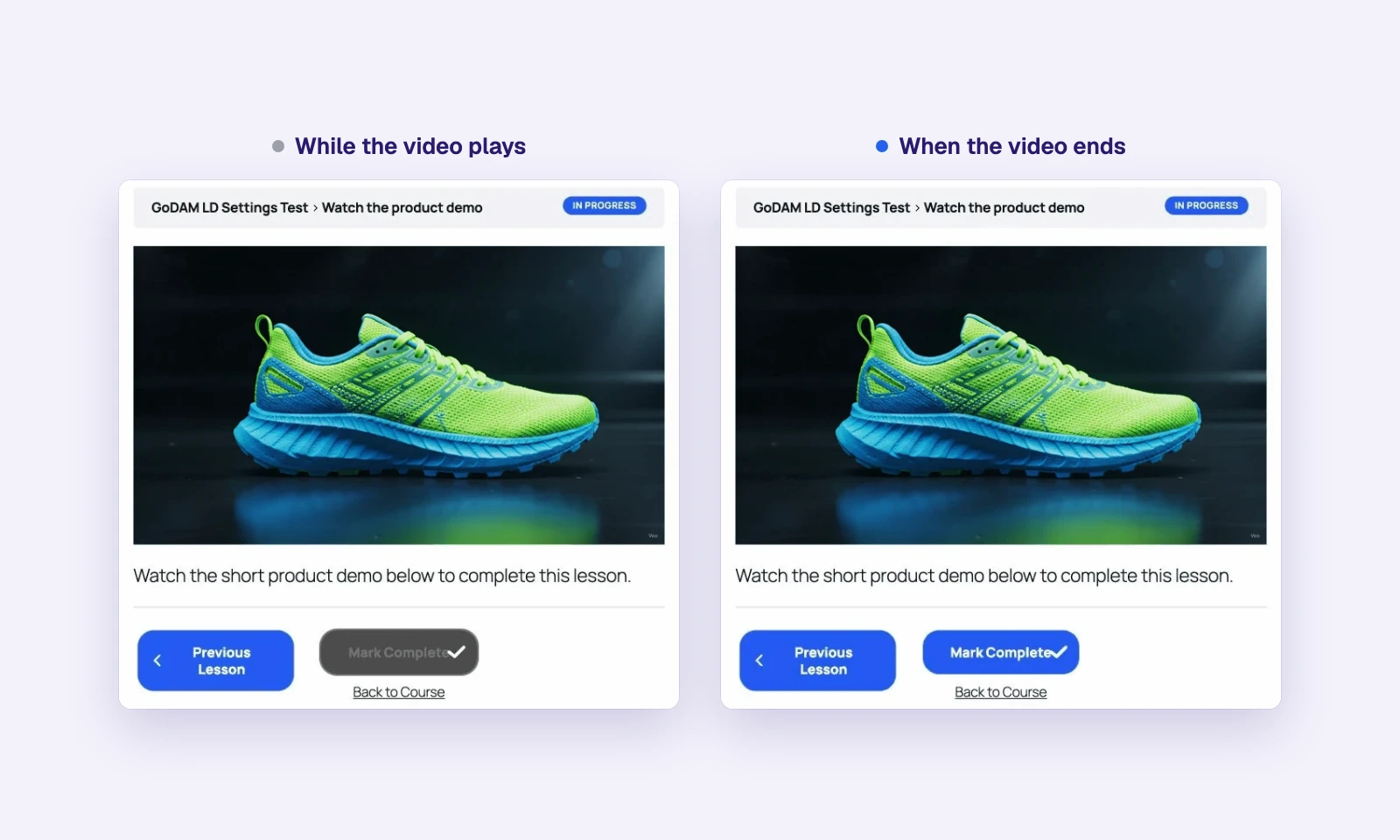
Use a GoDAM video as the LearnDash Video Progression video of any lesson or topic. Mark Complete stays locked until the video ends, and the player follows LearnDash’s Autostart, Video Resume and controls settings.
GoDAM Video in Video Progression
Turn on Use GoDAM Video and pick the lesson video from your media library.
Mark Complete Waits for the End
Learners can complete the lesson or topic only after the video ends.
LearnDash Settings Still Apply
Autostart, Video Resume, controls and pause when the window loses focus.
Turn On Use GoDAM Video
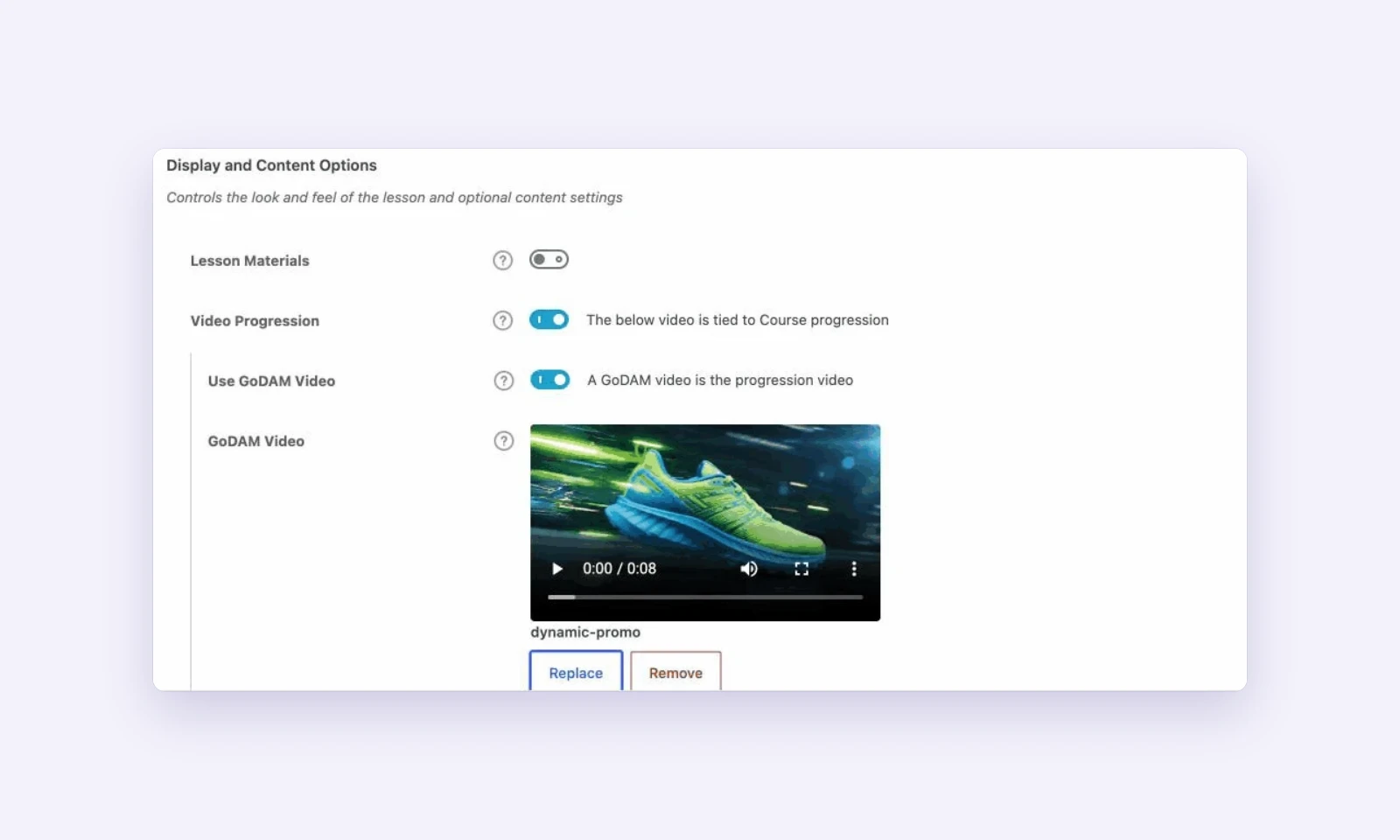
Open a lesson or topic, go to the Settings tab and turn on Video Progression, then Use GoDAM Video. The Video URL field makes way for a GoDAM Video field with a preview of the video you pick.
Set Up LearnDash in Three Steps

Turn On Video Progression
In the lesson or topic Settings tab, turn on Video Progression and Use GoDAM Video.

Pick the Video
Click Select video and choose a video, or leave it empty to use the lesson’s GoDAM Video block.

Save the Lesson
Learners now watch to the end before Mark Complete unlocks. Full steps are in the LearnDash setup guide.
FAQs
Frequently Asked Questions
What you need to know before you use GoDAM videos with LearnDash.
Who is the LearnDash integration for?
Course creators who run LearnDash on WordPress and want learners to watch the lesson video before they move on.
What do I need to get started?
The GoDAM plugin, version 2.11.0 or later, and LearnDash installed and active. It works on every GoDAM plan. We tested it with LearnDash 5.3.1.
Which GoDAM videos can be the progression video?
Three: a video you pick from your media library (GoDAM tab included), the first GoDAM Video block in the lesson, or a GoDAM video link or embed code pasted into LearnDash’s Video URL field. Each lesson or topic has one progression video; other GoDAM videos in it play as normal videos.
Does it work on courses and quizzes?
Video Progression is a LearnDash setting for lessons and topics, so the integration works there.
Which LearnDash video settings work with GoDAM?
Display Timing, [ld_video] placement, Lesson auto-completion with a delay, hiding Mark Complete, Autostart (the video starts muted), Video Controls Display, Video Pause on Window Unfocused and Video Resume.
Can learners skip ahead?
“Watched” means the video reached its end. With Video Controls Display on, a learner can drag to the end, so turn it off when learners must not skip ahead. A video pasted as a link plays in an embedded player whose controls cannot be hidden.
What happens if I change the video?
LearnDash tracks progress per video, so learners who had not finished the step start the new video from the beginning.
Does Mark Complete lock for administrators too?
No. LearnDash doesn’t lock Mark Complete for administrators. To see the lock, sign in as a learner enrolled in the course.
More Integrations
Connect GoDAM with Your Favorite WordPress Tools
Integrate GoDAM with popular WordPress plugins to capture leads, engage viewers, and extend your video workflows.
LifterLMS
Deliver engaging online courses with lessons, quizzes, memberships, and interactive videos designed to improve learner outcomes.
WooCommerce
Sell course access and memberships through WooCommerce, with interactive GoDAM videos on your product pages.
Elementor
Design custom landing pages and interactive video experiences using Elementor’s drag-and-drop builder and flexible design controls.
HubSpot
Capture leads from lesson and webinar videos with in-video HubSpot forms that send contacts straight to your CRM.
WP-Polls
Add polls inside lesson videos to check understanding and gather learner feedback at the right moment.
Gravity Forms
Show Gravity Forms inside videos to collect quiz answers, feedback, and course sign-ups without leaving the lesson.
Make Learners Finish Your LearnDash Videos
Turn on Use GoDAM Video, pick the lesson video, and Mark Complete waits until it ends.