Overview
GoDAM videos work with LearnDash Video Progression. Learners have to watch the GoDAM video to the end before they can mark a lesson or topic complete, and the rest of LearnDash’s video settings, such as Autostart and Video Resume, apply to the GoDAM player.
Video Progression is a LearnDash feature: “Require users to watch the full video as part of the course progression.” While it is on, LearnDash keeps the Mark Complete button disabled until the video ends, and it refuses to complete the step until then. GoDAM adds a Use GoDAM Video switch to these settings, so the video can be:
- A video you pick from your media library, including the GoDAM tab.
- The first GoDAM Video block in the lesson’s content, when you don’t pick one.
- A GoDAM video URL pasted into LearnDash’s Video URL field.
Requirements
To follow this guide, you need:
- The GoDAM plugin, version 2.11.0 or later. The integration works on every GoDAM plan.
- LearnDash, installed and active. The integration was tested with LearnDash 5.3.1.
- A lesson or topic in a LearnDash course. LearnDash offers Video Progression only on lessons and topics.
Step 1: Turn on Video Progression and Use GoDAM Video
- In WordPress, open the lesson or topic and click the Settings tab at the top of the editor.
- Under Display and Content Options, turn on Video Progression.
- Turn on Use GoDAM Video. The Video URL field is replaced by a GoDAM Video field with a Select video button.
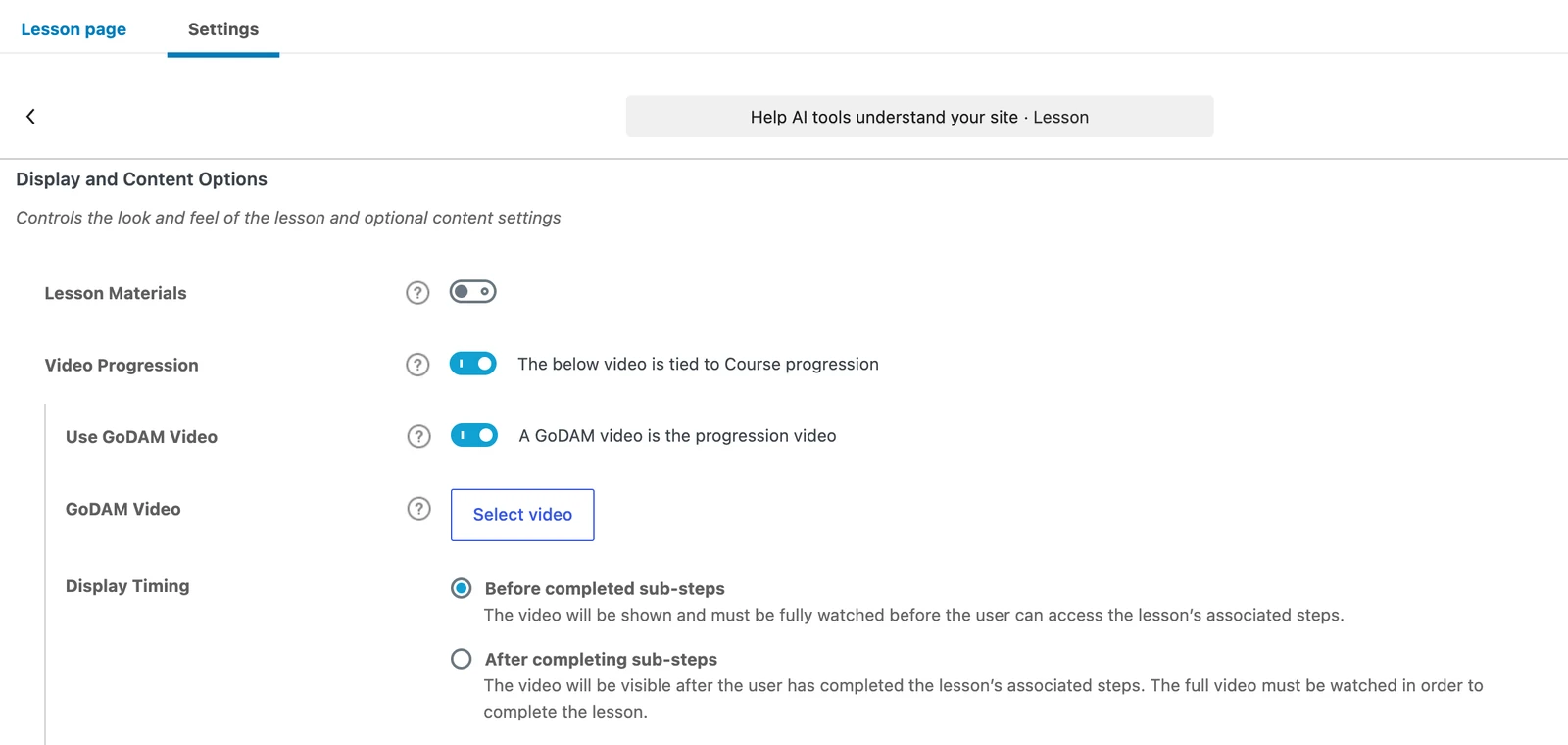
Note: LearnDash doesn’t let you turn on Video Progression while Forced Lesson Timer or Assignment Uploads is on for the same lesson. Turn those off first.
Step 2: Choose the video
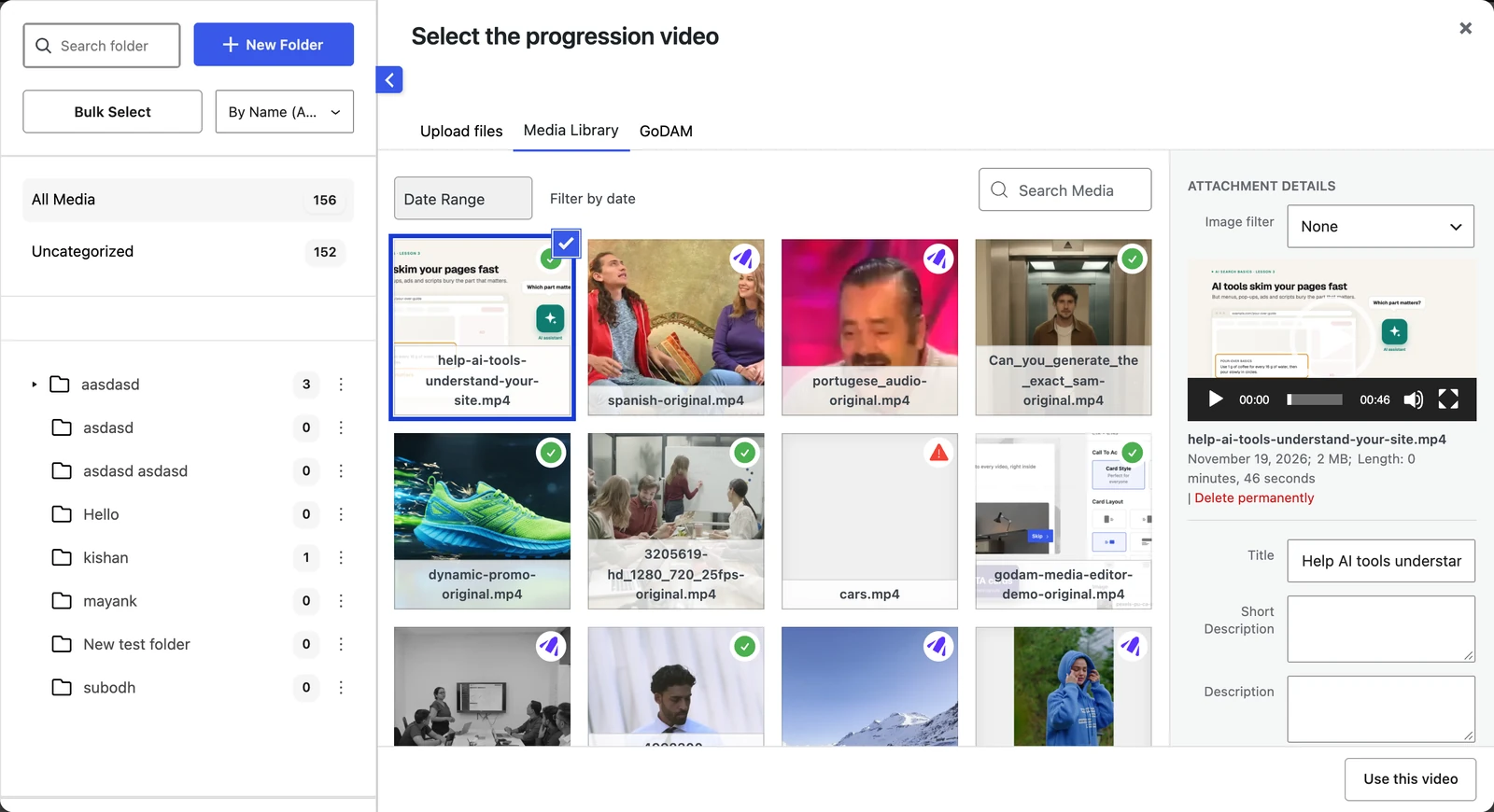
- Click Select video. The media library opens, showing videos only.
- Pick a video from the Media Library or GoDAM tab, then click Use this video.
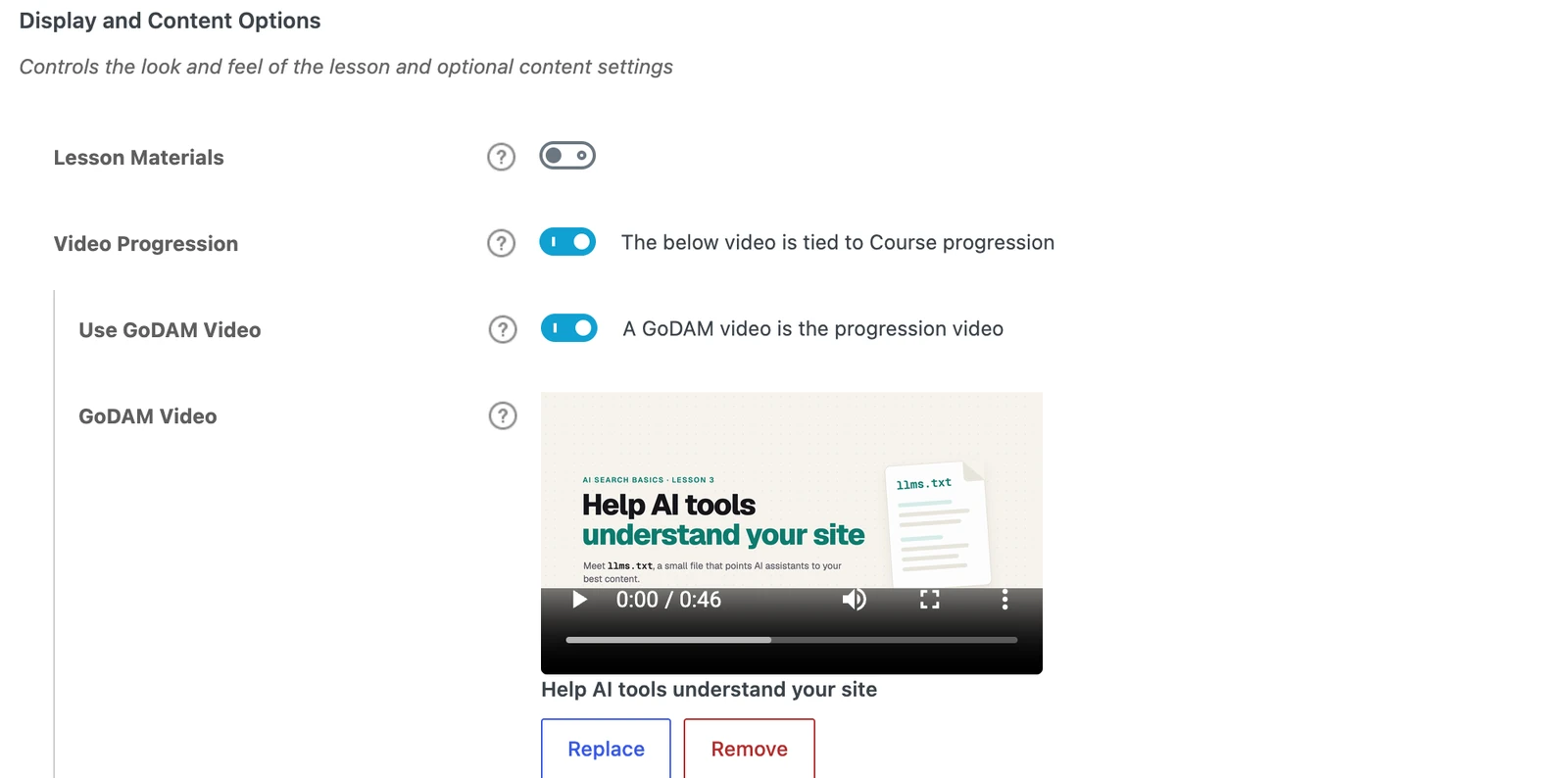
- The settings now show the video’s title and a preview. Use Replace to pick another video, or Remove to clear it.
- Click Save (or Update).
Using a GoDAM Video block instead? Leave the GoDAM Video field empty. GoDAM then uses the first GoDAM Video block in the lesson’s content as the progression video. LearnDash shows it where it shows lesson videos, so it doesn’t appear twice. To place it somewhere else in the content, add LearnDash’s [ld_video] shortcode there.
Tip: a video picked from the GoDAM tab is added to your media library first, which takes a moment. Wait until its preview shows before you save; a lesson saved before then falls back to the first GoDAM Video block.
Step 3: Set how the video plays
The LearnDash settings under Video Progression apply to the GoDAM video:
| Setting | What it does with a GoDAM video |
|---|---|
| Display Timing | Before completed sub-steps: the video shows first and must be watched before learners can open the lesson’s topics and quizzes. After completing sub-steps: the video shows once the sub-steps are done, and must be watched to complete the lesson. |
| Lesson auto-completion and Completion delay (After completing sub-steps) | Marks the lesson complete when the video ends, after the delay you set, in seconds. |
| Mark Complete Button (with Lesson auto-completion) | On, learners see the Mark Complete button, disabled, while the video plays. Off, the button is hidden and the lesson completes on its own when the video ends. |
| Autostart | Starts the video when the page loads. Browsers only allow this muted, so the video starts muted. |
| Video Controls Display | On, learners can pause and move backward and forward. Off, they see only a play button and can’t skip ahead. |
| Video Pause on Window Unfocused | Pauses the video when learners switch to another tab or window. |
| Video Resume | Starts the video where the learner left off. LearnDash keeps the position in a browser cookie. |
Autostart, Video Controls Display, Video Pause on Window Unfocused and Video Resume also apply when an administrator views the lesson, and when a learner watches a step they already completed.
What learners see
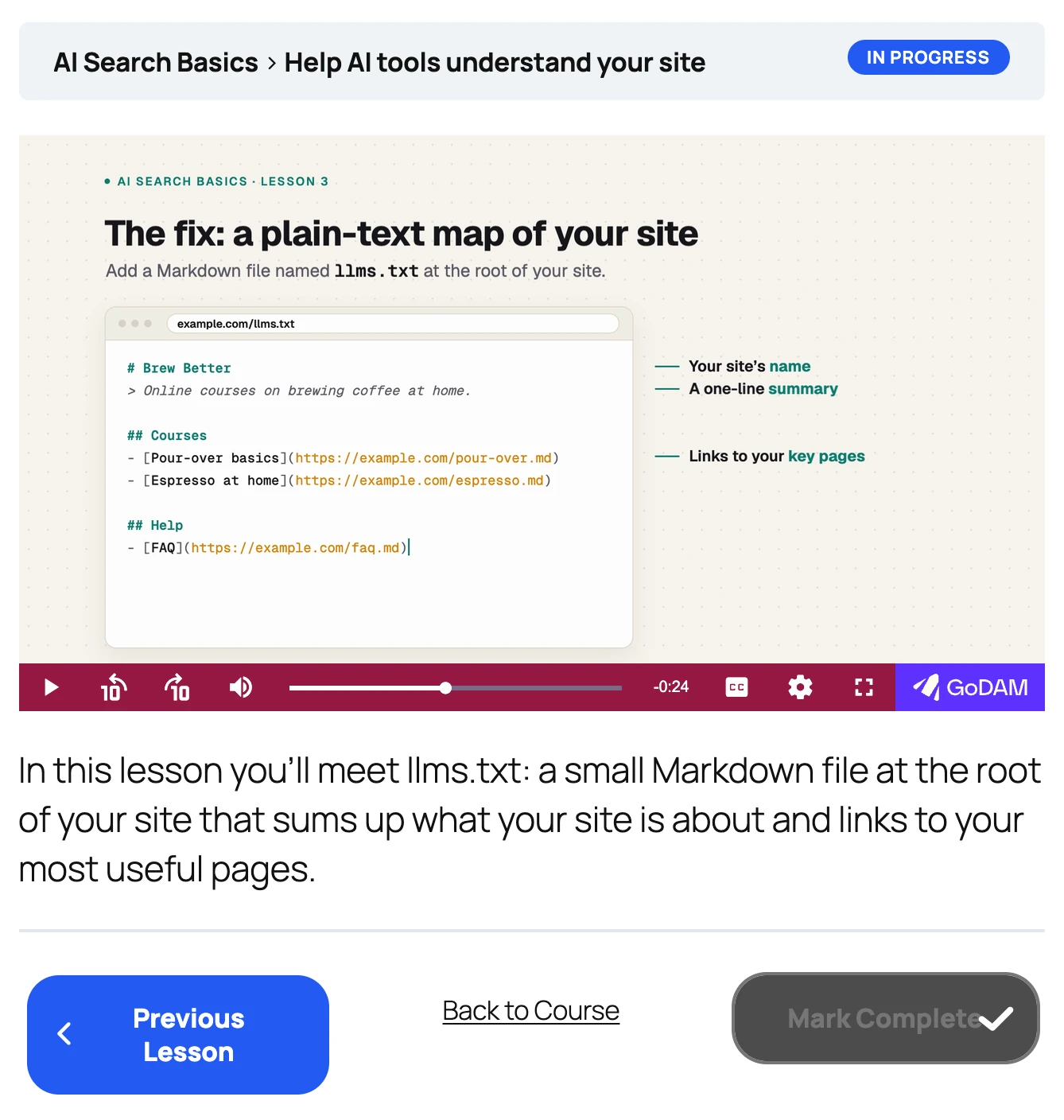
When a learner opens the lesson, the Mark Complete button is disabled while the video plays.
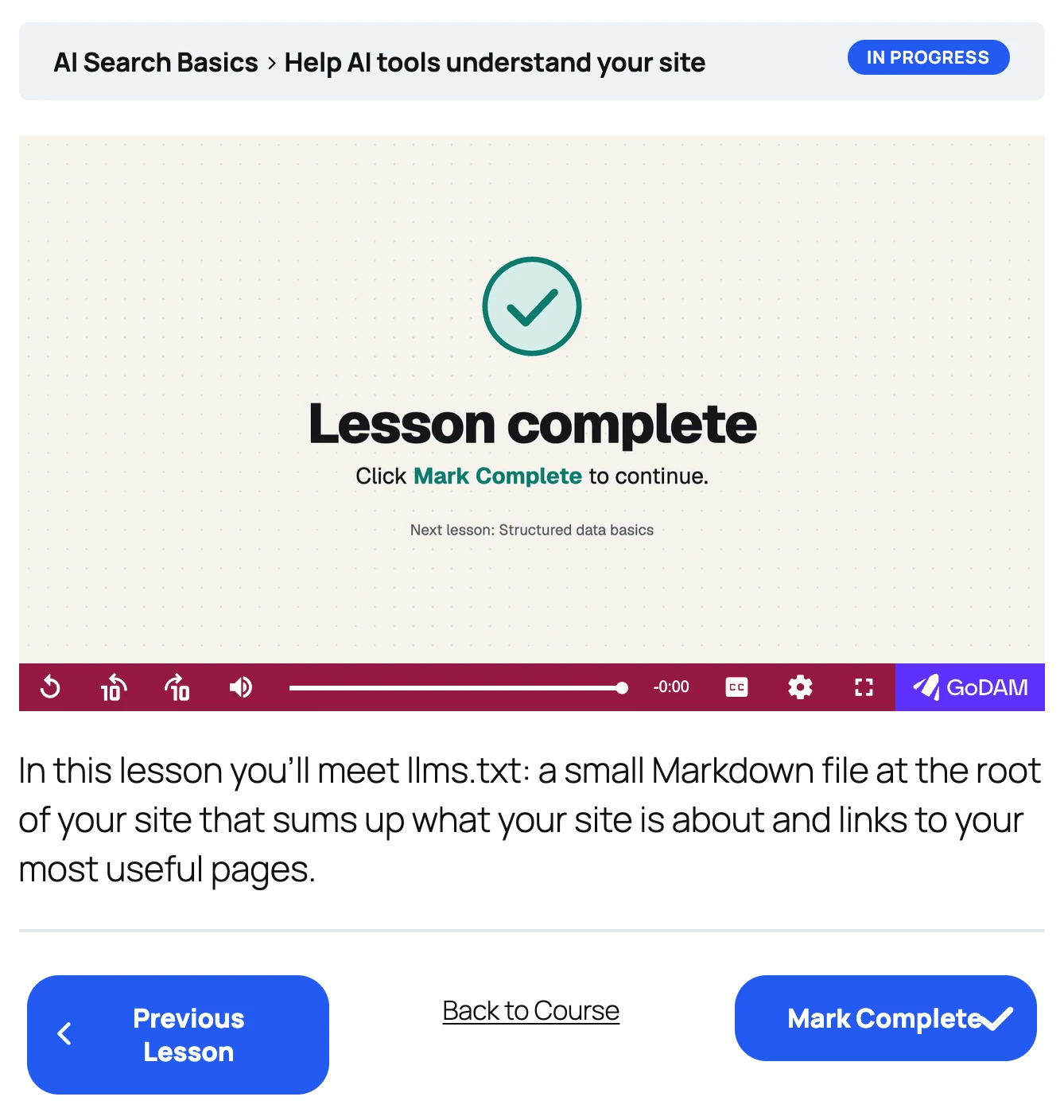
When the video reaches its end, the button turns on. The learner clicks Mark Complete, or LearnDash completes the lesson itself when Lesson auto-completion is on.
Testing it yourself? LearnDash doesn’t lock Mark Complete for administrators, so sign in as a learner enrolled in the course.
Use a GoDAM video URL instead
You can also leave Use GoDAM Video off and paste a GoDAM video into LearnDash’s Video URL field. Use the video’s link (https://app.godam.io/web/video/<video ID>), its embed code, or an shortcode with that link. Mark Complete stays locked until the video ends, as above.
The video then plays in an embedded GoDAM player, which LearnDash can’t hide the controls of: with Video Controls Display off, learners still see them. Pick the video in Step 2 instead when you need the controls hidden.
Good to know
- “Watched” means the video reached its end. With Video Controls Display on, a learner can drag to the end. Turn it off when learners must not skip ahead.
- One progression video per lesson or topic: the video you picked, or else the first GoDAM Video block. Other GoDAM videos in the content play as normal videos.
- Changing the video starts learners over. LearnDash tracks progress per video, so after you pick a different video, learners who had not finished the step have to watch the new one from the start.
- Turning Use GoDAM Video off clears the GoDAM video from the step, so you can enter another Video URL.
Troubleshooting
| What you see | What to do |
|---|---|
| There is no Use GoDAM Video switch. | Turn on Video Progression first; the switch is under it. Check that GoDAM 2.11.0 or later and LearnDash are both active. |
| Video Progression won’t turn on. | Turn off Forced Lesson Timer and Assignment Uploads for the lesson. |
| Mark Complete isn’t disabled. | You may be signed in as an administrator, or the learner already completed the step. Check as an enrolled learner who hasn’t. |
| The lesson shows no video. | No video is picked and the content has no GoDAM Video block. Pick a video in Step 2, or add a GoDAM Video block to the content. |
| The controls still show with Video Controls Display off. | The video is a pasted GoDAM URL. Turn on Use GoDAM Video and pick the video instead. |