
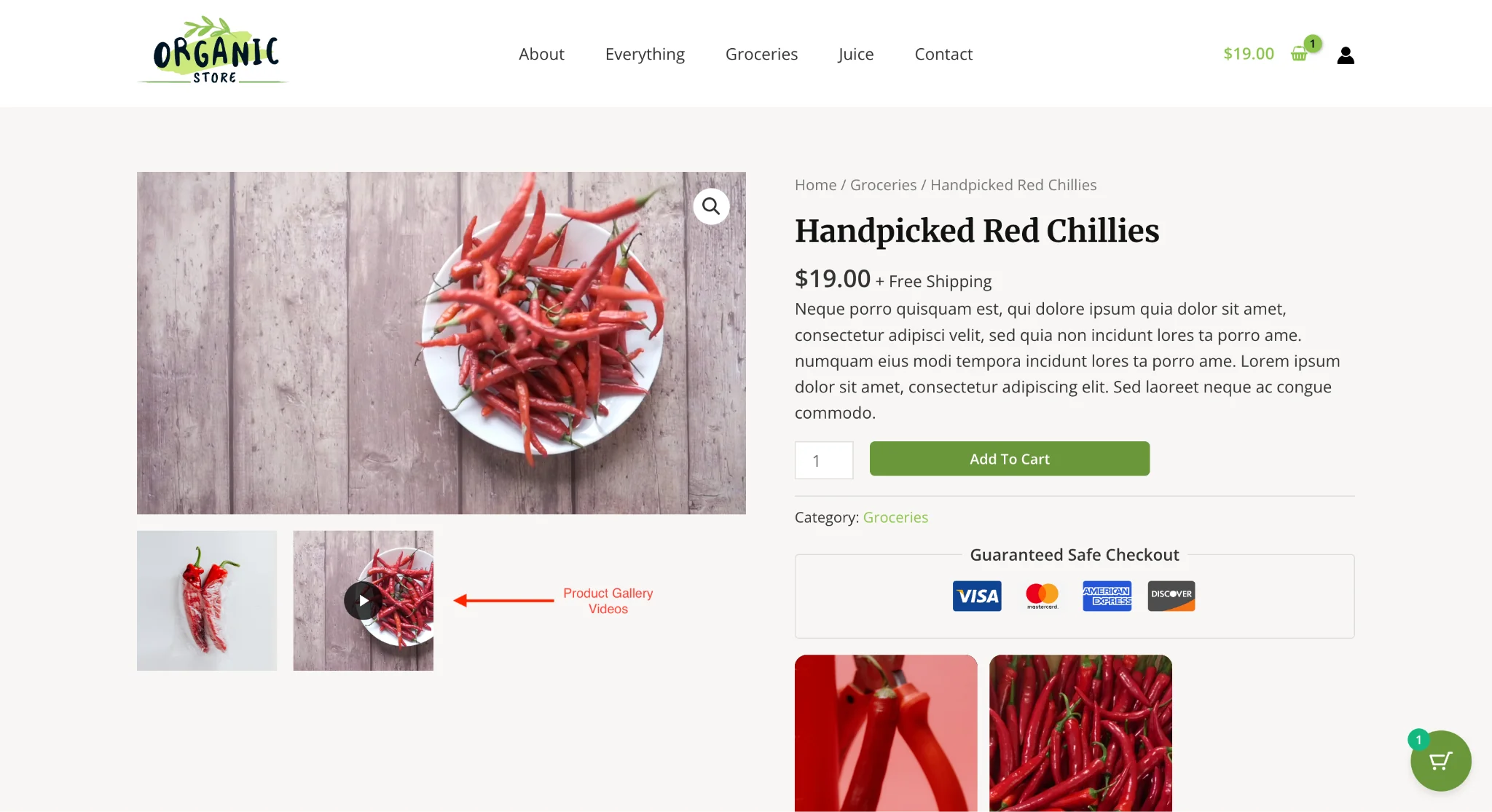
The GoDAM Product Gallery Video enhances WooCommerce product pages by allowing you to upload both images and videos to the Product Gallery Metabox. This feature is built directly into GoDAM’s WooCommerce integration and works seamlessly on the frontend—no API keys, subscriptions, or additional configuration required.
It is designed to improve customer engagement with richer, more interactive product presentations.
Key Features
- Dual Media Support – Upload product videos alongside product images in the WooCommerce Product Gallery.
- Seamless Integration – Works within the native Product Gallery Metabox in the WooCommerce product edit screen.
- Frontend Compatibility – Videos and images appear together in the WooCommerce product gallery slider, ensuring a consistent look and feel.
Setup Guide
- Edit a Product in WooCommerce.
- Locate the Product Gallery Metabox in the right-hand column of the product edit page.
- Click on `Add product gallery images and videos` Upload images and videos:
- Click Add to Gallery in the media library modal to upload images or videos from your media library.
- Videos can be in supported formats (e.g., MP4).
- Save/Update the product.
- On the frontend, the gallery will display both media types in the same slider, allowing customers to view product videos alongside images.
Implementation Details & Compatibility
- Media Formats Supported: Standard image formats (JPEG, PNG) and video formats (MP4 and so on).
- Location in Admin:
- Product Edit Page → Product Gallery Metabox.
- Frontend Display: Media items appear in the same WooCommerce gallery carousel. Clicking a video thumbnail will play the video.
Note: Transcoded videos with selected thumbnails will show thumbnail previews on video tiles. - Theme Compatibility: Works with most WooCommerce-compatible themes. If custom styling is used, you may need to adjust CSS for optimal display.
Interactive Features
Video Modal Player
When visitors click on a video thumbnail, a video modal seamlessly opens within the Product Media Gallery, replacing the main product image area without redirecting the user away from the page. This allows customers to instantly view and interact with product videos directly inside the gallery slider alongside images, creating a more immersive and engaging product browsing experience.
Best Practices
- Use High-Quality Media – Ensure videos and images are optimized for fast loading without sacrificing quality.
- Keep Videos Short – Ideal length is 20–60 seconds for quick product highlights.
- Fallback Thumbnail for Videos – Set a cover image for videos to display in the gallery before playback.
Customization Options
Theme Integration
The gallery automatically adapts to your WordPress theme’s styling:
- Color Schemes: Inherits your theme’s color palette
- Typography: Matches your theme’s font choices
- Spacing: Consistent with your theme’s layout patterns
- Responsive Breakpoints: Aligns with your theme’s mobile responsiveness
Custom CSS Classes and Variables
Each gallery element includes CSS classes and variables for easy customization:
- Target specific layouts, columns, or video items
- Override default styling to match your brand
- Add custom animations or hover effects
- Integrate with your existing design system