
In this documentation you will learn how to use Google Tag Manager with GoDAM Videos.
What is GoDAM GTM integration?
Google Tag Manager (GTM) integration for GoDAM allows you to track detailed video engagement metrics and user behavior. This helps you understand how your audience interacts with your videos, measure content performance, and optimize your video marketing strategy. Learn more about GTM.
Why Use GTM with GoDAM?
Track Video Performance
- See which videos get the most engagement
- Identify where viewers drop off
- Measure completion rates
Improve Marketing Campaigns
- Track video conversions
- Measure ROI on video content
- Optimize video placement and timing
Better Analytics
- Detailed engagement metrics
- User behavior insights
- Performance comparisons
What Gets Tracked?
When enabled, GoDAM automatically tracks these video events:
| Event | When It Happens | What It Tells You |
|---|---|---|
| Video Start | When someone clicks play | How many people are interested in your content |
| 25% Progress | When 25% of video is watched | Early engagement level |
| 50% Progress | When half the video is watched | Mid-point engagement |
| 75% Progress | When 75% of video is watched | Strong engagement |
| Video Complete | When video finishes | Full engagement and conversion |
With GoDAM for WooCommerce
If the GoDAM for Woo add-on is active, the same switch also sends two standard GA4 ecommerce events for sales that came from a video:
| Event | When it happens | What it tells you |
|---|---|---|
| add_to_cart | A product credited to a video is added to the cart | Which products your videos put in carts |
| purchase | The order’s thank-you page loads | The value of the video-credited products in the order |
Both carry godam_source: 'video' and the video’s ID (godam_video_id on add_to_cart, video_id on each purchase item), so you can tell video sales from the rest. Details are in Send video sales to Google Analytics.
Step-by-Step Setup Guide
Step 1: Install Google Tag Manager
If you don’t have GTM set up yet, create a GTM Account
- Go to tagmanager.google.com
- Sign in with your Google account
- Create a new account and container
- Get the GTM container ID
Step 2: Add the GTM container to your site
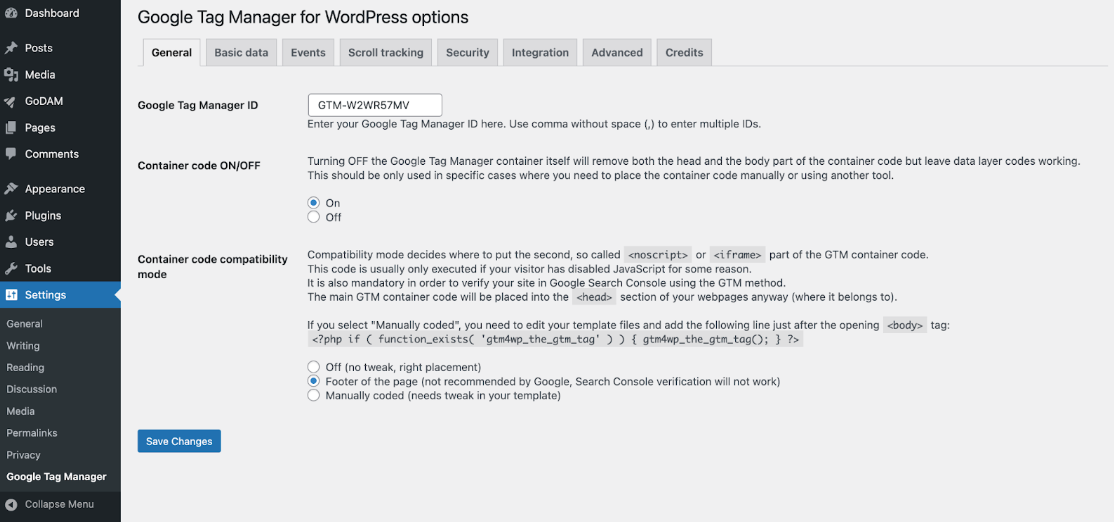
GoDAM sends its events to your page’s data layer, so your GTM container has to be on the page. Use one of these:
- The GTM4WP plugin. Install and activate GTM4WP and add your GTM container ID.
- Your own code. Paste the container snippet from Tag Manager into your site’s <head>, through your theme or a header-code plugin.
Using GoDAM for WooCommerce? While GTM4WP is active, GoDAM for Woo does not send its add_to_cart and purchase events, even if GTM4WP’s own WooCommerce tracking is off. It holds back so a sale is not counted twice, and the Google Analytics strip on the GoDAM Dashboard says “GoDAM is standing down”. Video events are not affected.
Step 3: Enable GTM Tracking in GoDAM
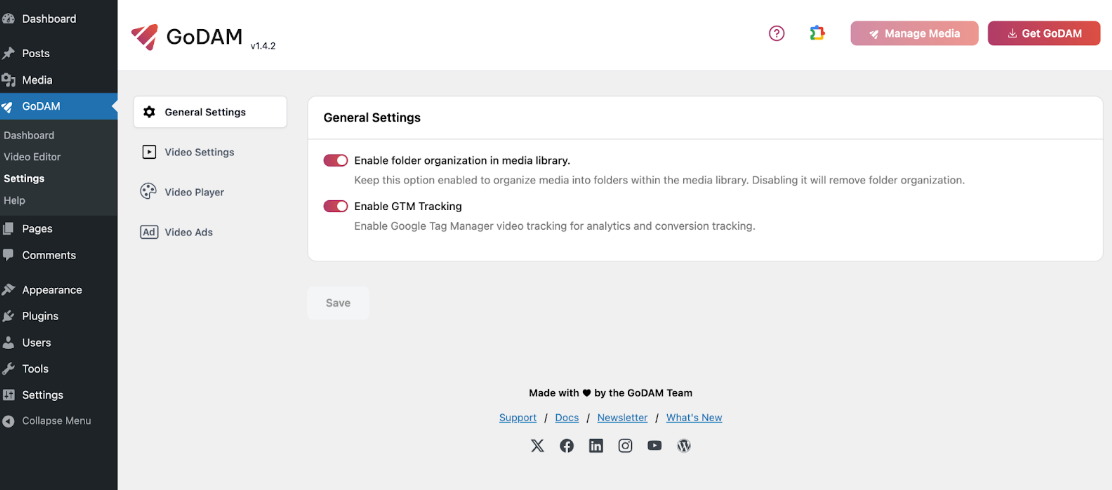
- Go to GoDAM Settings
- In your WordPress admin, navigate to GoDAM → Settings
- Click on the General Settings tab
- Turn on GTM Tracking
- Find the “Enable GTM Tracking” option
- Toggle it ON
- Click Save Settings
With GoDAM for WooCommerce, this switch also turns on the add_to_cart and purchase events and the Google Analytics status strip on the GoDAM Dashboard.
Step 4: Configure Google Tag Manager
Create Triggers
In your GTM container, create these triggers:
Video Start Trigger:
- Trigger Type: Custom Event
- Event Name: video_start
Video Progress Trigger:
- Trigger Type: Custom Event
- Event Name: video_progress
Video Complete Trigger:
- Trigger Type: Custom Event
- Event Name: video_complete
Use Exact Match for simple, precise event tracking. Use Regex Match when you need pattern matching or want to catch variations.
Example:
- Exact Match: video_start – Fires only for the exact event name “video_start”
- Regex Match: ^video_(start|progress|complete)$ – Fires for “video_start”, “video_progress”, or “video_complete”
Create Variables
Set up these data layer variables to capture video information:
| Variable Name | Data Layer Variable | Description |
|---|---|---|
| Video URL | video_url | URL of the video |
| Video Title | video_title | Name of the video |
| Progress Percentage | video_progress_percentage | How much of video was watched |
| Page URL | page_url | URL where video is embedded |
| Page Title | page_title | Title of the page |
Create Tags
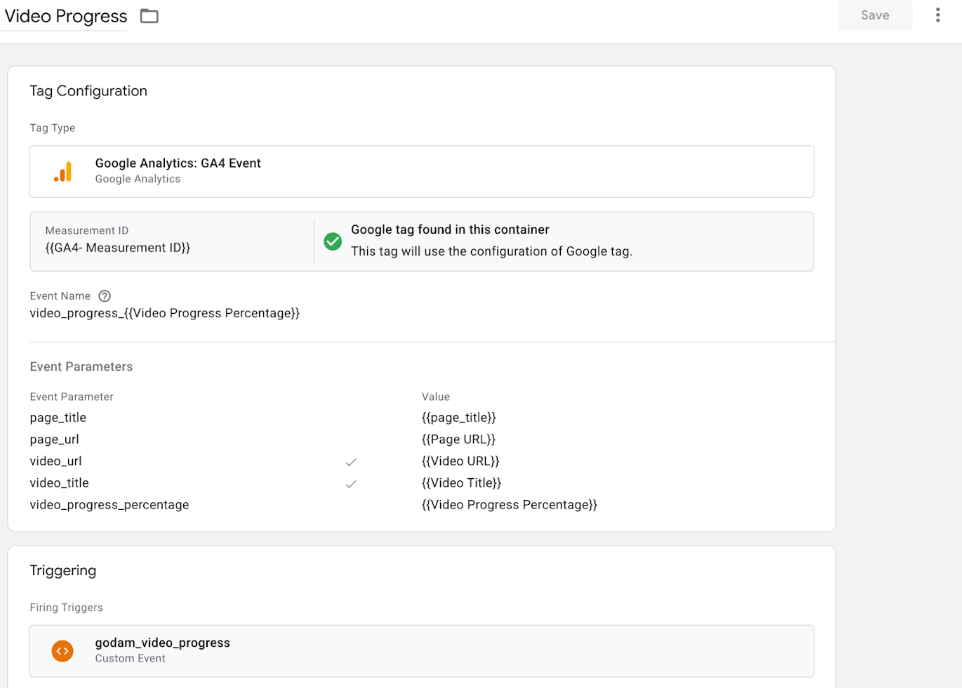
For Google Analytics 4:
- Create GA4 Event Tags
- Tag Type: Google Analytics: GA4 Event
- Event Name: video_start (create separate tags for each event)
- Event Parameters:
- video_url: {{Video URL}}
- video_title: {{Video Title}}
- page_url: {{Page URL}}
- page_title:{{Page Title}}
Similarly create video_progress and video_complete events.
- Set Up Conversion Goals
- In Google Analytics, create goals based on video_complete events
- Set up audiences for different engagement levels
Step 5: Test Your Setup
- Use GTM Preview Mode
- In GTM, click “Preview”
- Visit a page with a GoDAM video
- Play the video and watch for events in GTM preview
- Verify Events
- You should see video_start when you play
- Progress events at 25%, 50%, 75%
- video_complete when video finishes
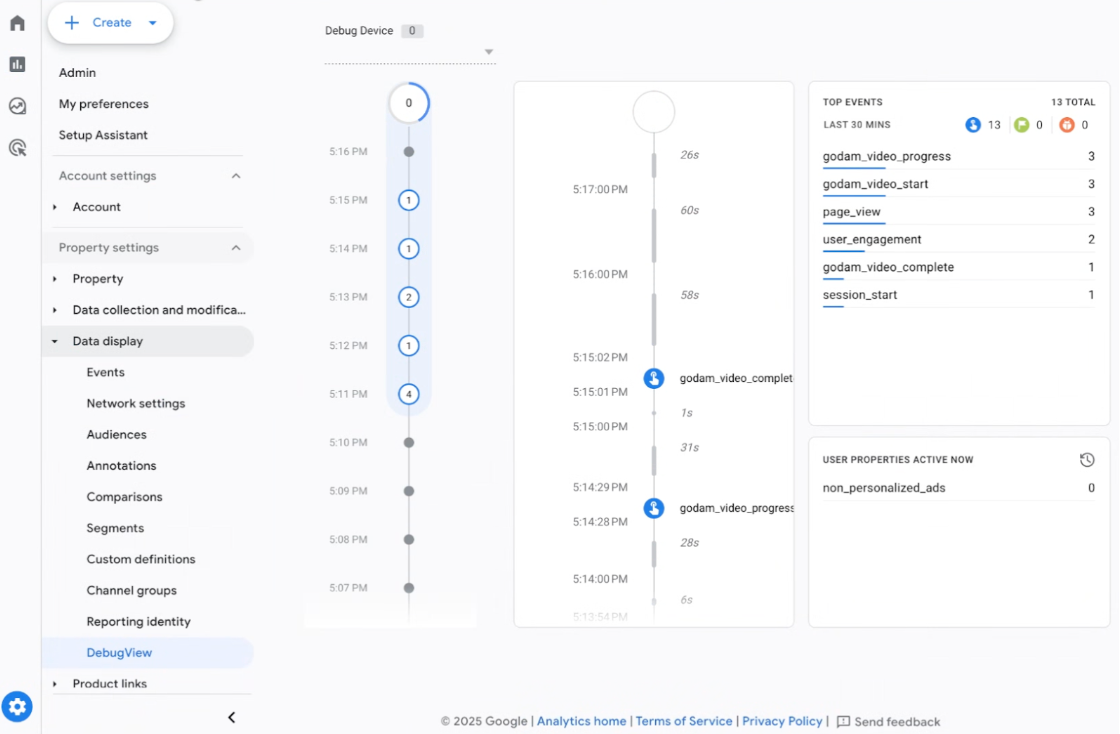
You can go to your account on analytics.google.com and see the live events in DebugView
Troubleshooting
The GoDAM Dashboard says “GoDAM is standing down”. GTM4WP or Google Analytics for WooCommerce is active, so GoDAM for Woo is not sending add_to_cart and purchase. See the note under Step 2.
No add_to_cart or purchase events in GTM Preview. Check that GoDAM for Woo is active and Enable GTM Tracking is on. GoDAM only sends these events for products credited to a video, so test by adding a product from a video.
Next Steps
Once your GTM integration is set up and working, you can start leveraging the video engagement data to improve your content strategy. Create custom dashboards in Google Analytics to monitor video performance and set up alerts for significant changes in engagement metrics. Use the drop-off data to identify specific timestamps where viewers lose interest and optimize your content accordingly. Track which videos drive the most conversions and completion rates to identify your best-performing content.