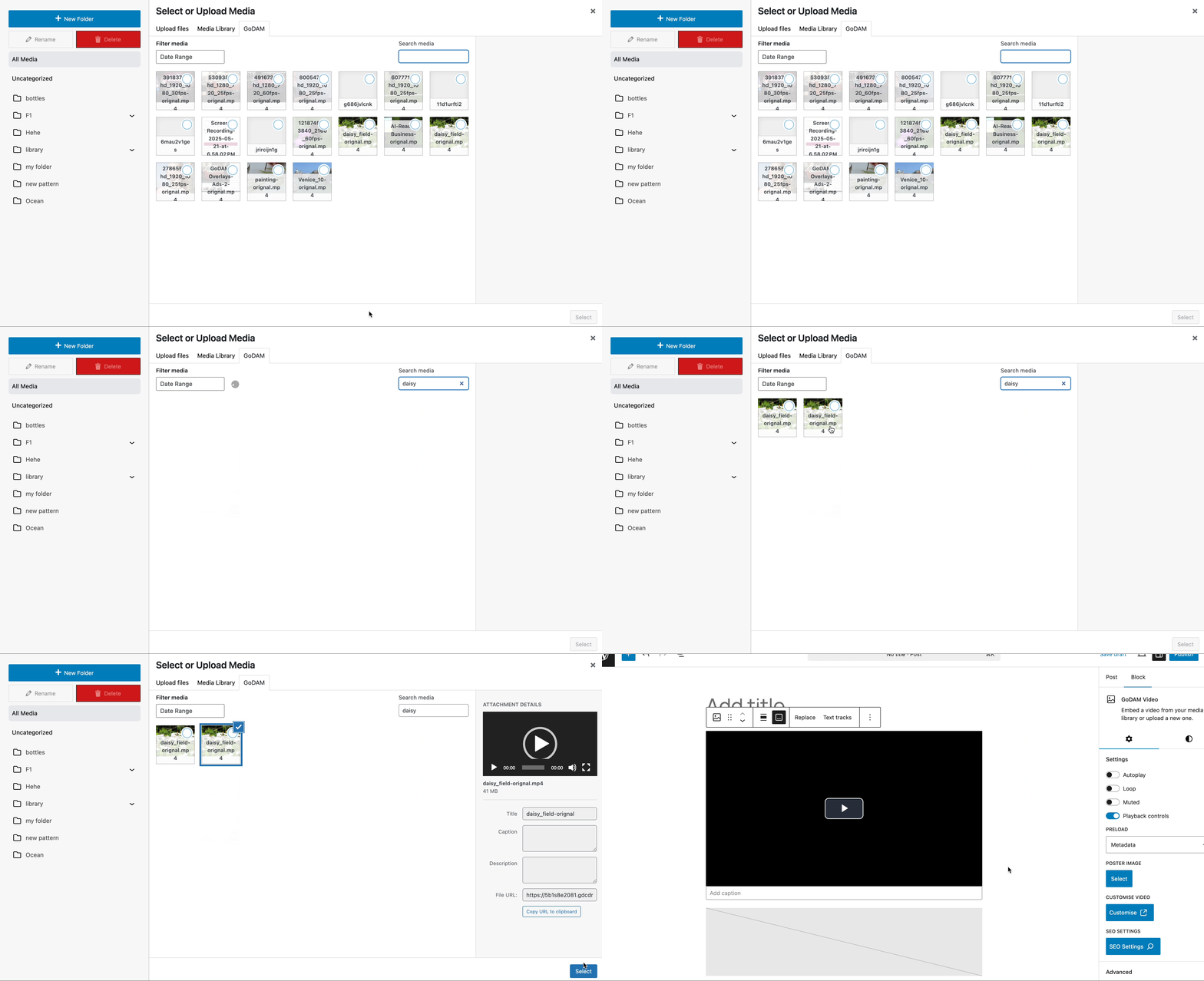
The GoDAM WordPress plugin adds in a GoDAM media tab to the existing WordPress Media Library uploader, allowing you to seamlessly use your existing media management workflows.

In addition to the default Media Library, which displays assets uploaded only to the current site, the GoDAM media tab shows all media uploaded across every connected site using the same API license key. This allows you to access and embed any video, image, or audio file from one centralized location on any connected site.
You can use the GoDAM media tab with any media block, giving you seamless access to shared assets across your multisite setup. It’s fully compatible with:
- GoDAM Audio Block – Instantly access and embed your audio files hosted on GoDAM CDN.
- GoDAM Video Block – Browse and insert videos directly without switching tabs or re-uploading.
- Image Block – Quickly pull in shared images from across your sites without clutter or duplication.
Whether you’re adding podcasts, explainer videos, or product images, the GoDAM Media tab keeps everything in one place — simplifying your workflow and ensuring consistency across your content.
How to access the GoDAM media tab
Step 1: Open any WordPress post or page
Step 2: Add media as you normally would using either the default WordPress Video or Image, or GoDAM Audio or Video blocks
Step 3: Select “Media Library” and then switch to the GoDAM media tab at the top
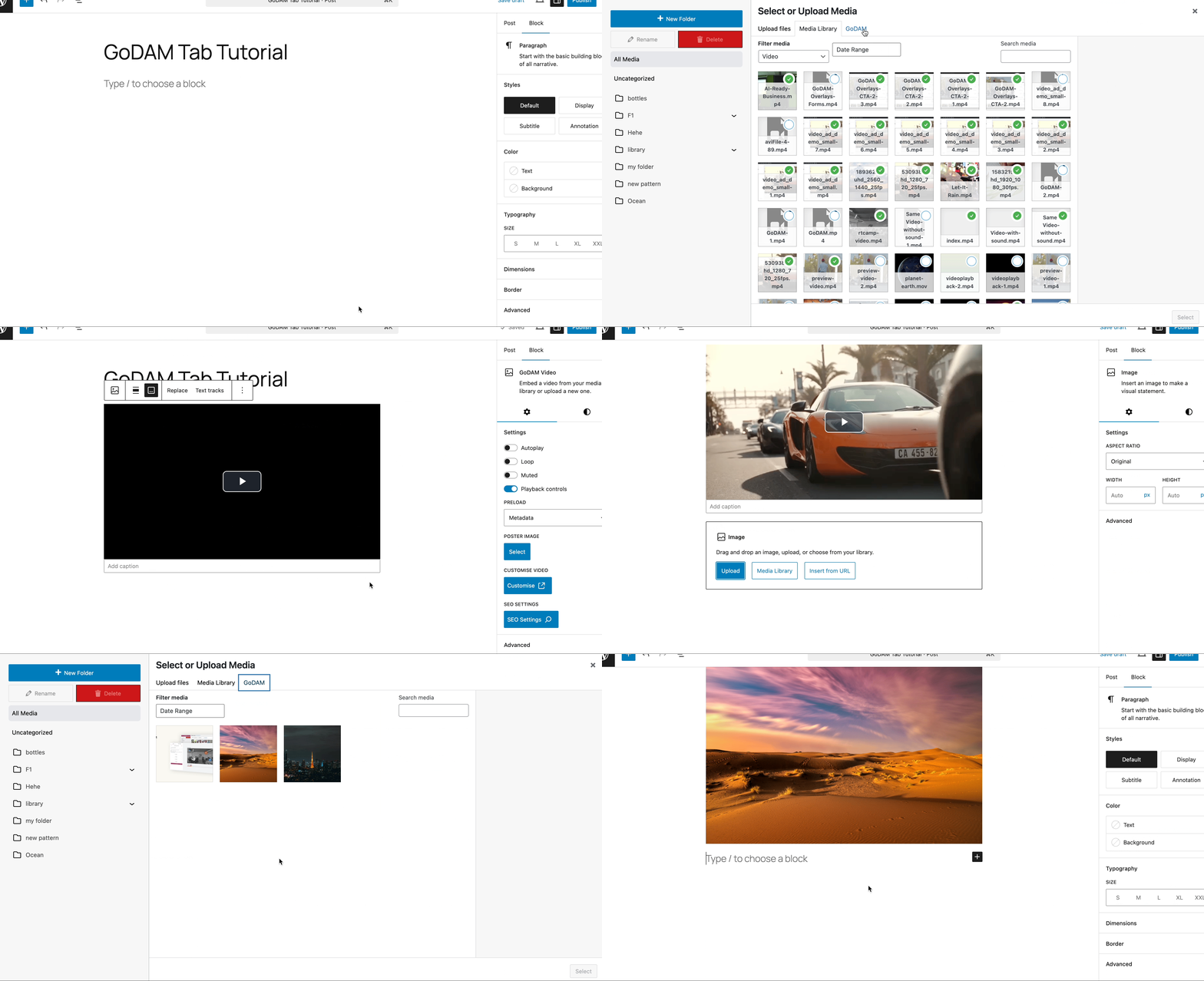
Preset filters with the GoDAM media tab
- In the GoDAM Video block, you’ll see all video assets, no matter which site they were uploaded from.
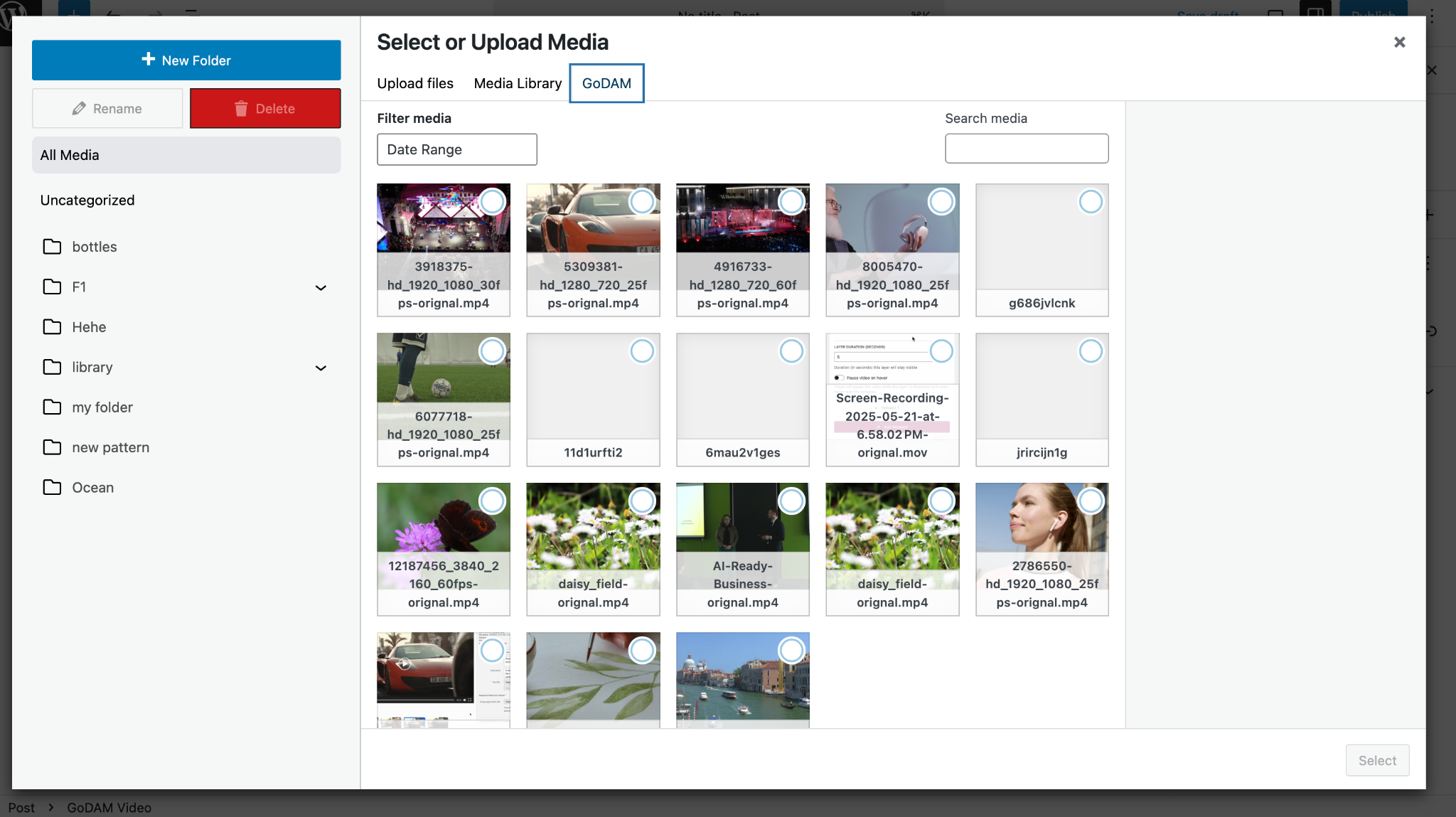
- In the Image block, only image files are displayed after smart filtering.
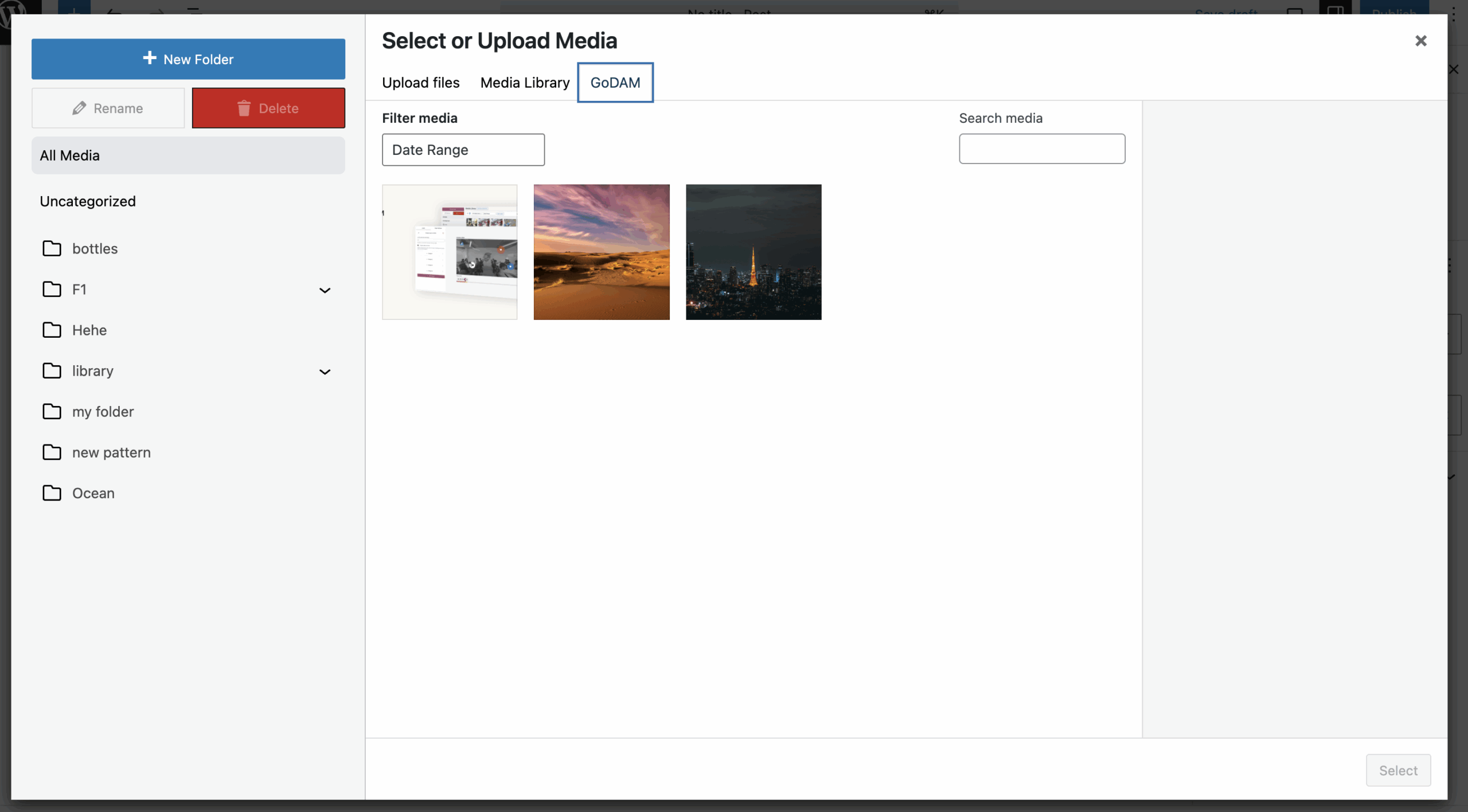
- In the GoDAM Audio block, you’ll only see only your audio assets.
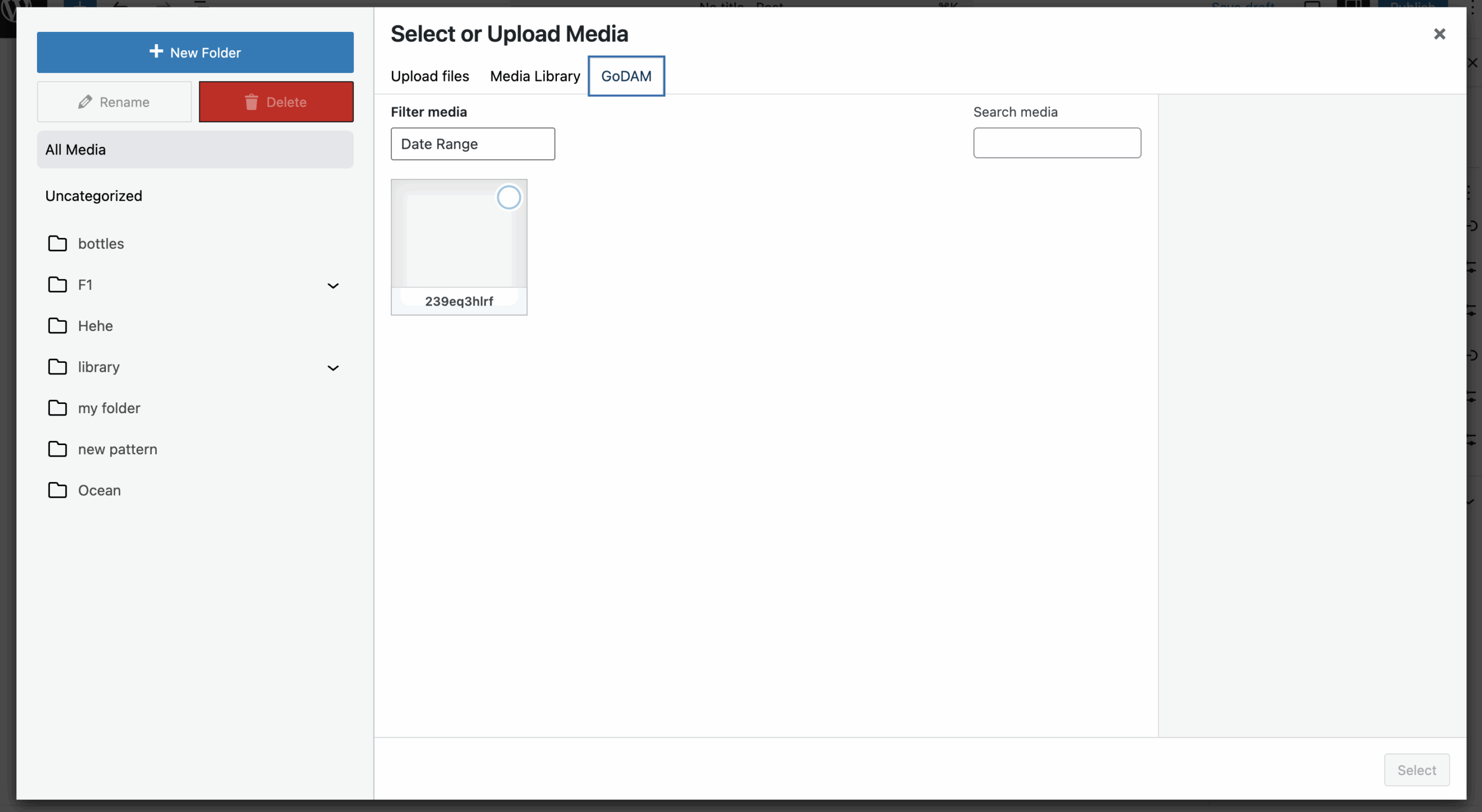
It is also possible to Filter media by date range or Search media by name for quicker discovery from the GoDAM media tab.