Overview
From GoDAM 2.6.0 you can show a HubSpot form inside a video. Add a HubSpot form layer at any point in the video: viewers fill it in without leaving the player, and each entry is saved in HubSpot as a form submission.
When HubSpot is connected through GoDAM, you can also record how far a known HubSpot contact watched a video.
Requirements
To follow this guide, you need:
- The GoDAM plugin, version 2.6.0 or later, connected to GoDAM with an API key.
- A HubSpot account with at least one form.
GoDAM can connect to HubSpot in one of two ways. Pick one in GoDAM → Settings → Integrations → HubSpot:
| Connection method | How it connects | Video-view tracking |
|---|---|---|
| GoDAM Central (recommended) | You connect HubSpot on GoDAM, which opens in a new tab | Yes |
| HubSpot plugin | Uses the connection of the “HubSpot All-In-One Marketing” plugin | No, forms only |
Step 1: Connect HubSpot
In WordPress, go to GoDAM → Settings → Integrations Settings and open the HubSpot tab. Turn on Enable HubSpot Integration, then click Save.
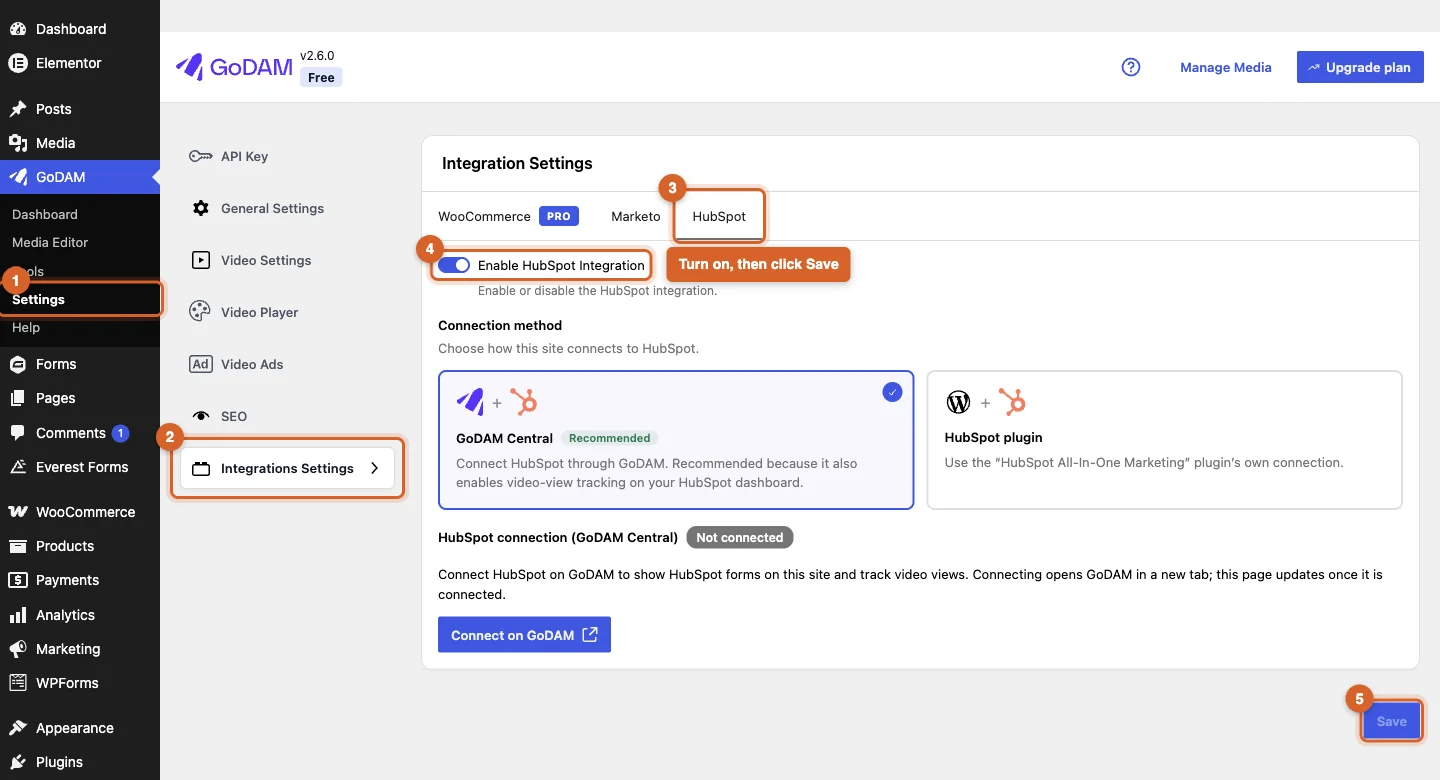
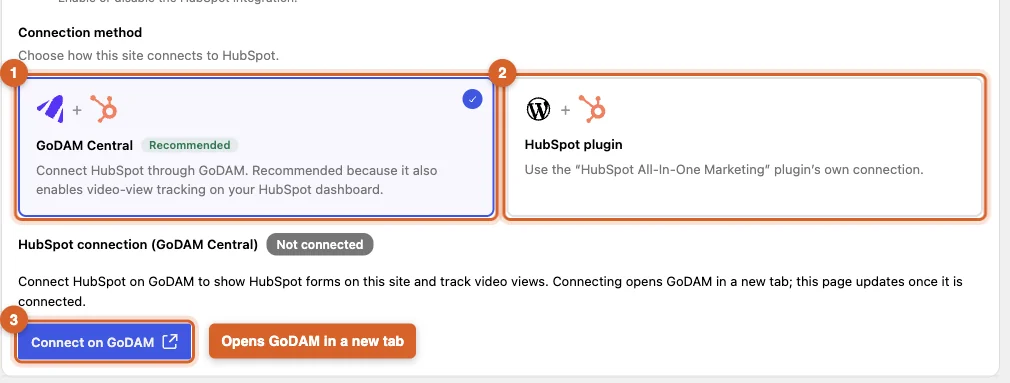
If the “HubSpot All-In-One Marketing” plugin is active on your site, pick a Connection method: GoDAM Central (recommended, adds video-view tracking) or HubSpot plugin. Without that plugin, GoDAM uses GoDAM Central and this choice does not show.
For GoDAM Central, click Connect on GoDAM. GoDAM opens in a new tab: connect your HubSpot account there, then come back. The HubSpot tab updates by itself once the connection is made. See HubSpot & Marketo Integrations for the steps on GoDAM.
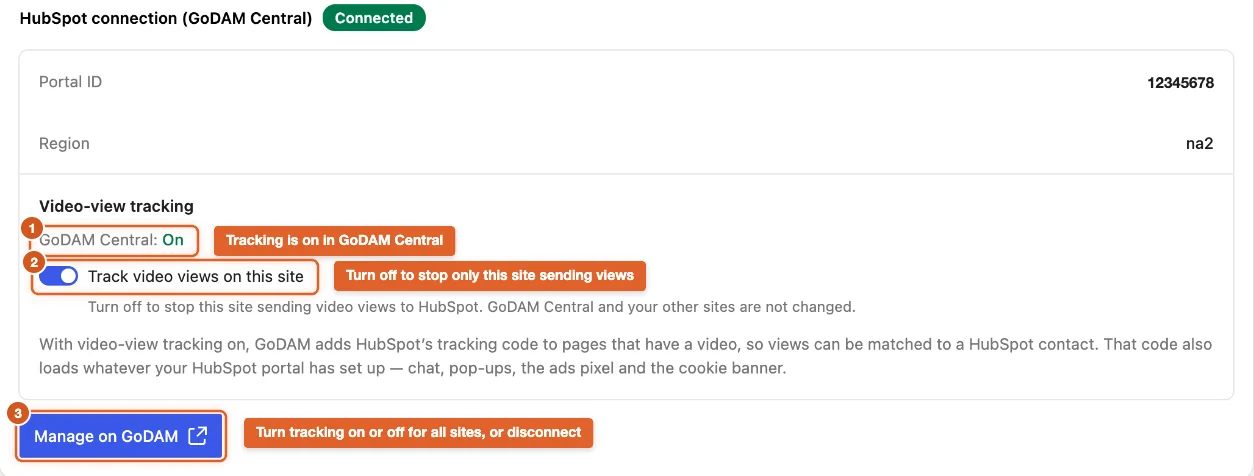
When the connection works, the tab shows Connected with your Portal ID and region, and a Video-view tracking section (see Track video views in HubSpot below). Use Manage on GoDAM to disconnect, or to turn tracking on or off for all your sites.
Using the HubSpot plugin method instead? Connect that plugin from its own settings page; GoDAM then reads its Portal ID and region.
Step 2: Add a HubSpot form layer to a video
Open the video in GoDAM → Media Editor, or find it in the Media Library and click Edit Video.
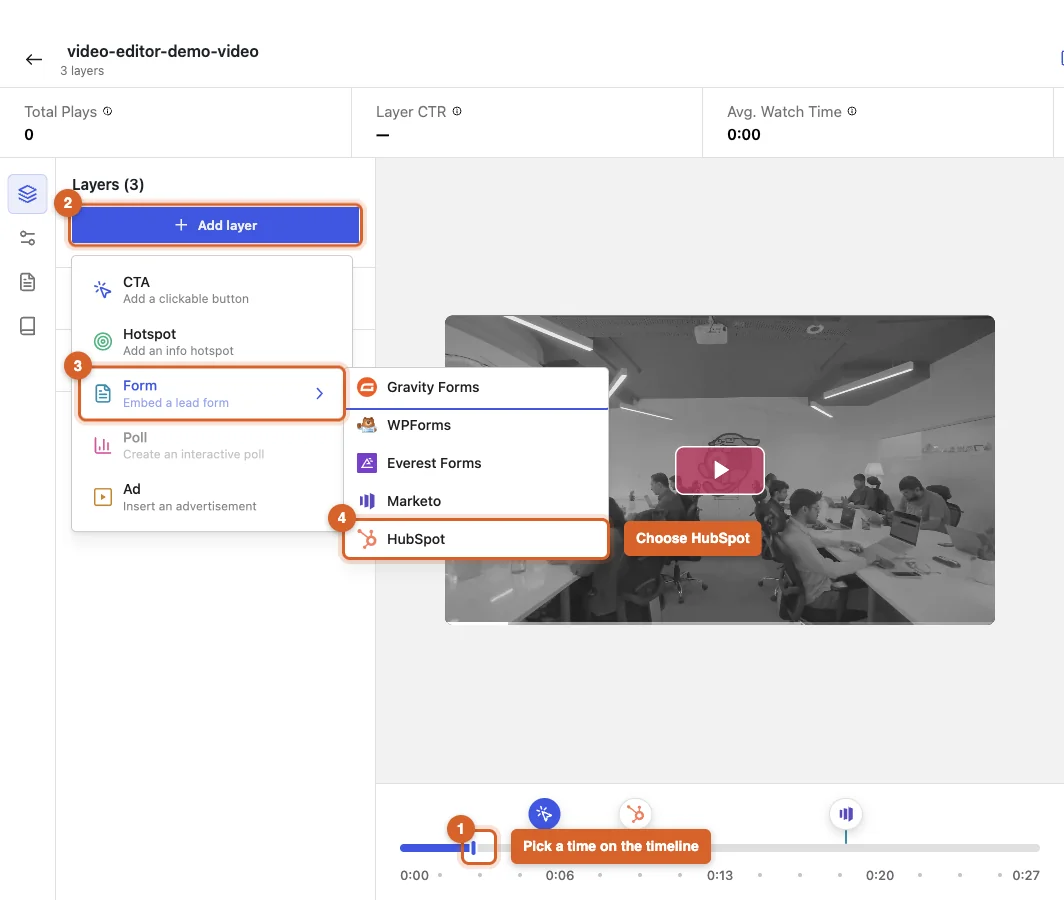
Click the timeline at the moment the form should appear. Then click Add layer → Form → HubSpot.
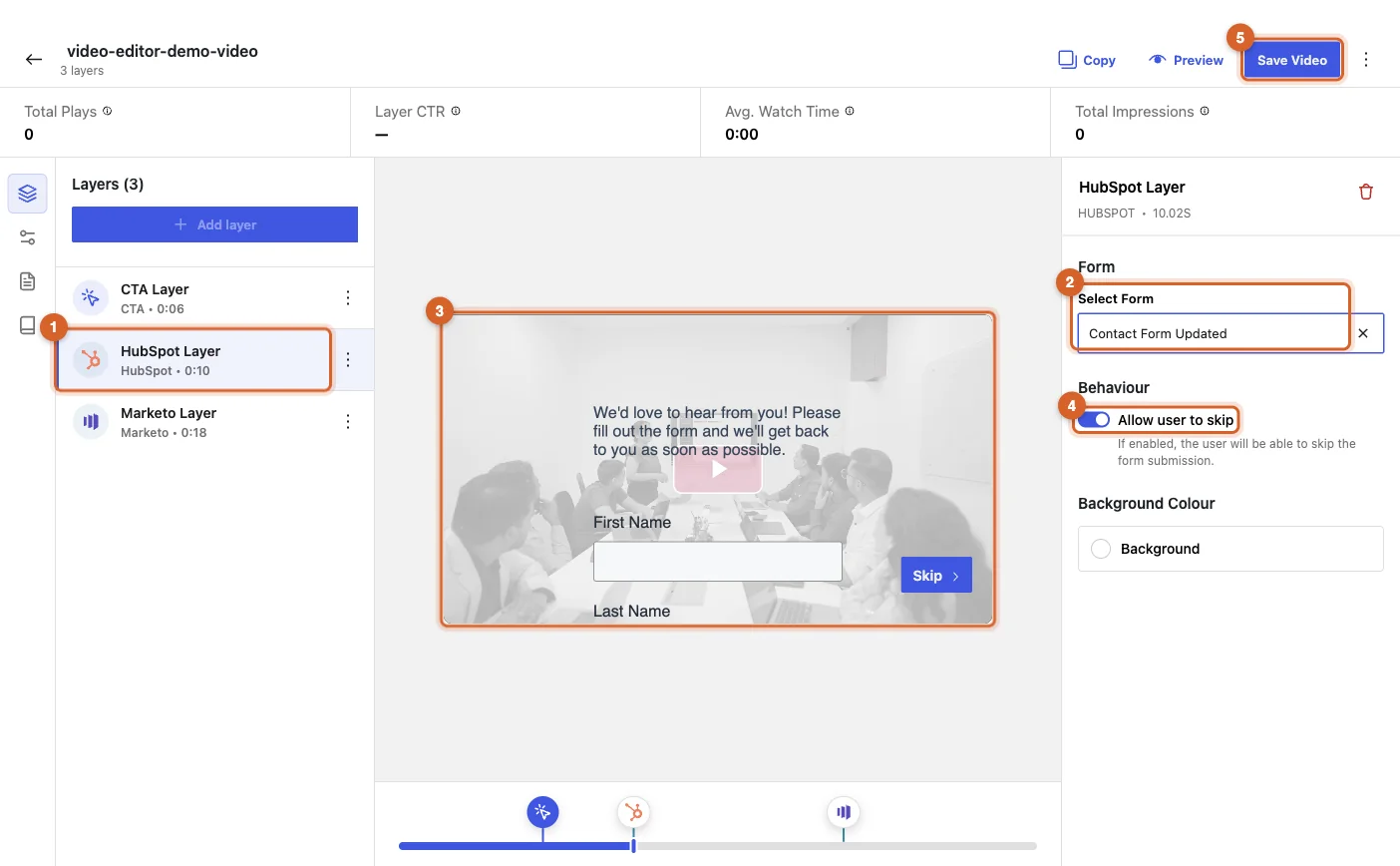
In the layer’s settings on the right:
- Select Form: pick a form from your HubSpot account. The list shows the forms in the connected portal, and the form previews over the video.
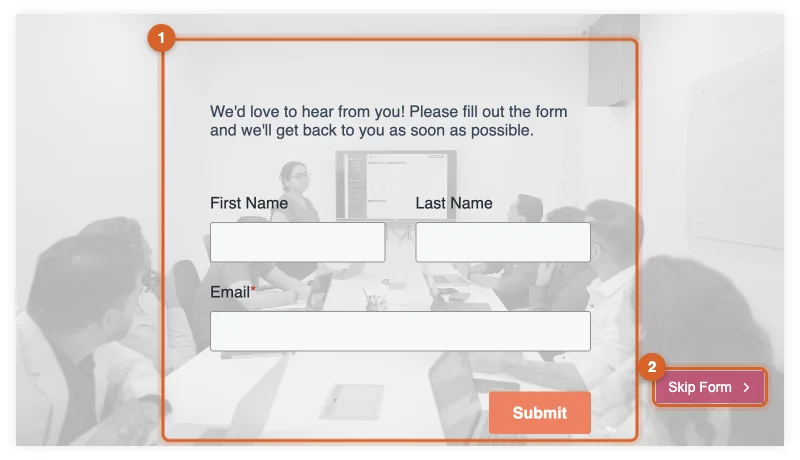
- Allow user to skip: when on, viewers see a Skip Form button and can carry on watching without submitting.
- Background Colour: optional colour behind the form.
Click Save Video.
Step 3: Add the video to a page
Add the video to any post or page with the GoDAM Video block or the
shortcode, using your video’s ID. You can also check it first with Preview in the video editor.
When playback reaches the layer’s time, the video pauses and the HubSpot form appears over it. Entries are saved in HubSpot as form submissions, under Marketing → Forms in your HubSpot account.
Track video views in HubSpot
With video-view tracking on, GoDAM tells HubSpot how far a known contact watched each video: when they start it, and at 25%, 50%, 75% and 100%. Milestones count only what the viewer actually played, so skipping to the end does not count as watching.
- Requires GoDAM Central. Tracking is not available with the HubSpot plugin connection method.
- GoDAM Central is the master switch. Turn tracking on or off for all your sites with Manage on GoDAM. While it is off there, the HubSpot tab shows a notice with a Turn on in GoDAM Central link instead of the site switch.
- Each site can opt out. While tracking is on in GoDAM Central, turn off Track video views on this site and click Save to stop this site sending views to HubSpot. GoDAM Central and your other sites are not changed.
- Known contacts only. A view is sent only when the visitor’s browser has HubSpot’s
hubspotutkcookie. Anonymous visitors are not tracked. - Tracking code. On pages with a GoDAM video, GoDAM adds HubSpot’s tracking code for your portal, unless the HubSpot plugin already loads it. Pages without a video are left alone. That code also loads whatever your portal has set up, such as chat, pop-ups, the ads pixel and the cookie banner.
- Consent. GoDAM respects the browser’s Global Privacy Control signal and HubSpot’s own opt-out cookies, and sends nothing for those visitors. To load the tracking code only after consent, developers can return
falsefrom thertgodam_map_inject_hubspot_tracking_codefilter and load it through their consent tool. - Credentials stay off your site. Views go from your site to GoDAM, and GoDAM forwards them to HubSpot.
Troubleshooting
| What you see | What to do |
|---|---|
| The layer says “The HubSpot integration is turned off” | Turn on Enable HubSpot Integration in Settings → Integrations → HubSpot and click Save. |
| The layer says “HubSpot is not connected” | Connect HubSpot in the HubSpot tab (Step 1). |
| The preview stays on “Loading form…”, or Select Form is empty | The chosen form was deleted or unpublished in HubSpot. Pick another form and click Save Video. |
| “Activate and connect the HubSpot plugin to use this form” | You chose the HubSpot plugin method. Activate the plugin and connect it, or switch to GoDAM Central. |
| Views do not reach HubSpot, or show as an unknown contact | Check that tracking is on in GoDAM Central, that Track video views on this site is on, that the visitor is a known contact, and that they have not opted out. If the HubSpot plugin is connected to a different portal than GoDAM, views are not sent. |
| After a submit, the layer still shows Skip Form instead of Continue | This happens with the HubSpot plugin connection method. With GoDAM Central, the layer detects the submit and shows Continue. |