GoDAM connects to HubSpot and Marketo so your videos can work with your marketing tools. Once a tool is connected, you can show its forms inside your videos (see Form Layers) and record how far known contacts watch your videos on your website. A view appears on the contact’s timeline in HubSpot or in the lead’s Activity Log in Marketo, where you can use it in lists, workflows, and campaigns like any other activity.
1. Who Can Manage Integrations
- An organization Owner, Admin, or Manager can connect, reconnect, test, and disconnect HubSpot and Marketo, and turn video tracking on or off.
- Other members can see whether a tool is connected, but cannot change anything.
- Integrations can be managed while the organization’s subscription is active.
- Each organization has one HubSpot account and one Marketo instance. The connection is shared by everyone in the organization and by every WordPress site that uses its licence.
2. Connecting HubSpot
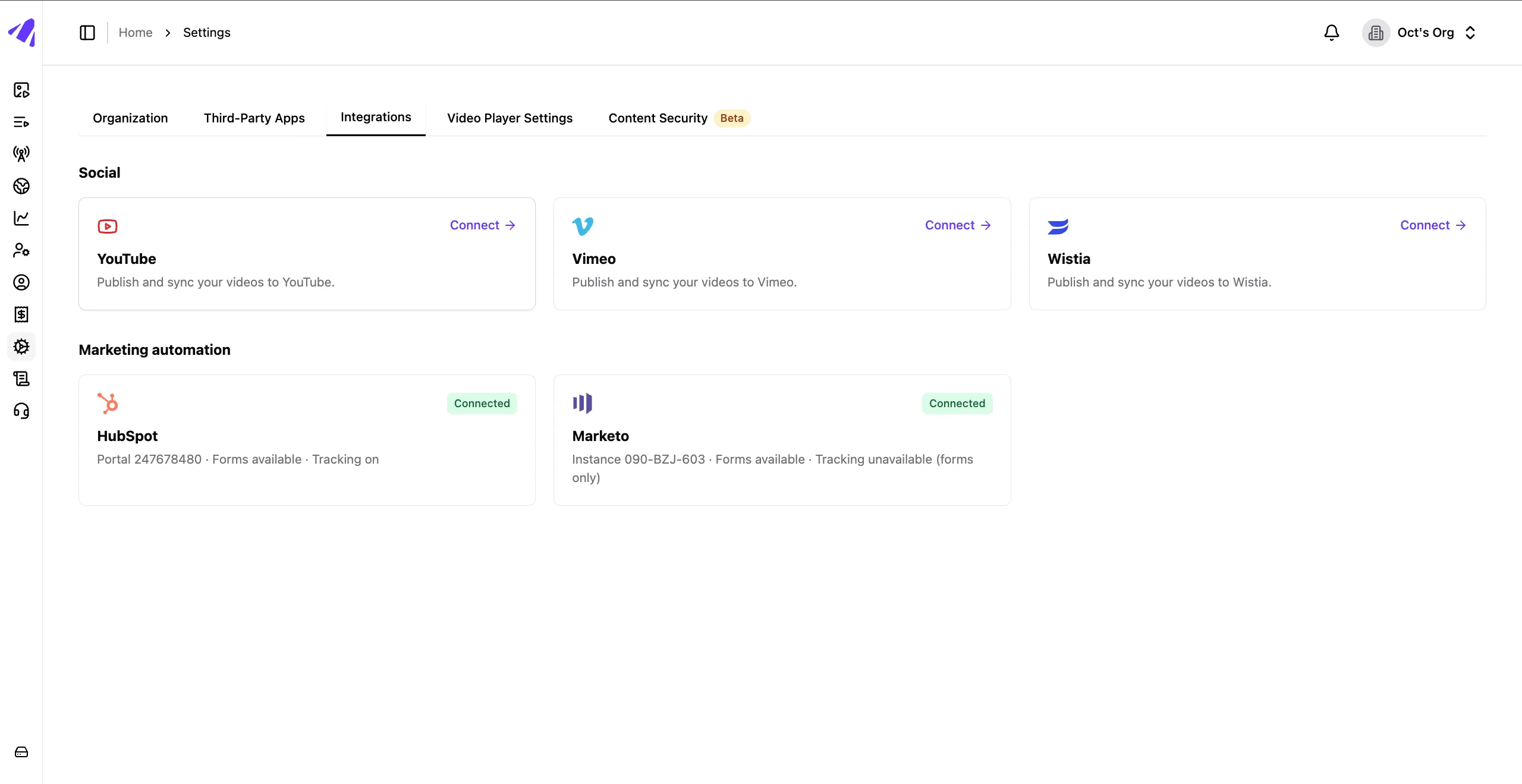
- Go to Settings > Integrations. Under Marketing automation, click the HubSpot dialog to open it.
- Click Continue. HubSpot opens in the same tab.
- Sign in with a HubSpot user who can install apps, usually a Super Admin, and choose the account to connect.
- If HubSpot shows Connecting an unverified app, type I accept the risk in the box and click Connect. HubSpot shows this warning for every app that is not yet listed in its App Marketplace, and GoDAM’s listing is in progress. GoDAM only asks for the permissions shown on the next screen: your forms, and the two optional video tracking permissions.
- On the permissions screen, leave the video tracking permissions ticked. They are marked optional. Without them, forms still work but video views cannot be recorded.
- Click Connect app. You return to Integrations with the message HubSpot connected successfully. The dialog shows Connected and a summary such as Portal 12345 · Forms available · Video tracking off.
When HubSpot is connected with the tracking permissions, GoDAM creates a custom event called GoDAM video view in your HubSpot account. Video views are recorded as this event.
- Video tracking needs custom events. Custom events are part of HubSpot’s Marketing Hub Enterprise plan. On other plans HubSpot does not grant the tracking permissions: forms still work, and the row says that tracking needs a plan with custom events.
- If the row says Video tracking is not set up in HubSpot yet, click Set up tracking. GoDAM tries again without asking you to sign in to HubSpot. If it cannot, the message shows HubSpot’s own explanation.
- Accounts outside HubSpot’s US data centre, such as EU accounts, are supported. GoDAM detects the region when you connect.
3. Connecting Marketo
Marketo has no “Authorize” button. Instead, your Marketo admin creates an API user for GoDAM and gives you its details. This takes about ten minutes and is done once.
3.1 In Marketo (Marketo admin)
- Create a role. Go to Admin > Users & Roles > Roles > New Role, name it, for example, GoDAM API, and under Access API tick only Read-Only Lead, Read-Write Activity, Read-Write Activity Metadata, and Read-Only Assets.
- Create an API-only user. Go to Admin > Users & Roles > Users > Invite New User, tick API Only, and give the user the role from step 1.
- Create a service. Go to Admin > LaunchPoint > New > New Service, choose the service type Custom, and select the API user from step 2. Open the new service with View Details and copy the Client ID and Client Secret.
- Find the Munchkin ID. Go to Admin > Munchkin and copy the Munchkin Account ID, for example 123-ABC-456.
3.2 In GoDAM
- Go to Settings > Integrations and click the Marketo card to open it.
- Enter the Munchkin Account ID, Client ID, and Client Secret.
- Fill in the optional fields if they apply:
- Forms host: the host in your Marketo form embed code, such as app-sj04.marketo.com. Leave it empty if you are unsure.
- Existing activity type ID: only if your instance already has Marketo’s maximum of 10 custom activity types (see below).
- reCAPTCHA site key: only if your Marketo forms use Google reCAPTCHA.
- Click Connect Marketo. GoDAM checks the details with Marketo before saving anything. The row shows Connected and Instance 123-ABC-456.
GoDAM then creates and approves a custom activity type called GoDAM Video View in your instance, which you can see under Admin > Marketo Custom Activities. Video views are recorded as this activity.
- Marketo allows 10 custom activity types per instance. If yours already has 10, Marketo is still connected, but the row shows Needs attention because the activity type could not be created. Delete a type you no longer use in Marketo and save again with Update details, or reuse one of your existing custom activity types by entering its ID in Existing activity type ID.
- Connecting for forms only. If you only want Marketo forms in your videos, you can leave the Client ID and Client Secret empty. GoDAM warns you before connecting, and the row then reads Forms only. Forms work, but GoDAM cannot list your forms (you enter the form ID instead) and cannot record video views. To add these later, create the API user and enter the Client ID and Client Secret with Update details.
4. Tracking Video Views
Turn on Track video views in the HubSpot or Marketo row. From then on, when a visitor the tool already knows watches one of your videos on your website, GoDAM records it on that contact or lead. You can track HubSpot, Marketo, or both.
4.1 What Needs to Be in Place
A view is recorded only when all of these are true. If one is missing, the video still plays, but nothing is recorded.
- The video uses the GoDAM Embed Code. Open the video, select Share, and under Embed keep GoDAM Embed Code selected (it is the default). Paste both lines, the div and the script, where the video should appear. A plain Iframe embed plays the video but is never tracked.
- The page has your tool’s tracking code/script. For HubSpot, the HubSpot tracking code (Settings > Tracking & Analytics > Tracking code in HubSpot). For Marketo, the Munchkin tracking code (Admin > Munchkin in Marketo). Many sites already have it.
- The visitor is known to your tool. They filled in one of its forms on your website, or clicked one of its tracked emails, in the same browser. Your tool recognises them by the cookie its tracking code sets.
- Track video views is on, and the row shows Connected rather than Needs attention. With the switch on but setup unfinished, the row says Tracking starts once setup is complete.
- The page is on a website. A page opened straight from your computer (file:///) has no cookies and cannot be tracked. To test locally, serve the page from http://localhost.
If your site has a Content Security Policy, allow the embed script’s host in script-src and your GoDAM site in frame-src. The information icon next to the embed format in the Share dialog shows the exact hosts for your account.
4.2 What Is Recorded
- A view is recorded at 0% (started), 25%, 50%, 75%, and 100% of the video.
- Nothing is recorded until the visitor presses play.
- Only watched time counts. Skipping ahead does not, and 100% means the visitor watched nearly all of the video.
- Progress is sent when the visitor pauses, the video ends, or they leave the page, with the highest milestone reached. A visitor who watches to 80% without pausing and then leaves records 0% and 75%.
- Each visit to the page is a new viewing, so watching again on a later visit records again.
- Each view includes the video’s name and ID, the percent viewed, the page the video was watched on, and the video’s length. In HubSpot these appear as properties of the GoDAM video view event; in Marketo as details of the GoDAM Video View activity.
- Views usually appear in your tool within one to three minutes.
4.3 Using Views in HubSpot and Marketo
- HubSpot: open the contact and look for GoDAM video view on their activity timeline. Use the event in workflows (for example, enrol contacts who completed GoDAM video view with Percent viewed of 75 or more), lists, and reports.
- Marketo: open the lead’s Activity Log and look for GoDAM Video View. In Smart Lists use the filter Viewed GoDAM Video, and in Smart Campaigns the trigger Views GoDAM Video, with constraints such as Percent Viewed or Video Name.
5. Visitor Privacy and Consent
- Tell your visitors. GoDAM shows no notice of its own. You decide to track, and the data lives in your HubSpot or Marketo, so mention it in your privacy policy and in your cookie banner if you have one, for example: We record which videos you watch and how much of them, and add this to your record in HubSpot.
- Waiting for consent. To hold tracking until a visitor agrees, add data-godam-tracking=”off” to the embed’s script tag, or to one embed’s div to hold just that video. When the visitor consents, call GoDAM.setTrackingConsent(true) from your cookie banner; GoDAM.setTrackingConsent(false) stops tracking again. Videos always play, with or without consent.
- Opt-outs are respected. GoDAM never tracks a visitor whose browser sends Global Privacy Control, or who has opted out through HubSpot’s cookie banner.
- GoDAM sets no cookies on your website. It reads the cookie your marketing tool already set and sends it to your tool with the view. The cookie is stored encrypted only until the view is sent, then removed.
6. Managing a Connection
Each row on Settings > Integrations shows a status: Not connected, Connected, or Needs attention when something must be fixed before tracking can run. The dialog has these actions:
- Reconnect (HubSpot): sign in to HubSpot again, for example to grant the tracking permissions or to switch to another HubSpot account.
- Update details (Marketo): change the Munchkin ID, credentials, forms host, or reCAPTCHA site key. Leave the Client ID and Client Secret empty to keep the saved ones. If you rotate the secret in Marketo, update it here too, or tracking stops.
- Test connection (Marketo): check that GoDAM can still reach your instance with the saved credentials.
- Disconnect: remove the connection. Tracking stops, and form layers that use the tool can no longer load their forms until you connect again.
Switching to a different HubSpot account or Marketo instance replaces the connection for the whole organization. Form layers that use forms from the old account need a new form chosen.
7. Troubleshooting
- Nothing appears in HubSpot or Marketo. Check section 4.1. The most common causes are a plain iframe instead of the GoDAM Embed Code, the tool’s tracking code missing from the page, and testing in a different browser from the one where the form was filled in.
- The HubSpot form says the email is invalid. HubSpot rejects many disposable email domains. Use a real address.
- The HubSpot row says Tracking not set up. Click Set up tracking. If it says the plan needs custom events, upgrade the HubSpot plan, or reconnect with the tracking permissions ticked.
- Marketo says Marketo refused these credentials. Check the Munchkin ID, Client ID, and Client Secret, and that the API user has the role from section 3.1. Nothing is saved until the details work.
- The Marketo row shows Activity type not set up. Your instance has reached Marketo’s limit of 10 custom activity types. See section 3.2.
- No player on the page. Your site’s Content Security Policy is blocking the embed, or site whitelisting is on for your account and this site is not on the list. Allow the hosts shown in the Share dialog, or add the site on the Sites page.
- The video plays but nothing is tracked on a site with a cookie banner. Tracking is waiting for consent (section 5), or the visitor’s browser sends Global Privacy Control.
8. Good to Know
- Only known visitors are recorded in your tool. Anonymous viewers are still counted in GoDAM’s own analytics.
- Forms inside the video do not identify the visitor for tracking. The player runs on GoDAM’s site, so a form filled in inside the video creates or updates the contact, but is not linked to the visitor’s cookie on your website. To record views, visitors must be known through a form or email on your own site.
- GoDAM protects your Marketo API quota. Marketo’s daily API quota is shared by every integration on your instance, so GoDAM uses at most 5,000 calls a day and 50 calls in any 20 seconds. If either limit is reached, views wait and are sent later rather than lost.
- WordPress sites. In GoDAM WordPress plugin versions that support these integrations, Marketo can also be connected from the plugin, using the same connection. Connecting HubSpot, disconnecting, and turning tracking on or off are done in GoDAM.
- Changes are recorded in the Activity Log. Connecting, reconnecting, and disconnecting a tool, and turning video tracking on or off, each add an entry under Organization, for example Connected the HubSpot 12345 account. Entries name the account, never a password or secret.