
The GoDAM Document block puts a document on your page with a real preview, so readers can page through it without downloading anything first. Show it as an inline viewer sized to your layout, or as a compact card with a cover image, title, description and page count that links to the file.
It takes more than PDFs: Word, Excel, PowerPoint, OpenDocument, plain text and CSV files all work. Anything that isn’t already a PDF is converted to a preview PDF by GoDAM Central, so the block always displays a PDF while your readers still download the original file you uploaded. The GoDAM Document block is available in GoDAM 2.2 and later.
What you’ll need
- You’re on GoDAM 2.2 or later, installed and connected to your account.
- For anything other than a PDF: a connected GoDAM account, since Central does the conversion. PDFs display without it.
How to add the block
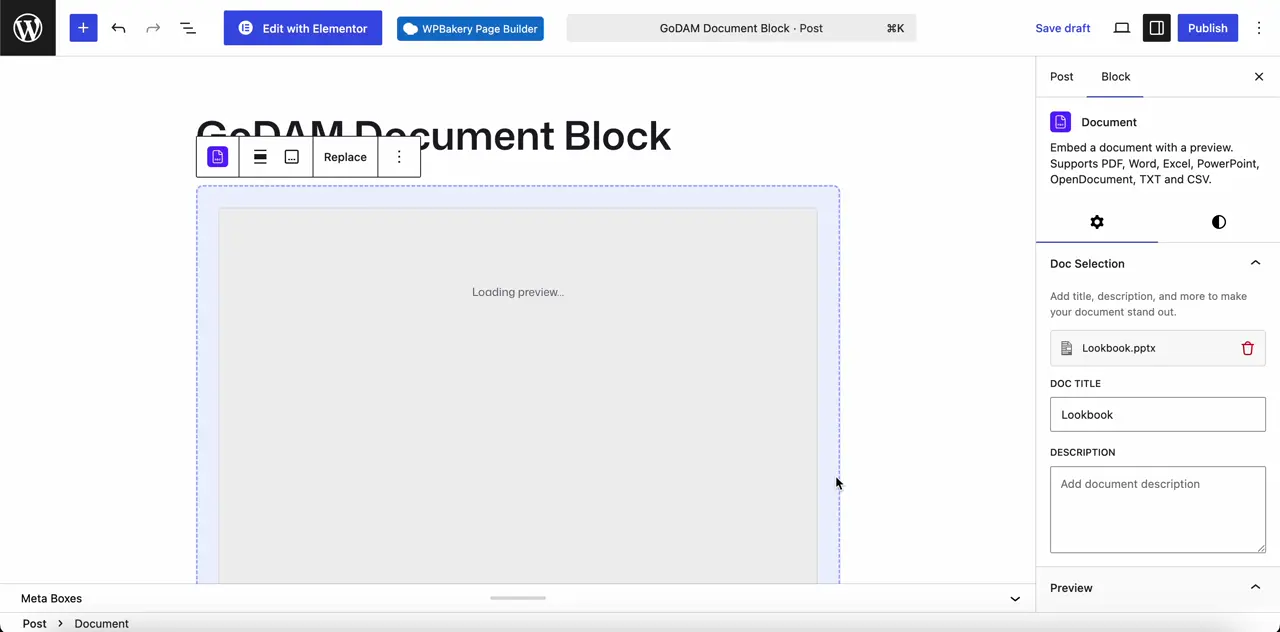
Step 1: Edit a post or page, click the + inserter and search for document, pdf, word, excel or csv. Choose Document from the GoDAM results.
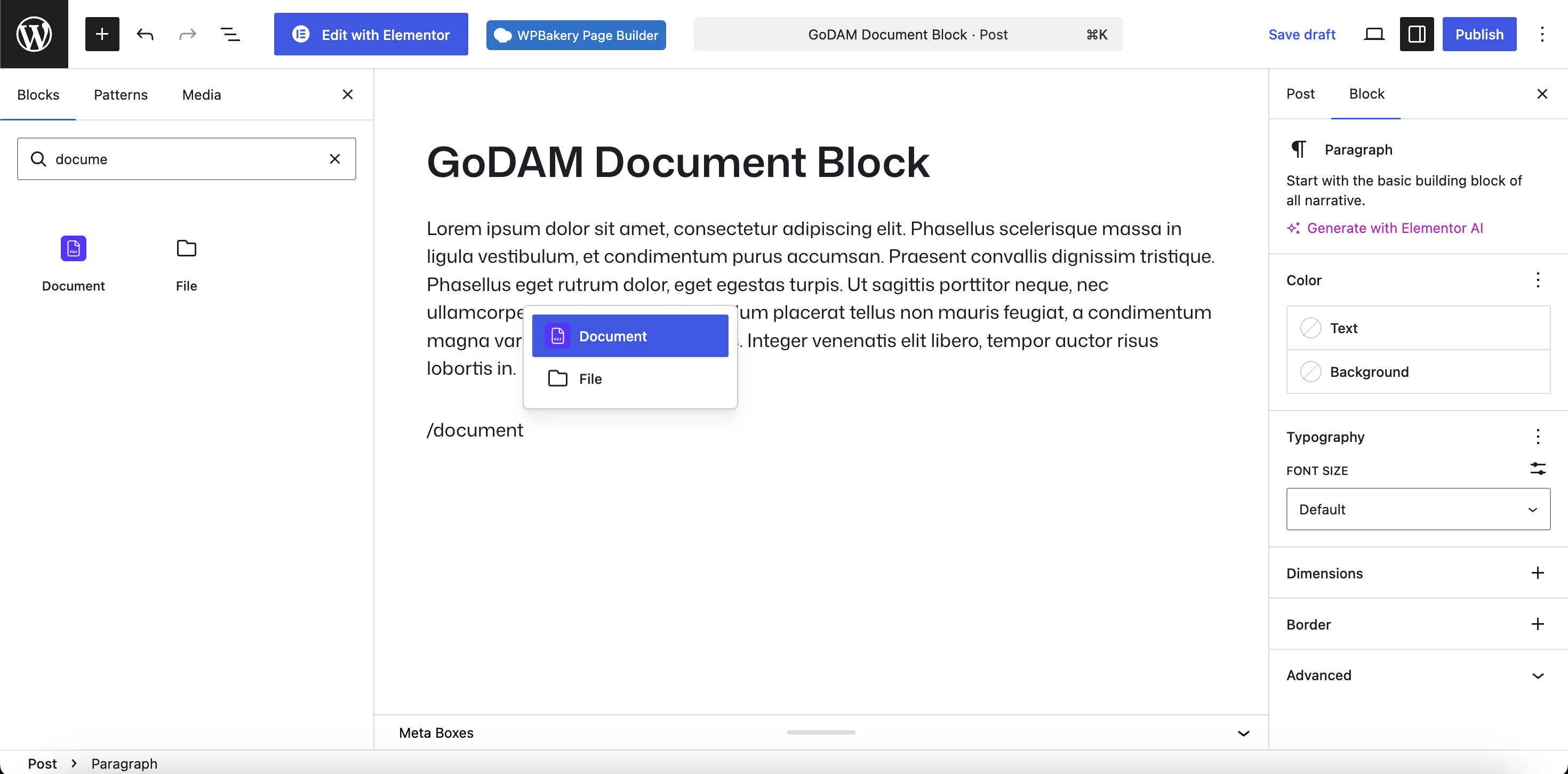
Step 2: The block drops in with an Attach a document here placeholder. Click + Upload Document to upload a file, or pick one from your media library.
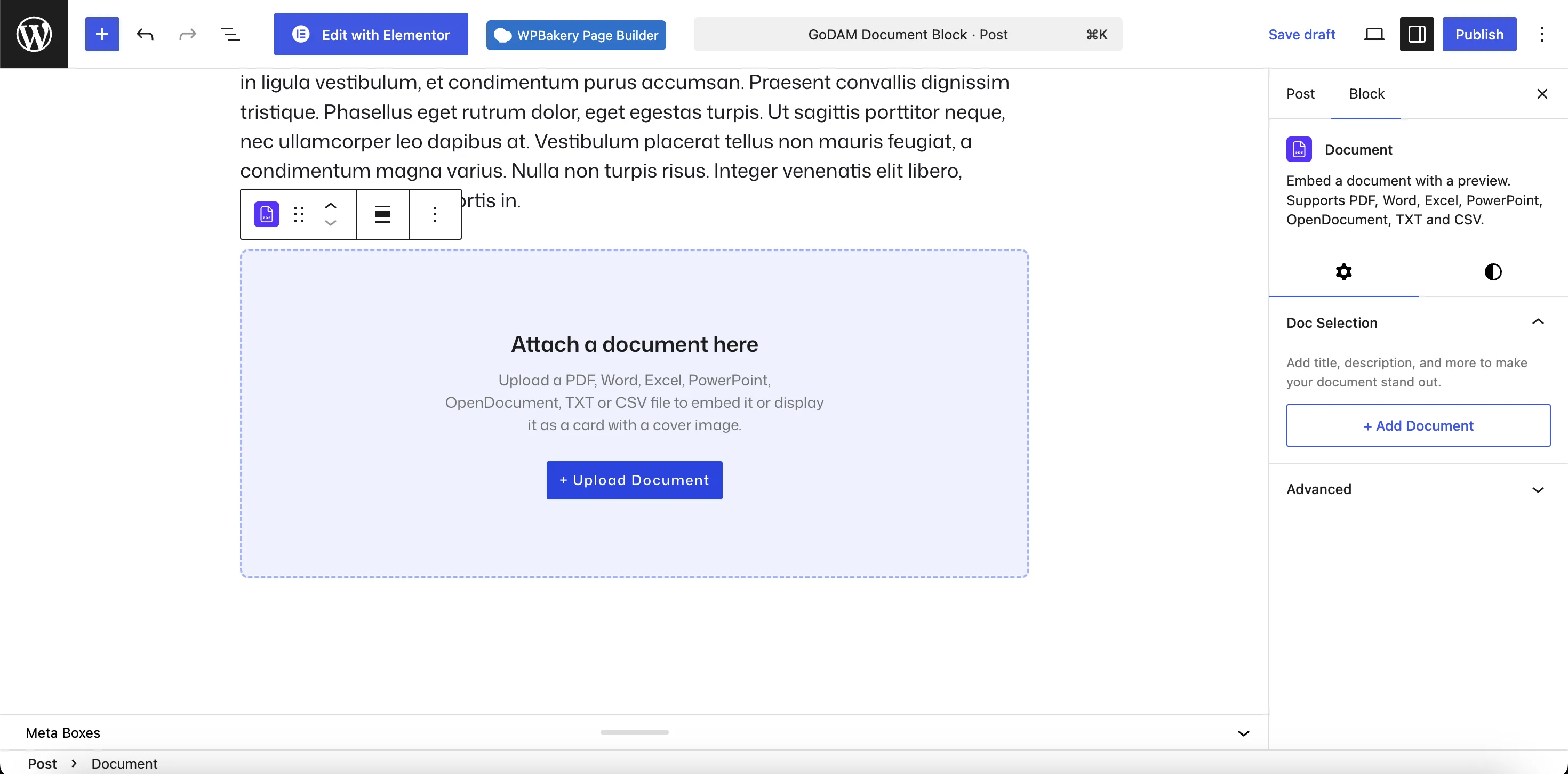
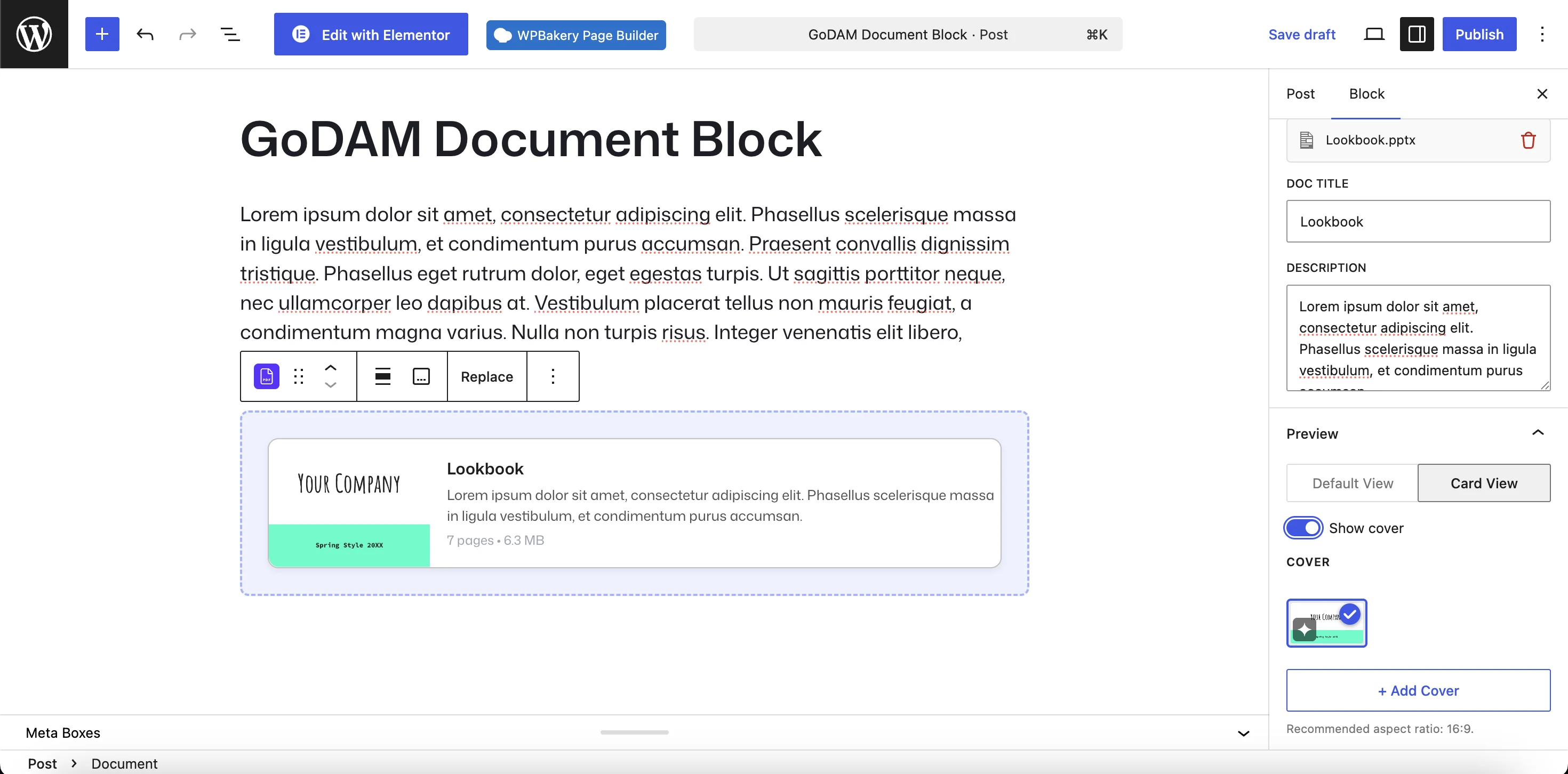
Step 3: Open the block sidebar. Under Doc Selection, optionally set a Doc Title and Description — these are what the card shows, and they override the file’s own name.
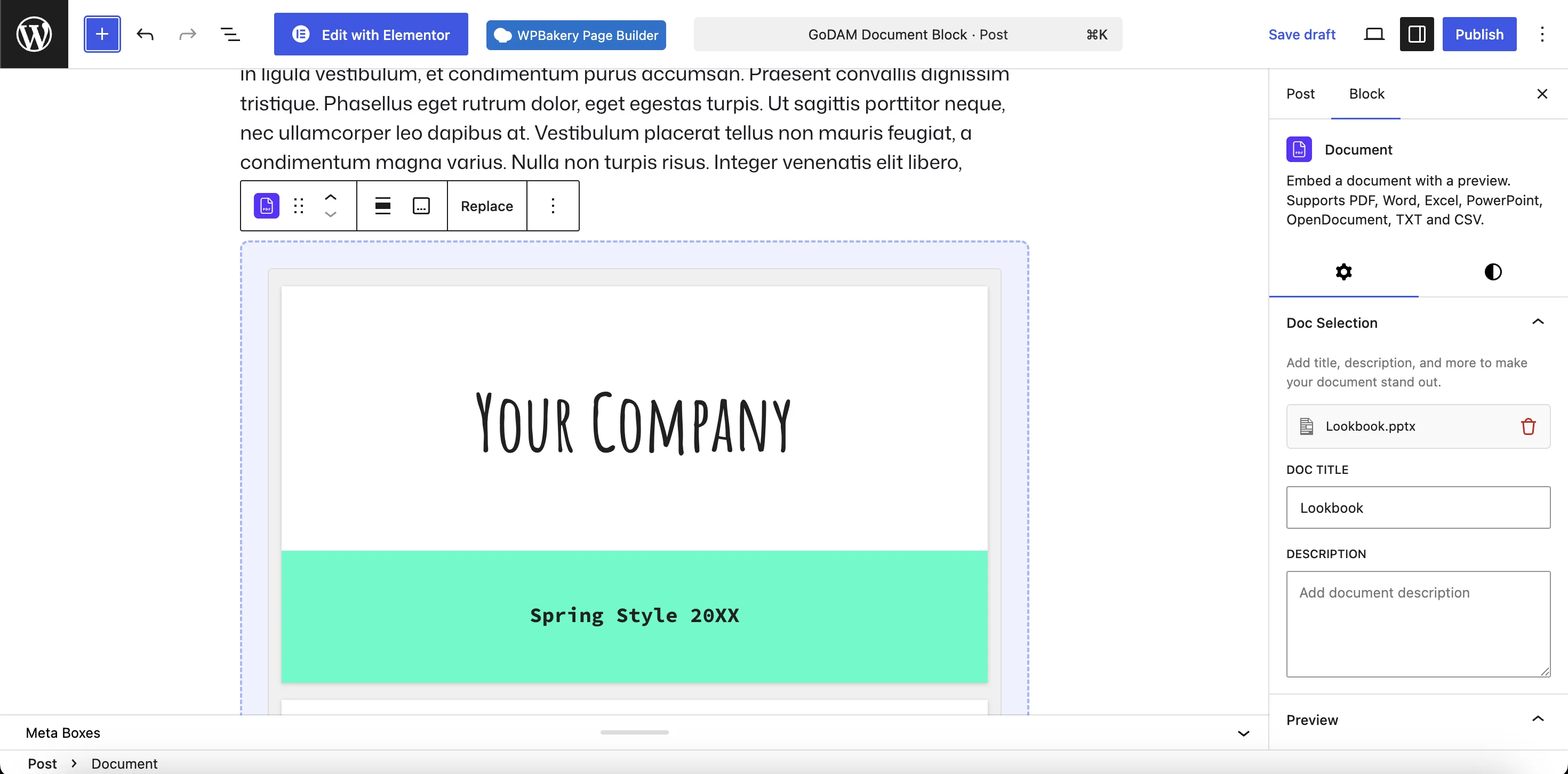
Step 4: Under Preview, choose how the document appears:
- Default View — an inline viewer with its own toolbar for paging and zooming. Set its Height in the panel below, anywhere from 200 to 1200 pixels.
- Card View — a compact card. Turn on Show cover to give it a cover image, then keep the auto-generated cover (Central renders it from the first page) or click + Add Cover to upload your own. A 16:9 image works best.
Step 6: Publish or update the post.
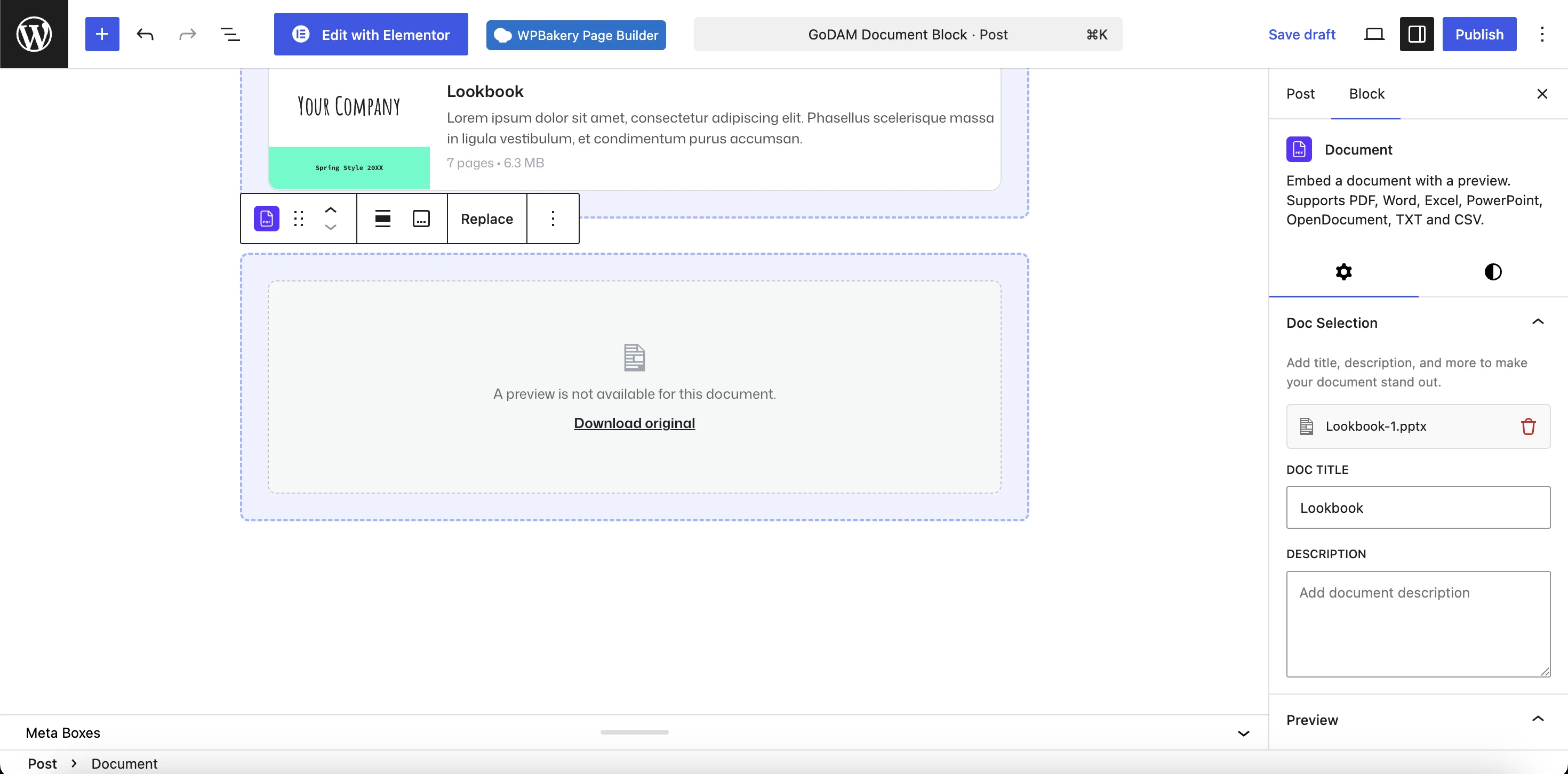
If you uploaded something other than a PDF, the block shows Generating preview… while Central converts it. Visitors are offered the original as a download in the meantime; reload the post to pick up the finished preview.
Block settings
Doc Selection panel
- The file row shows the current document, with a trash icon to Remove document.
- Doc Title — an optional heading. Leave it empty to fall back to the file’s own name.
- Description — optional text, shown in Card View.
Preview panel
- View — Default View (inline viewer) or Card View (cover, title, description and meta).
- Show cover — Card View only. Reveals the cover picker: the auto-generated cover, or your own image, with a remove control. Recommended aspect ratio 16:9.
Height panel
- Height (px) — Default View only. 200 to 1200 pixels in steps of 10, defaulting to 600. The panel is hidden in Card View, which sizes itself.
Toolbar and canvas
- Replace — swap in a different document.
- A caption sits below the block, added from the canvas or the toolbar.
- Anchor, alignment, and margin and padding under spacing.
On the front end, a card shows its page count and file size, for example 12 pages • 1.4 MB, falling back to the file name when neither is known. Clicking the card opens the original file, not the converted preview.
Troubleshooting
“That file type is not supported.” The block takes PDF, Word, Excel, PowerPoint, OpenDocument, TXT and CSV only. Note that WordPress reports .srt and some source-code files as plain text, so they show up in the library picker but can’t be converted — the block rejects them.
“Unsupported file format” on the canvas. The attached file isn’t a format the block can display, and nothing will render on the published page. Use Replace to attach a supported file.
Stuck on “Generating preview…” Conversion runs on GoDAM Central, so check the document’s transcode status in the media library and confirm a valid API key under GoDAM → Settings. A file that was never dispatched: no API key at upload time, won’t convert; re-upload once the key is in place. Reload the post to check for the finished preview.
“A preview is not available for this document.” Either the conversion hasn’t finished, or the file is password protected. Central stores protected files as-is and reports them as done, but can’t open them to build a preview, so no preview will ever arrive. Remove the password and re-upload. Either way the original stays downloadable.
Visitors only see a “Download original” link where the viewer should be. The inline viewer needs JavaScript, and on sites with a strict Content Security Policy it also needs to load its own worker and fetch the PDF. If your CSP blocks either, the block falls back to the download link. Card View is unaffected, consider it for locked-down sites.
There’s no cover option. Covers are Card View only, and appear once Show cover is on.
Readers download an .xlsx but the page showed a PDF. That’s intended. The preview is a converted PDF; the download is always the file you uploaded.