
This GoDAM Forms layer allows you to integrate a custom form as a layer at a particular time stamp during the video playback. These forms allow viewers to provide the requested information, such as email addresses, name etc., before continuing to watch or accessing certain content. Form layers in video marketing are an effective way to capture leads directly within your video content to boost your revenue. This layer integrates with 12 form tools: Gravity Forms, WPForms, Contact Form 7, Jetpack Forms, SureForms, Forminator, Fluent Forms, Everest Forms, Ninja Forms, MetForm, and, through GoDAM Central, Marketo and HubSpot.
Here’s how to add it:
STEPS:
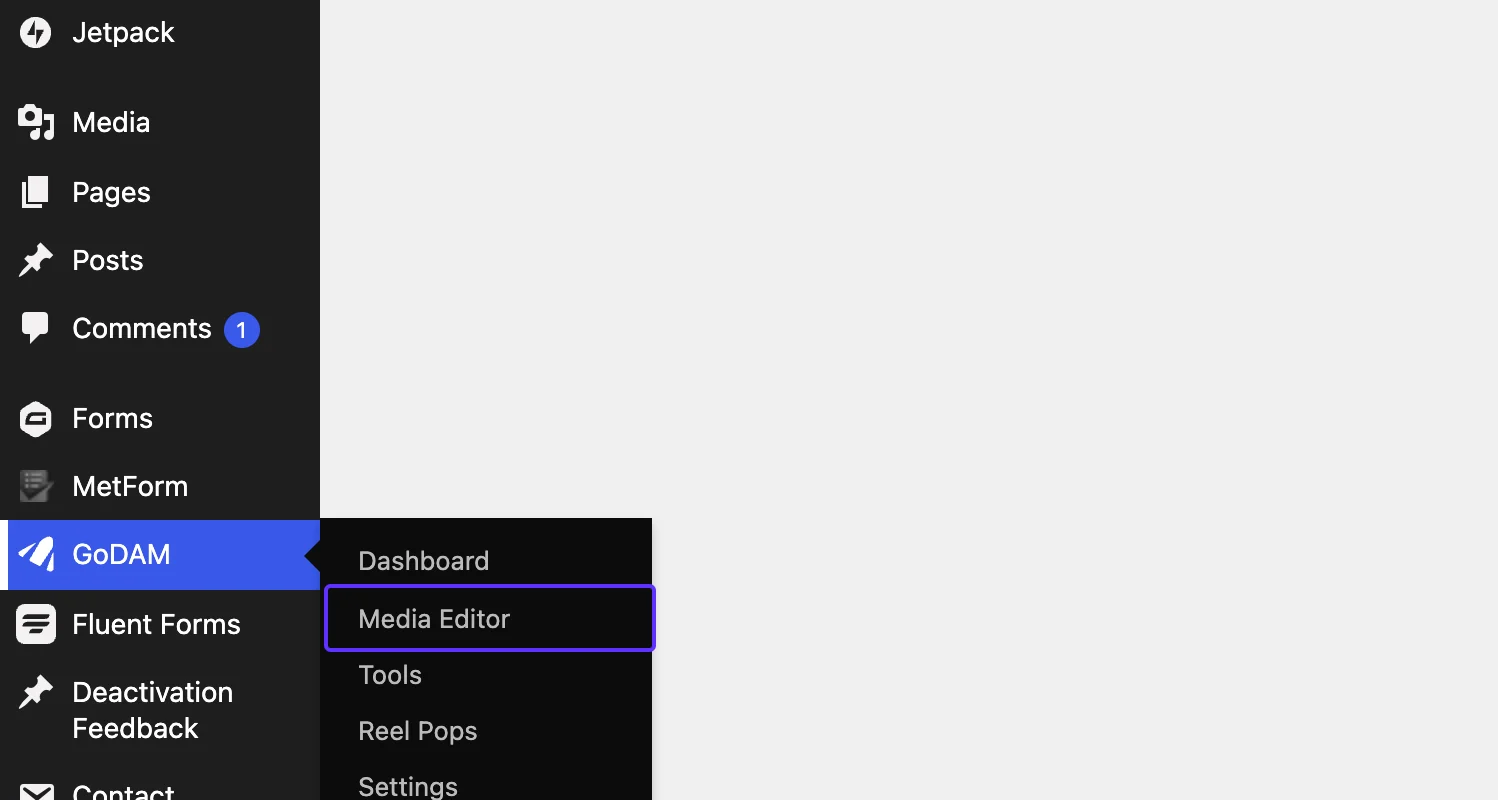
Step 1: Go to Media Editor under GoDAM menu
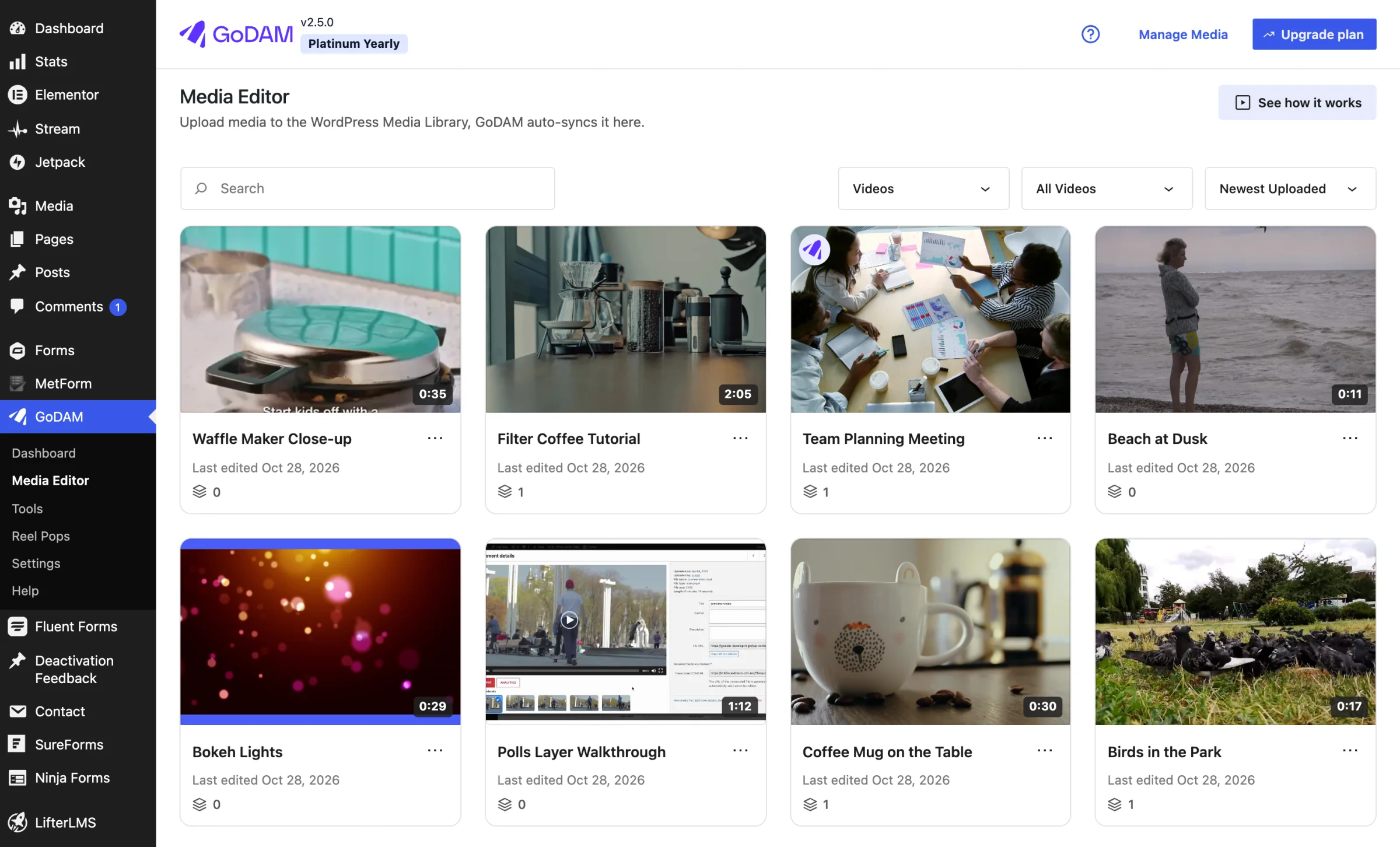
Step 2: Choose a video
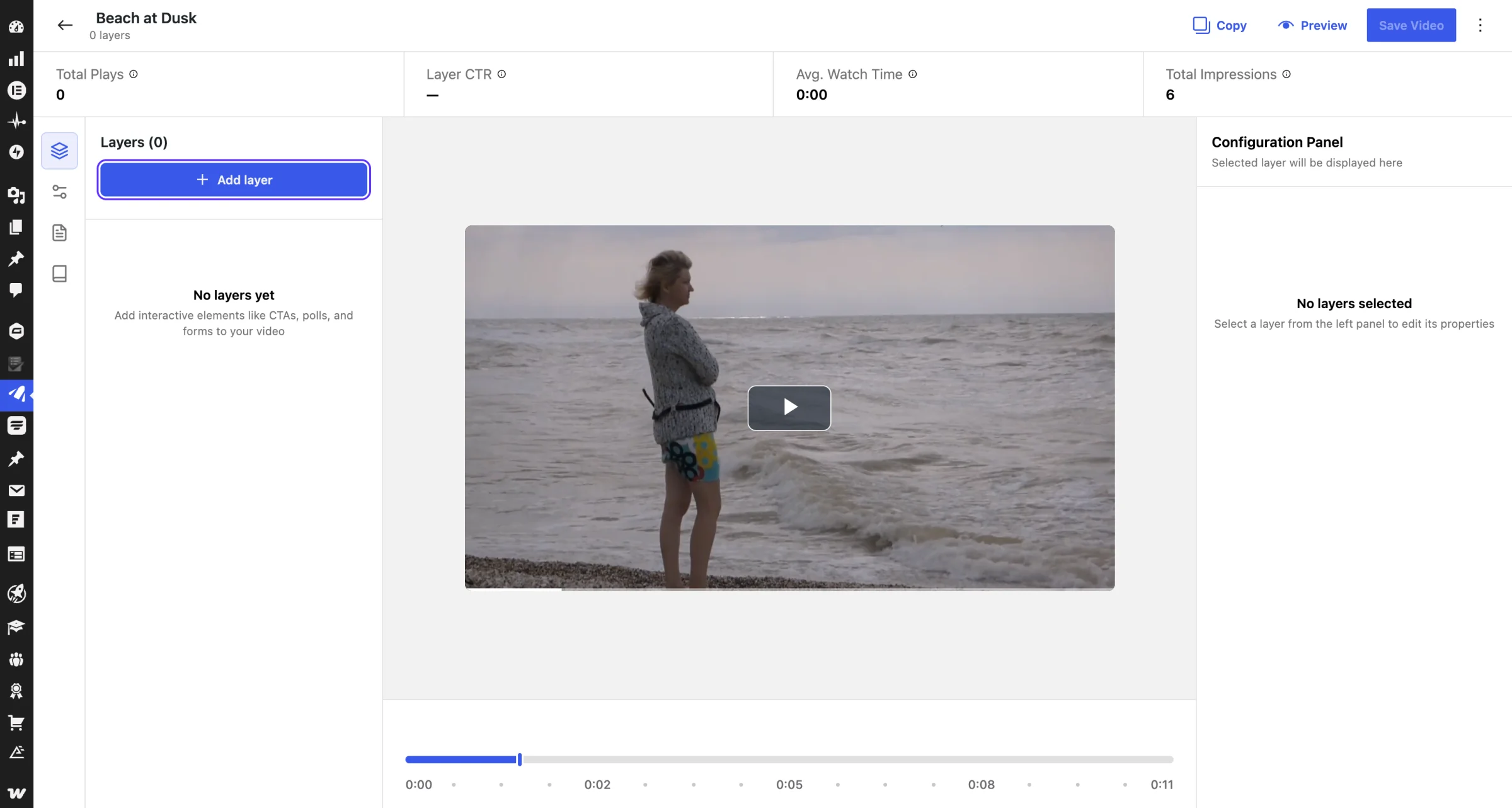
Step 3: Go to the timestamp where you want to add the layer
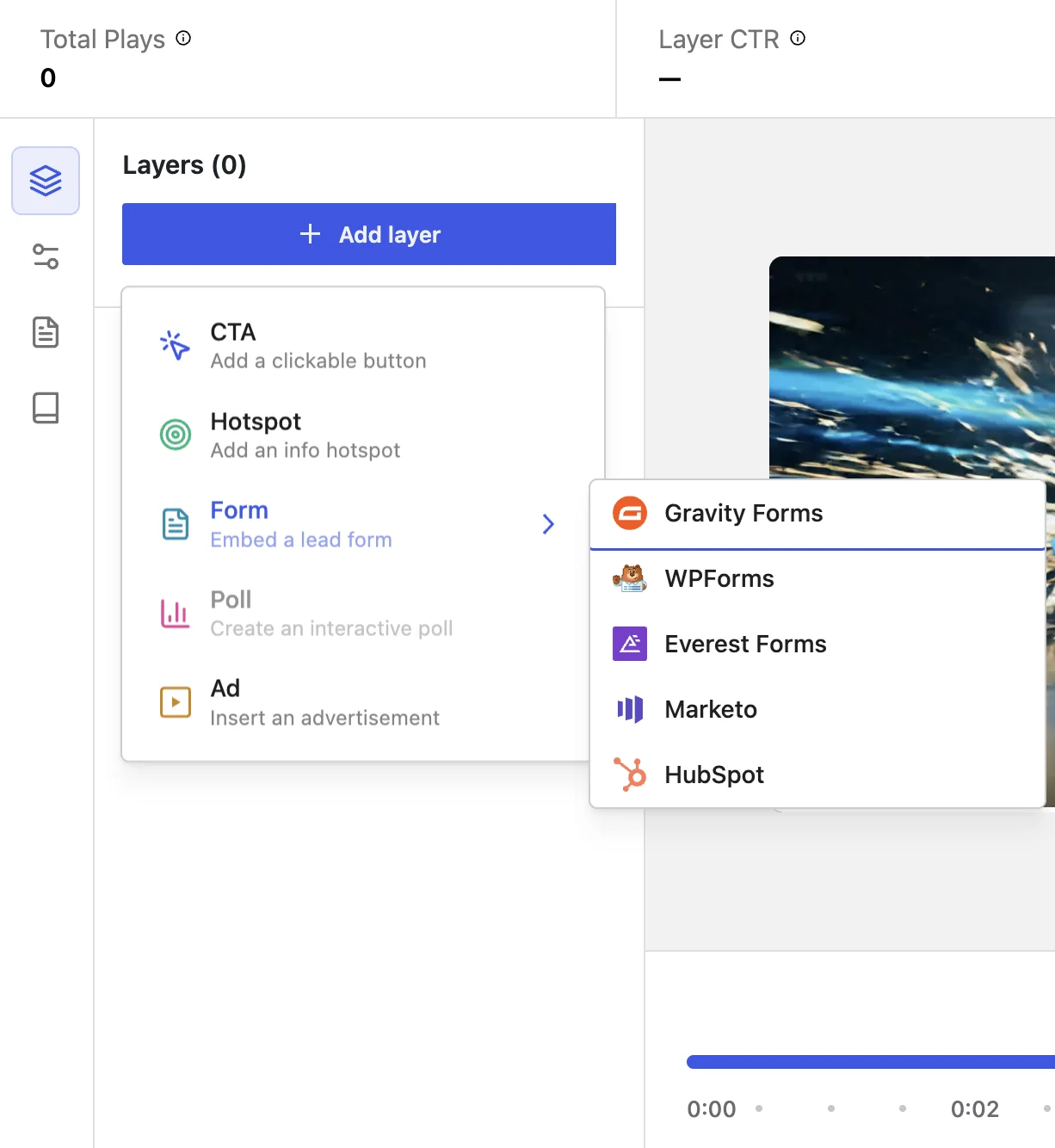
Step 4: Click Add layer, choose Form, then pick your form plugin (for example Gravity Forms, WPForms or Contact Form 7).
Step 5: In the “Select Form” input, a list of all the forms available in the respective plugin appears.
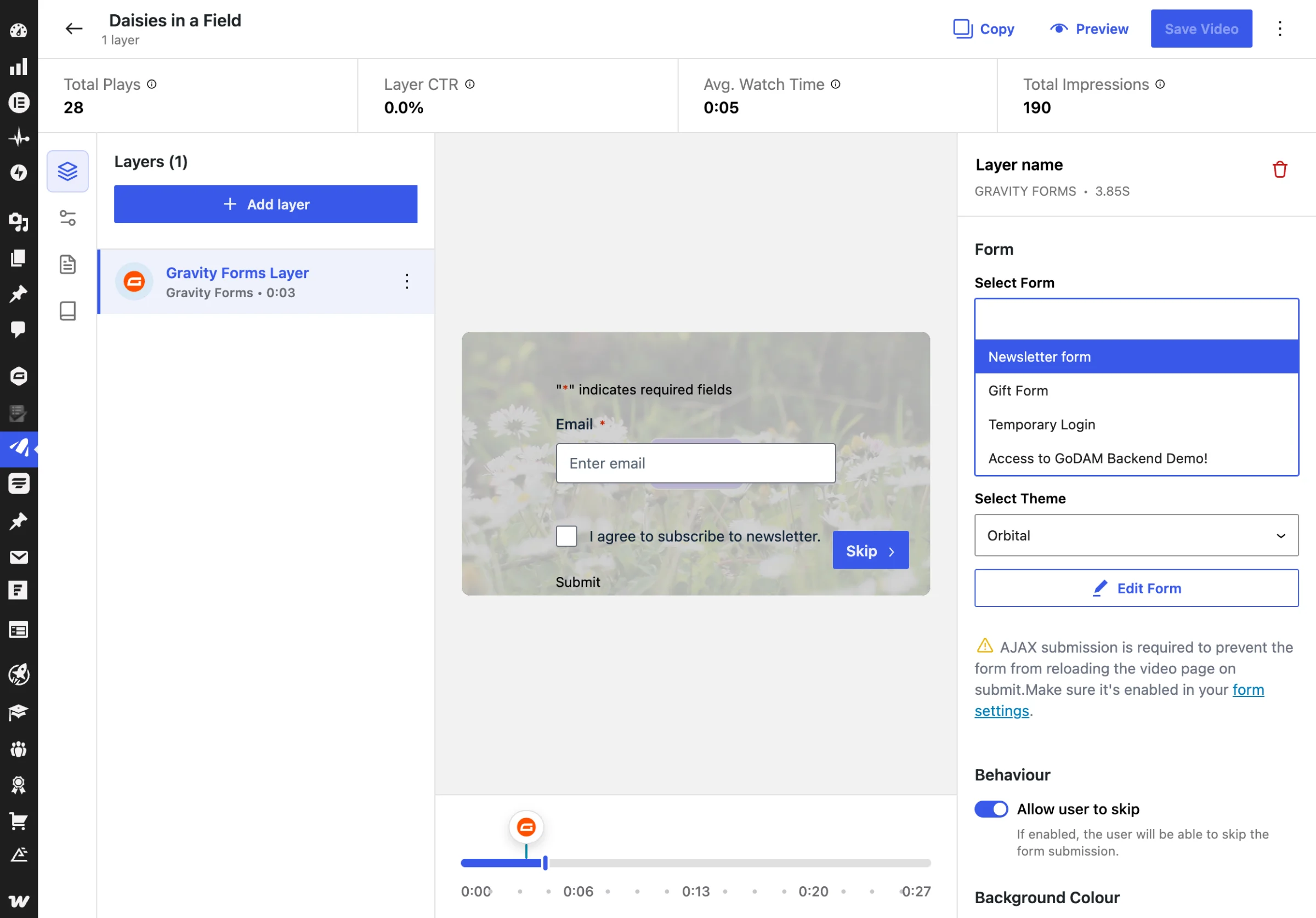
NOTE: You need to install the Gravity form plugin for Form layer to work or else you’ll see this message:
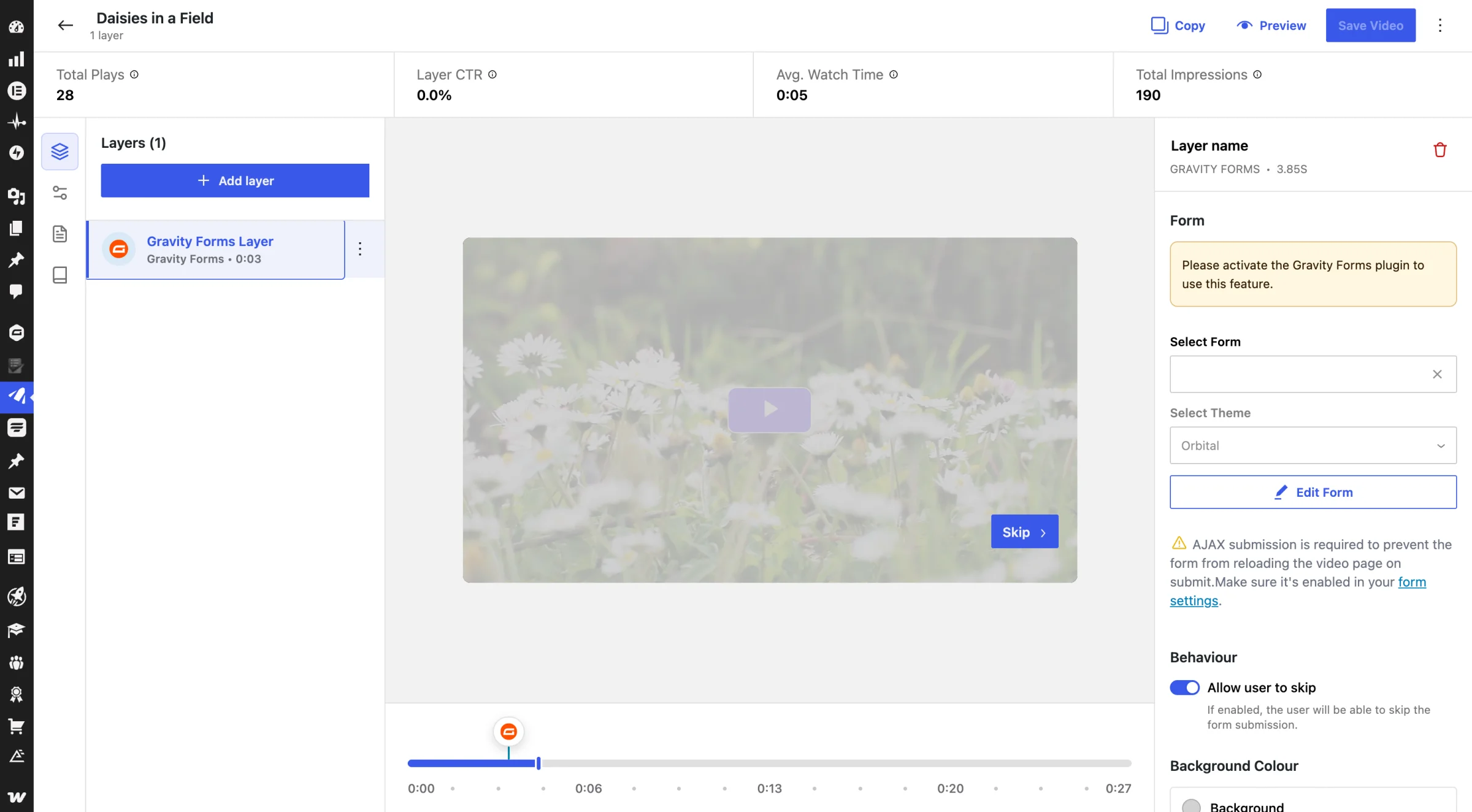
Step 6: After selecting the form, you could choose from the themes (if available) under the setting “Select Theme”
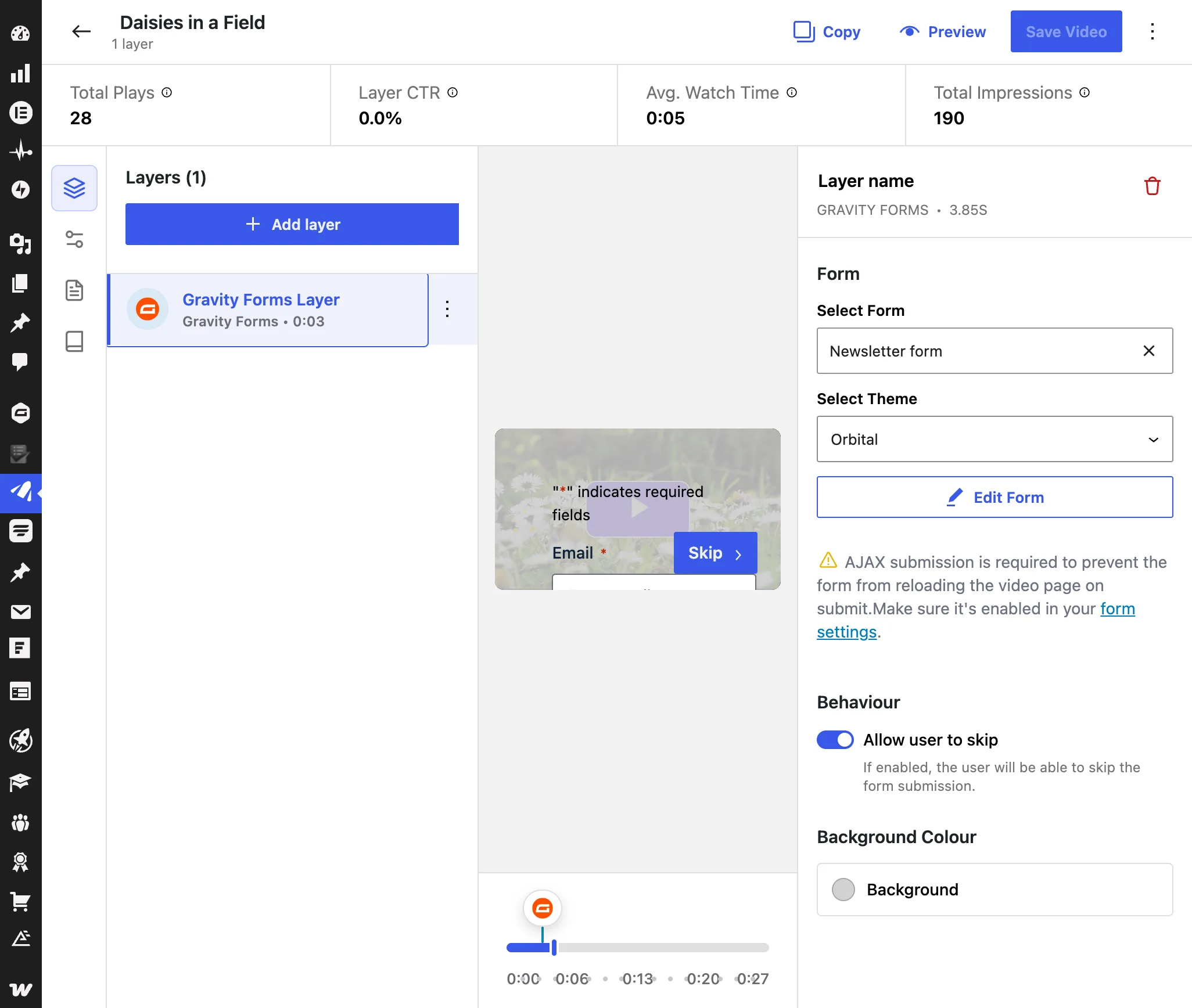
Step 7: Under Behaviour, use the Allow user to skip toggle to decide whether viewers can continue the video without submitting. When it is on, a Skip button appears over the form; when it is off, viewers must submit to continue. (On by default.)
Step 8: Under Background Colour, pick the colour shown behind the form over the video.
Step 9: Click Save to store the layer.
Tip: When a form is loaded, an Edit Form button (pencil icon) opens that form in its plugin’s own editor in a new tab. Some tools also show an “AJAX submission is required…” notice — enable AJAX in that form’s settings so submitting does not reload the video page.
Marketo and HubSpot forms
Marketo and HubSpot forms come from GoDAM Central, not a WordPress plugin, so they work a little differently:
- Connect the tool first under Settings > Integrations (HubSpot) or the matching GoDAM Central integration (Marketo). Until it is connected, the panel shows a warning with a link to Settings and the form cannot be chosen.
- When connected, pick the form from the Select Form list, the same as any other tool.
- If the form list cannot be loaded, the panel shows a plain Marketo Form ID or HubSpot Form ID input instead — enter the form’s ID directly (for Marketo, the number from mktoForm_1234; for HubSpot, the form GUID).
- A live preview of the form renders over the video once a form is selected.