
Starting with GoDAM 1.6, GoDAM integrates natively with WPBakery, offering three custom elements to add videos, build galleries, and stream audio with ease.
This GoDAM WPBakery documentation will walk you through all the steps.
Prerequisites:
- GoDAM for WordPress (Get a free account)
- WPBakery for WordPress
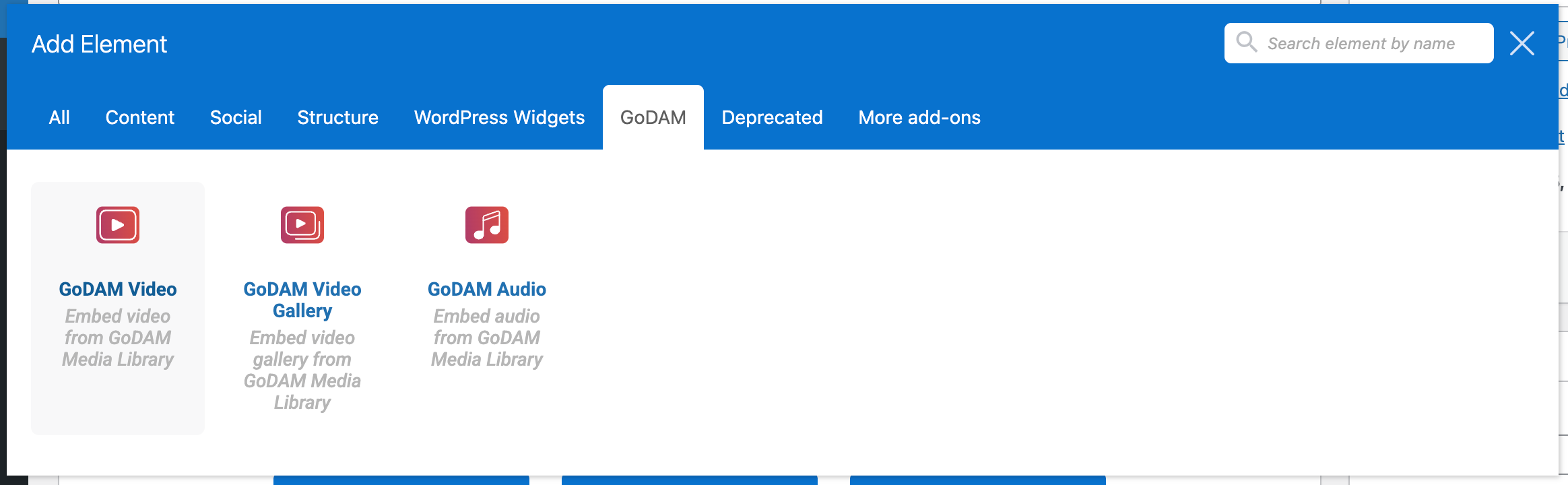
With GoDAM, you get three dedicated WPBakery elements: GoDAM Video, GoDAM Video Gallery, and GoDAM Audio.
GoDAM Video Element
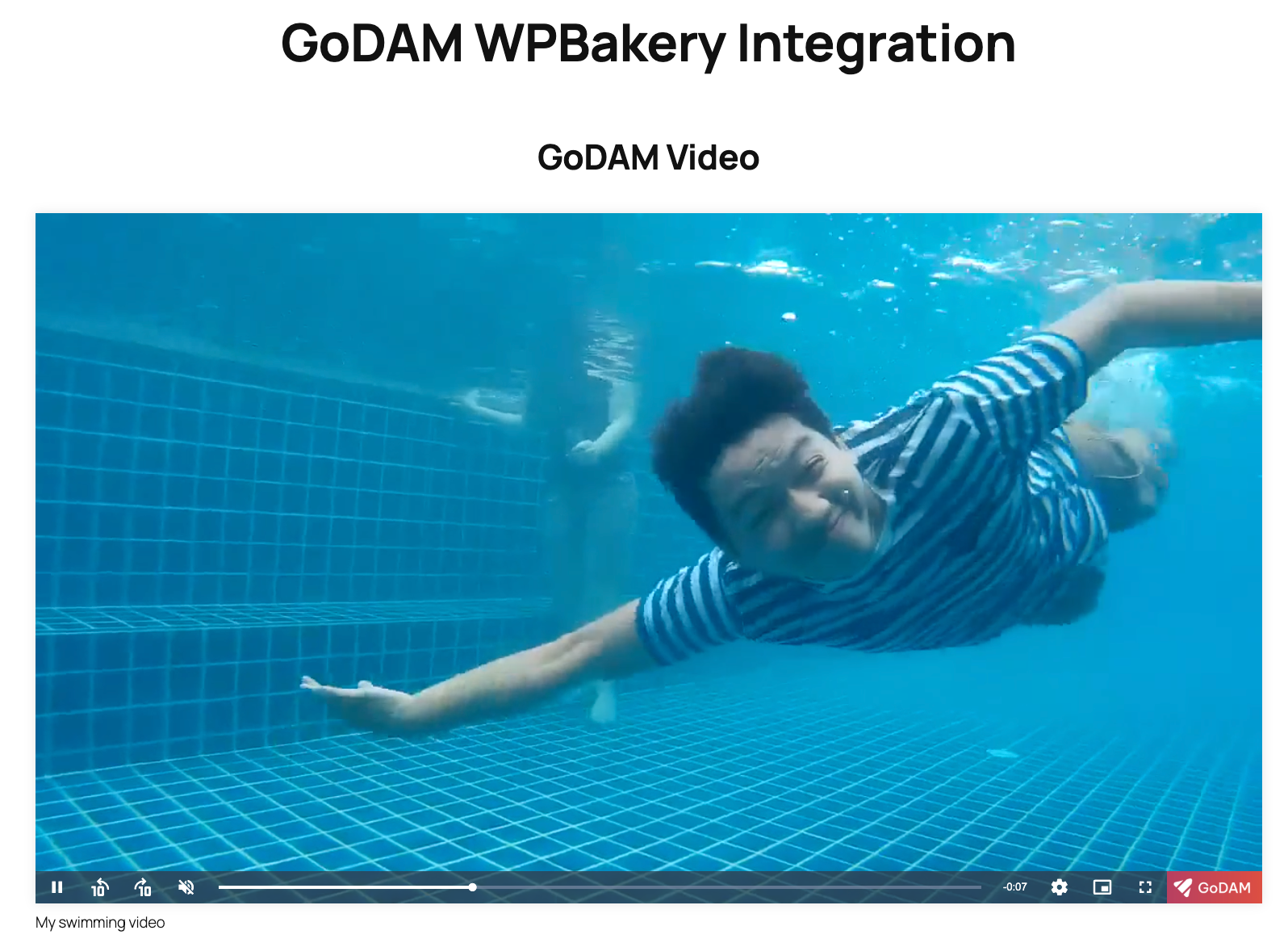
GoDAM WPBakery video element lets you embed a GoDAM video easily using its intuitive drag and drop builder for WordPress.
To add a GoDAM video to your WPBakery page:
- Search for the GoDAM video in the WPBakery elements or switch to GoDAM tab and drag and drop the video element
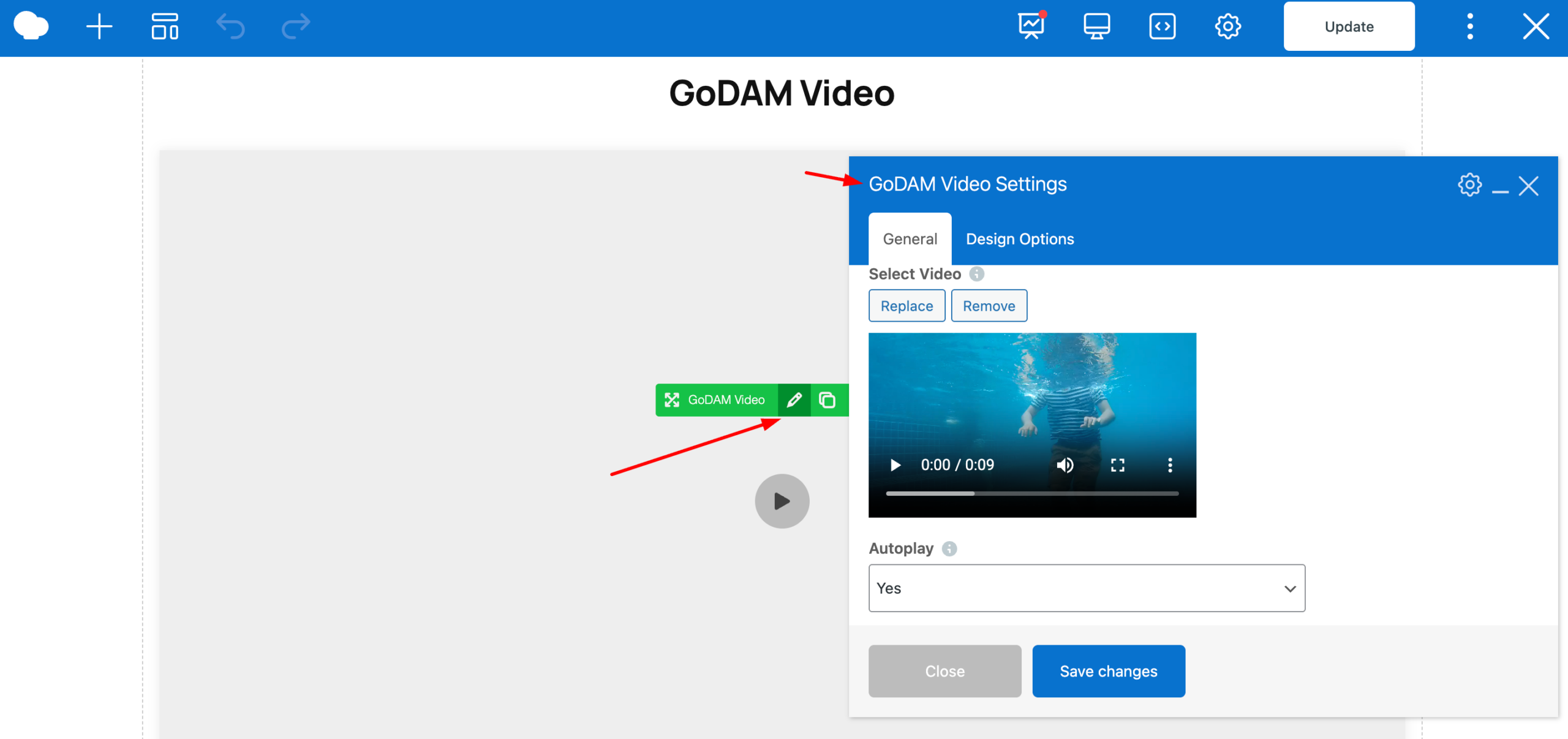
- Upon clicking edit over the element, a popup will appear asking you to select a video and choose a few more options like thumbnail, autoplay, loop, mute etc
- Once you are done, save the GoDAM video settings and then save the page
GoDAM Video Gallery Element
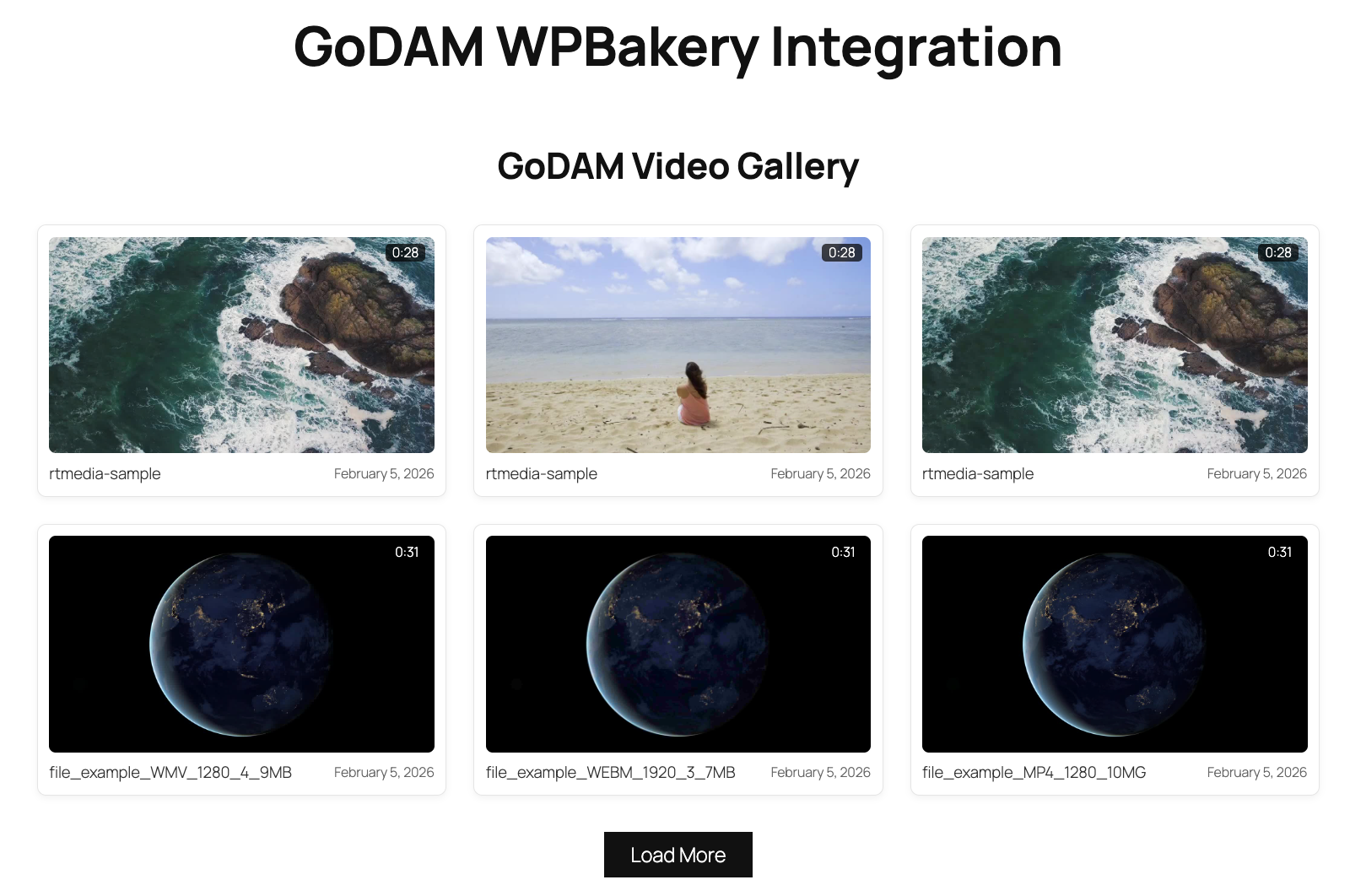
GoDAM WPBakery video gallery element lets you embed a video gallery easily using its intuitive drag and drop builder for WordPress.
To add a GoDAM gallery video to your WPBakery page:
- Search for the GoDAM video gallery in the WPBakery elements or switch to GoDAM tab and drag and drop the video gallery element
- Upon clicking edit over the element, a popup will appear asking you to choose the layout (grid or list), enable infinite scrolling. By default it loads the recent videos in descending order, you can change query to show particular videos, and filter by category, tag, author etc, making your video gallery fully customizable.
- Once you are done, save the GoDAM video gallery settings and then save the page
GoDAM Audio Element
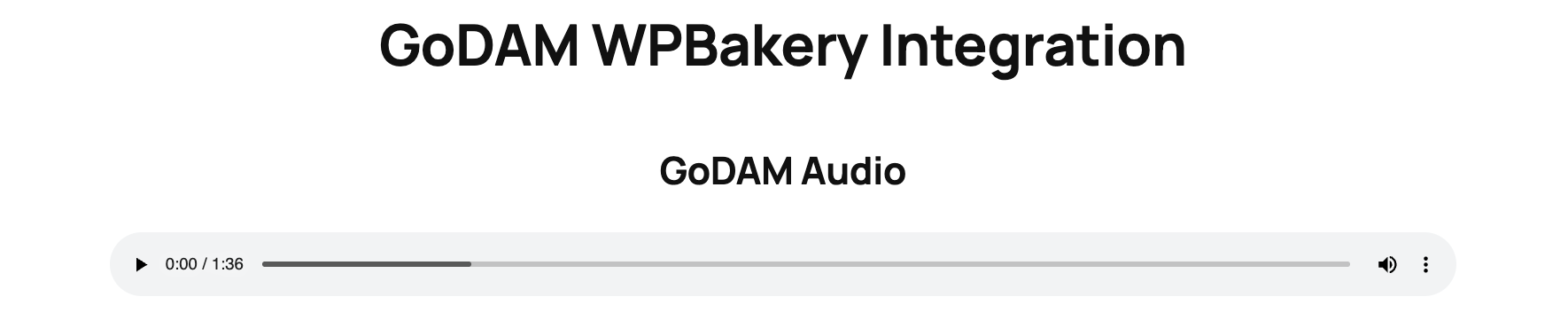
GoDAM WPBakery audio element lets you embed a GoDAM audio easily using its intuitive drag and drop builder for WordPress.
To add a GoDAM audio to your WPBakery page:
- Search for the GoDAM audio in the WPBakery elements or switch to GoDAM tab and drag and drop the audio element
- Upon clicking edit over the element, a popup will appear asking you to select an audio and customize the settings
- Once you are done, save the GoDAM audio settings and then save the page
Additional notes:
If you want to capture leads directly from your GoDAM videos using WPBakery, you will need to add an interactive video layer first.
After you add an interactive video layer, then refer this documentation to embed the GoDAM video into a WPBakery page.