
GoDAM Central is the backbone of the entire platform and unifies all your videos, images, and audio from multiple sites and from GoDAM Screen Recorder Chrome Extension in one dashboard, helping teams organize, search, and collaborate seamlessly with folder-based media management.
It features AI-powered transcriptions for accessibility, automatic video transcoding for universal playback, and dedicated video pages with sharing, embedding, and privacy controls for flexible content distribution.
Teams can engage through emoji reactions and timestamped comments while managing access with role-based permissions for owners, managers, creators, and viewers, ensuring secure and efficient collaboration.
You also get account, plan, billing and API related information on GoDAM Central.
1. Navigating the Media Library
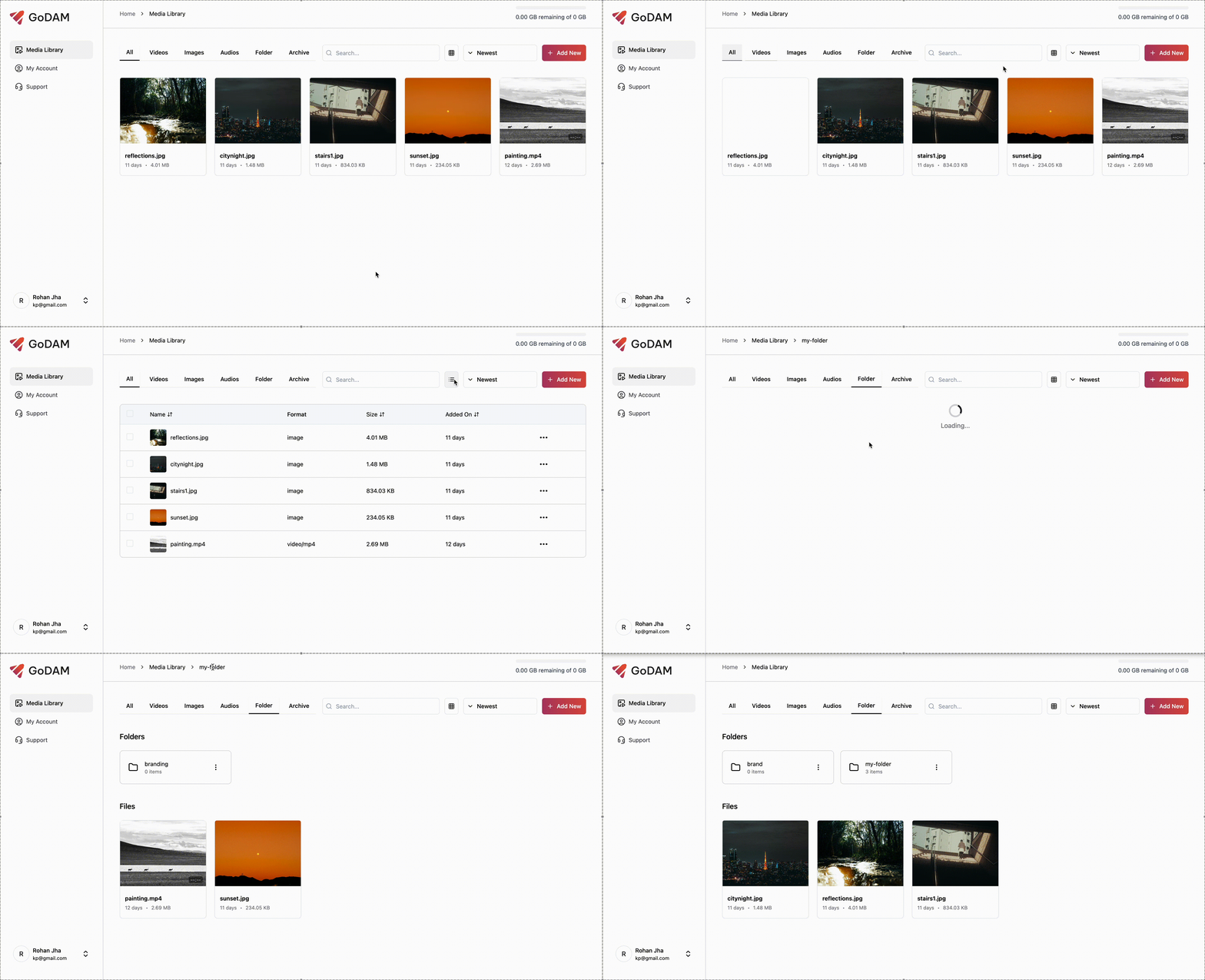
- Use the tabs to switch between All, Images, Videos, Folders, and Archive views.
- Search files by name and sort them by date, name, or size.
- Toggle between grid and list view for easy browsing.
Use breadcrumbs or browser buttons to navigate between folders.
2. Uploading Files and Folders
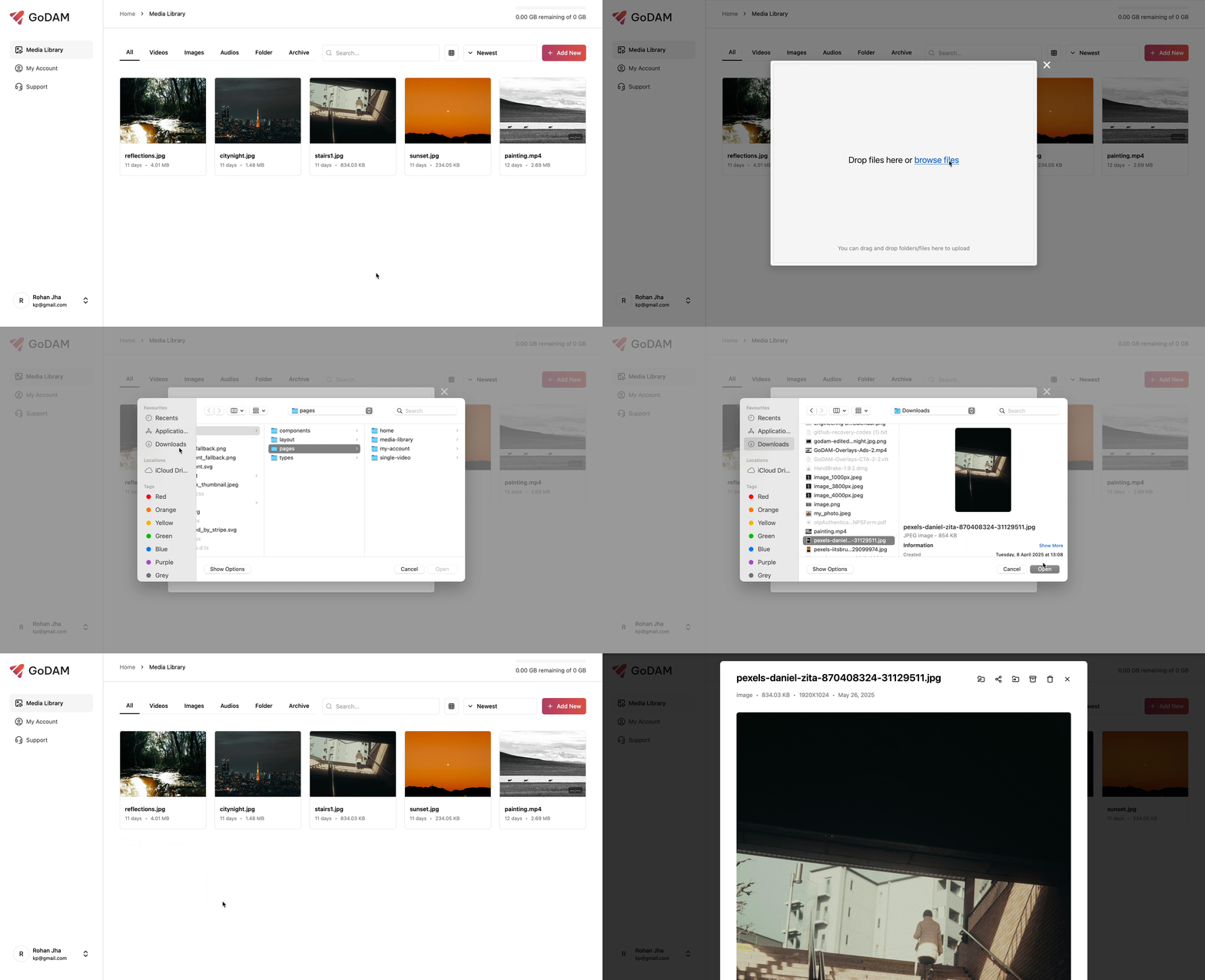
- Click “Add New” or drag & drop files/folders into the library.
- Confirm your selection in the upload modal (max 2GB or 30 files).
- New uploads automatically appear in the current folder.
3. Organizing and Moving Files
- Click the three-dot menu on any media card and select Move.
- Choose an existing folder or create a new one directly from the move modal.
- If no folder is selected, the file is moved to the top-level directory.
4. Interacting on the Single Video Page
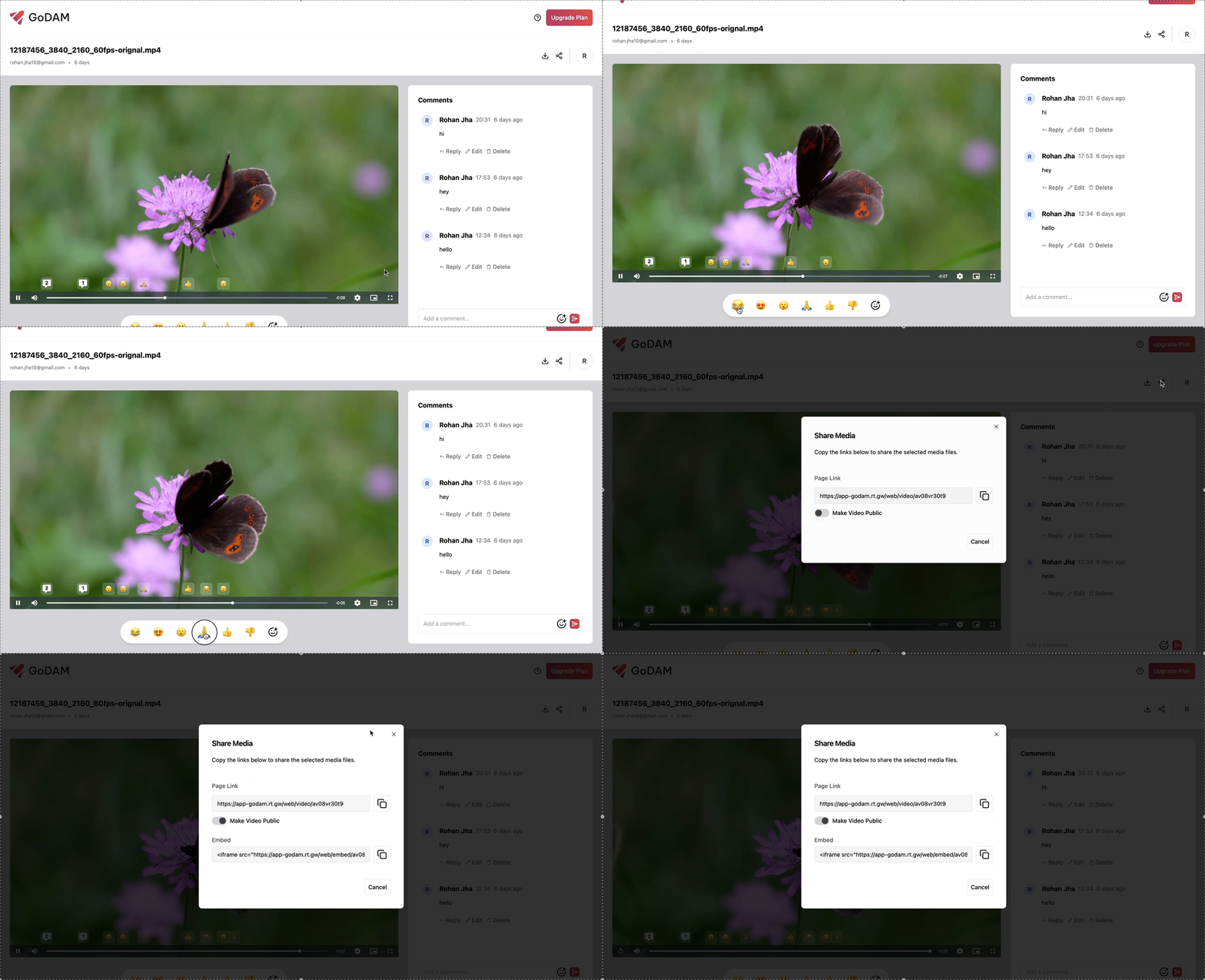
- Every video has its own page — private by default.
- Click Share > Make Public to enable sharing and generate an embed link.
- Logged-in users can leave comments (with timestamps) and react with emojis.
- Owners can download the original video file anytime.
Refer to the Organization & Team management documentation to learn more about configuring teams, setting permissions, and managing access within GoDAM.
5. Exporting media
You can export your GoDAM media anytime from GoDAM Central. To export your GoDAM media library, go to GoDAM Central → Settings, scroll to Data Export, and request your media export.
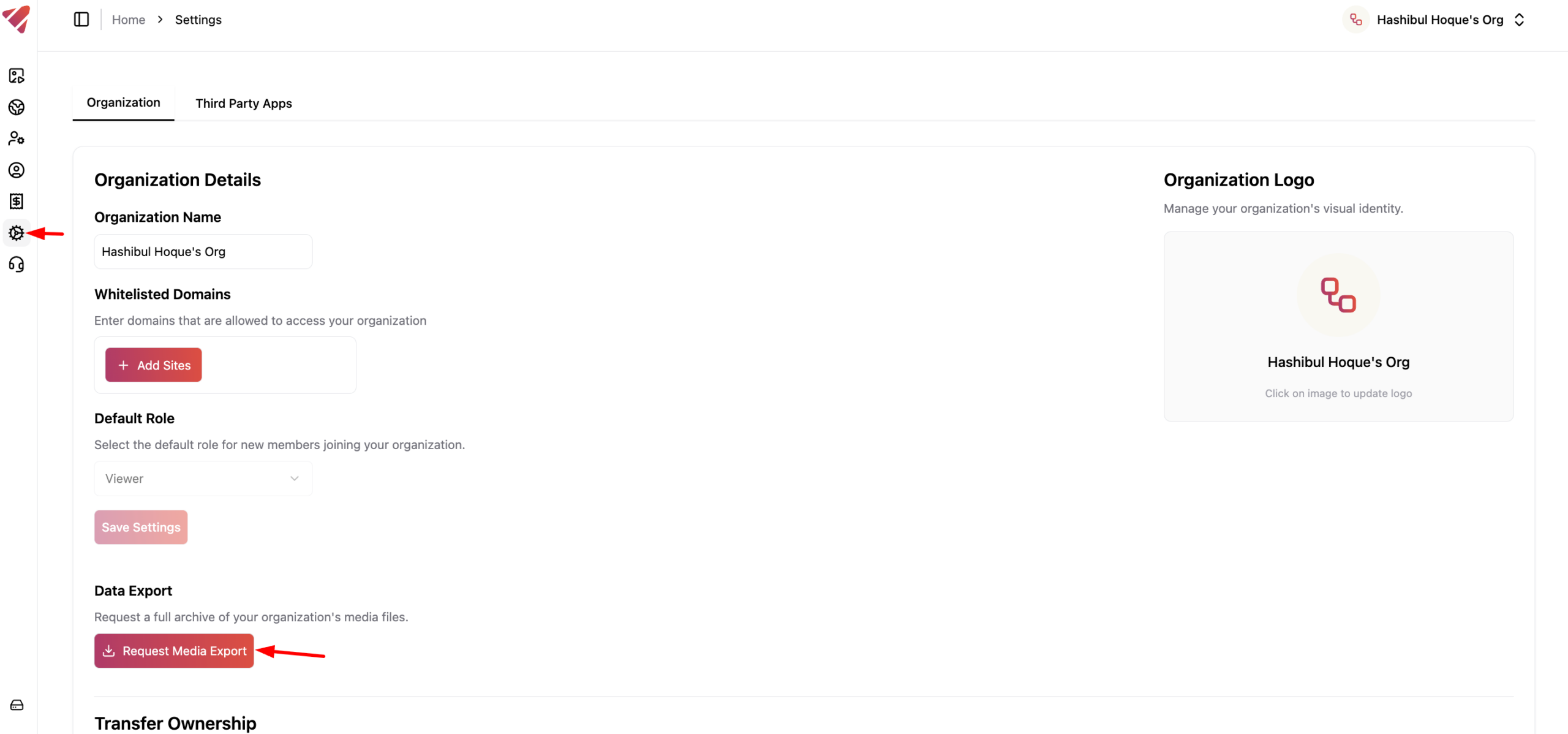
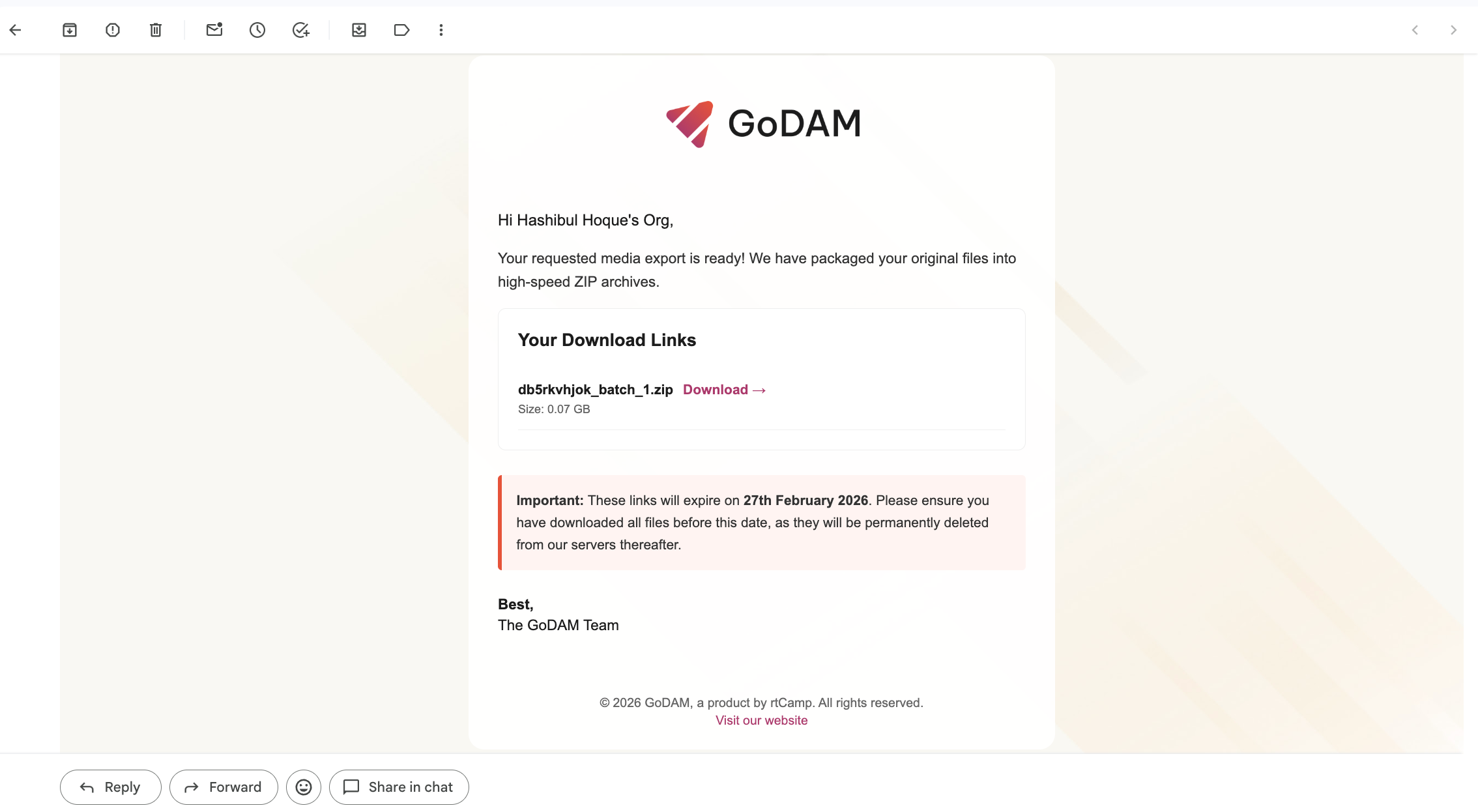
Note: Once you submit your export request, GoDAM will begin preparing your media files. When the export is ready, you will receive an email with download links. Exports are generated in 50 GB chunks. For example, if your library is 200 GB, you will receive 4 separate download files. Download links remain valid for 7 days.
If you face any issues, please reach out to our support.