
With the GoDAM Screen Recorder Extension, you can record your screen or capture screenshots, explain clearly using the pen or highlighter tools, store videos and screenshots directly in your GoDAM Central cloud workspace, and share a link that collects timestamped comments and emoji reactions – turning feedback into a conversation.
GoDAM Screen Recorder is a fork of Screenity, licensed under GPLv3.
How to use Chrome Extension
Prerequisite
You need an active GoDAM account – https://godam.io/pricing
Step 1: Install and Launch the Extension
Head over to the Chrome Web Store and install the GoDAM Screen Recorder Extension. Once installed, you’ll see the GoDAM icon appear in your browser toolbar. Click on this icon to launch the extension and get started.
Step 2: Log in to Your Account
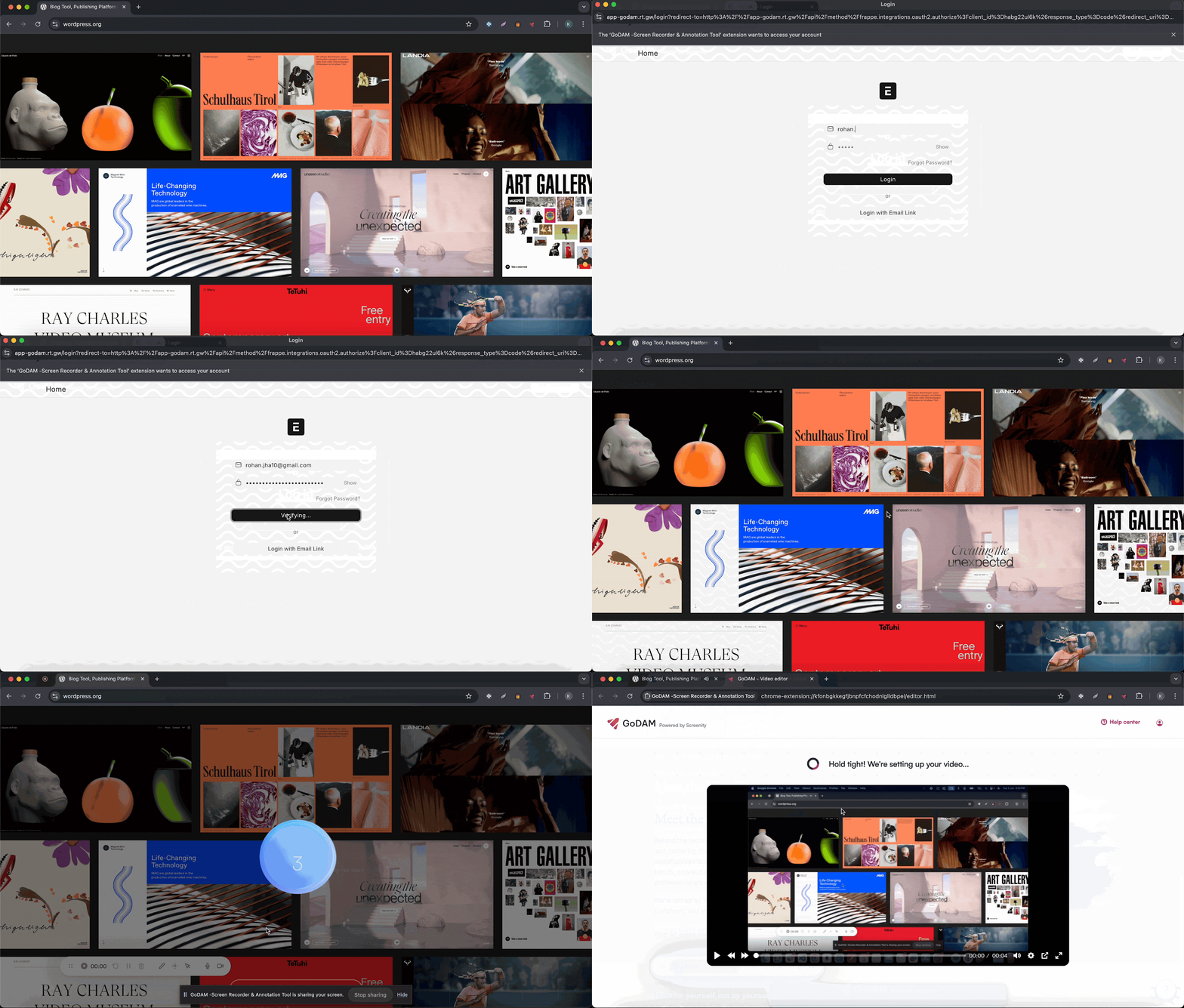
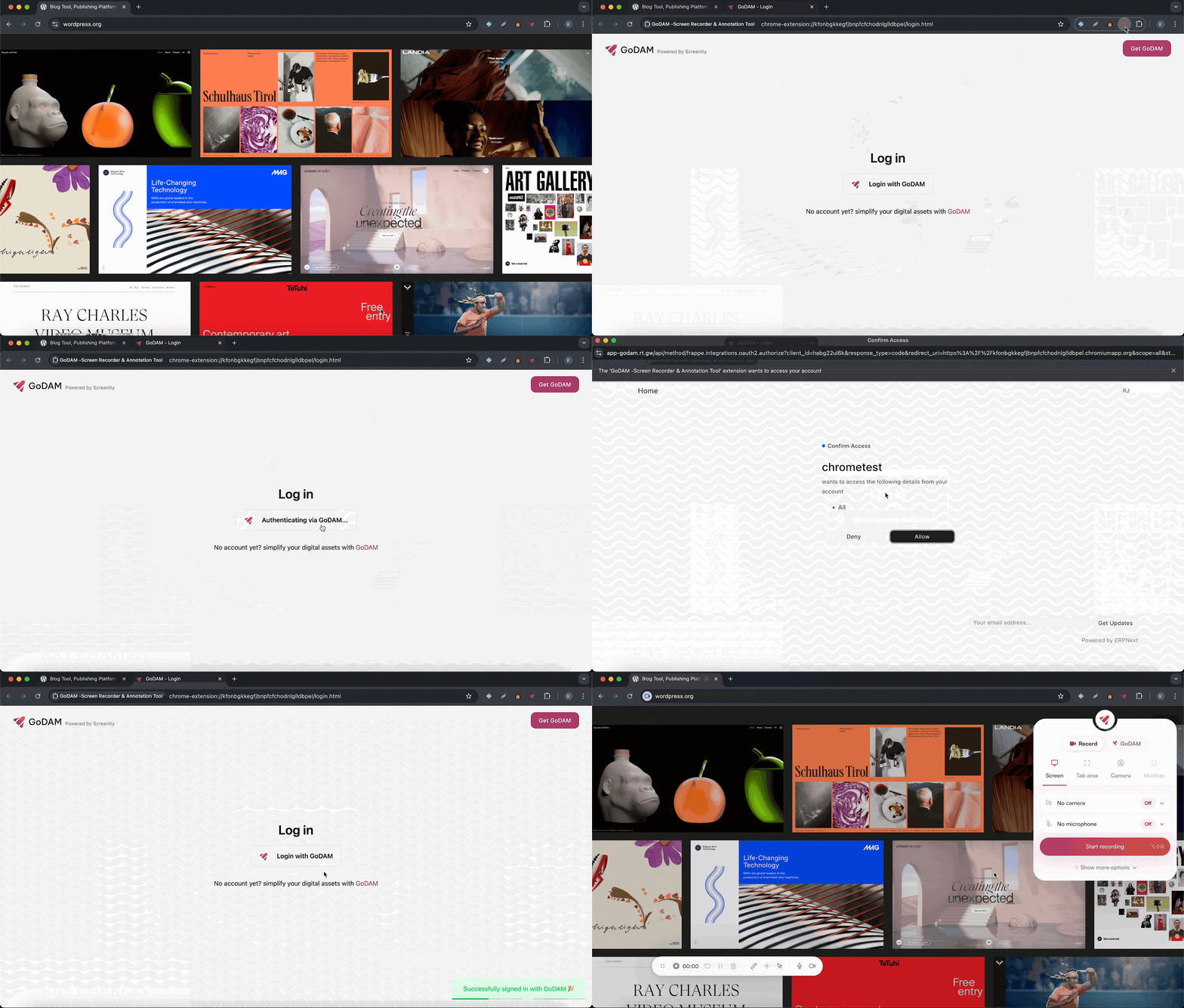
If you’re not already logged in, the extension will automatically redirect you to the GoDAM login page. Simply sign in with your credentials to access your workspace. This ensures your videos are securely stored and linked to your account.
If the user is not logged in with GoDAM:
If the user is already logged in with GoDAM:
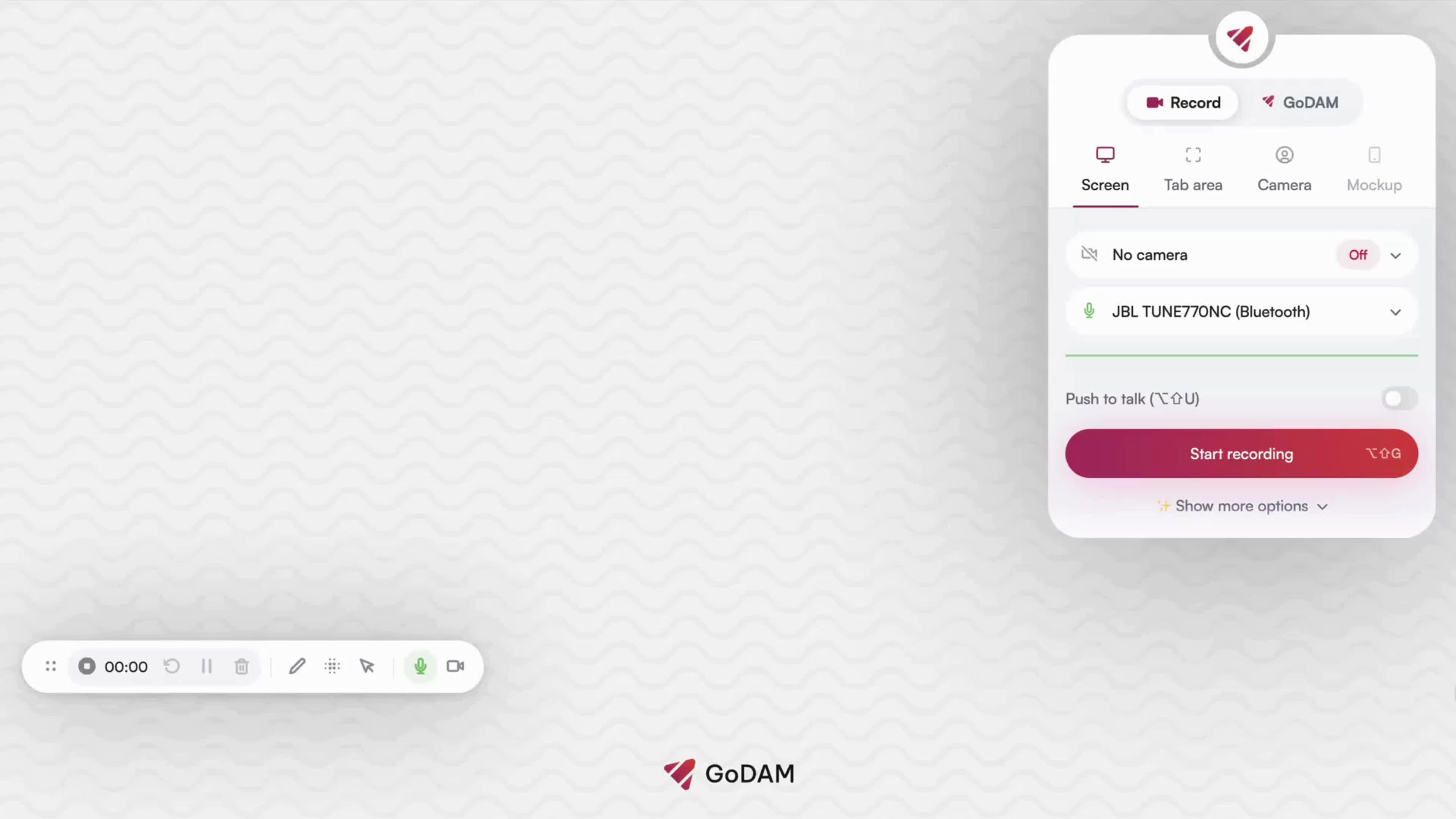
Step 3: Start Recording Your Screen
After logging in, you’re ready to start recording. Choose whether you want to record your entire screen, a specific window, or a browser tab. While recording, you can use the built-in canvas tools, draw with the pen, highlight important sections, or use shapes to guide your viewers in real time.

Step 4: Upload, Share, and Get Feedback
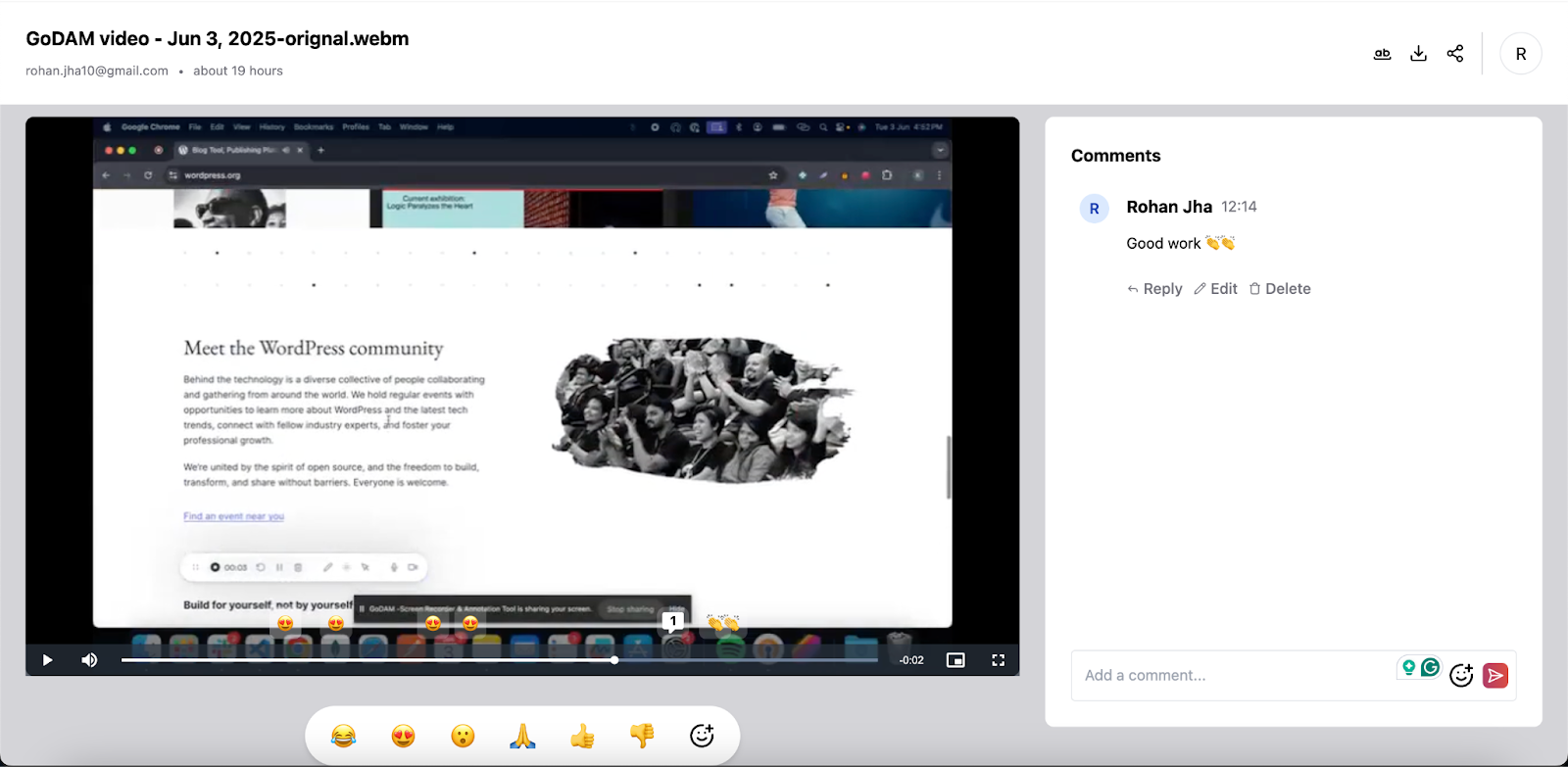
Once you finish recording, your video is automatically uploaded to your GoDAM media dashboard and redirected to a single video page. From there, you can easily share the video link with anyone, team members, clients, students, or collaborators. What makes it powerful is that viewers can leave timestamped emoji reactions and comments, giving you instant, contextual feedback without back-and-forth messaging.
Step 5: Capture screenshot (optional if you are trying to capture a screenshot)
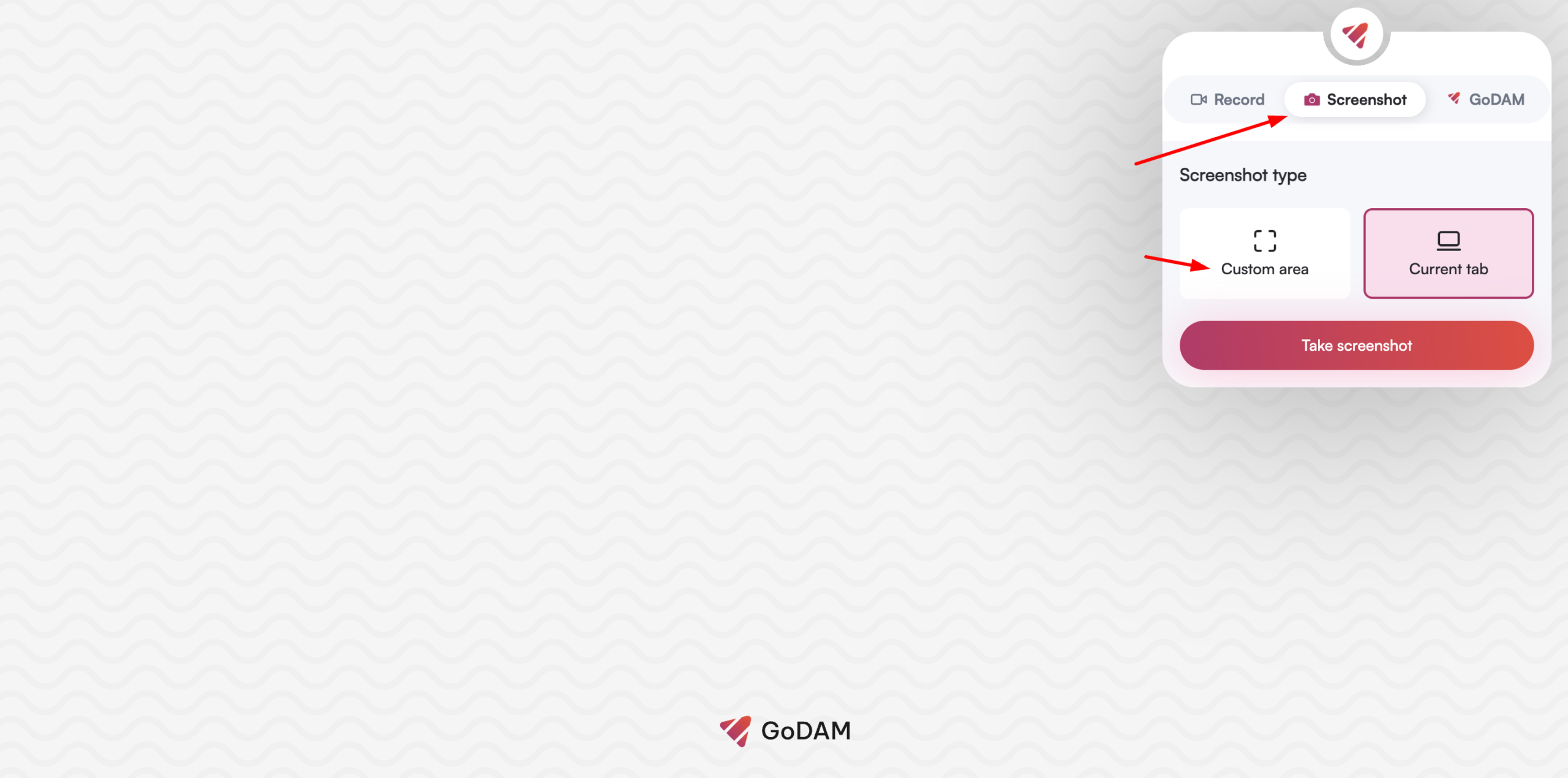
Click on the screenshot tab on the GoDAM Screen Recorder Chrome extension. You will find two options:
- Custom area – select this option if you want to screenshot a specific area
- Current tab – select this option to automatically select the full tab currently in view
After selecting an option, click the ‘Take Screenshot’ button. Your screenshot will be captured, automatically saved to GoDAM Central, and you will be redirected to the image link on GoDAM Central.
Technical details
This Chrome extension is built on top of the open-source Screenity Chrome Extension (v3.0.0). We’ve customized it to align with the GoDAM platform by replacing the default Screenity branding (logo and text) with GoDAM’s visual identity.
In addition to branding updates, we’ve extended the core functionality by integrating OAuth2 authentication using the Chrome Identity API. This enables users to securely log in with their GoDAM accounts, allowing all recorded videos to be uploaded directly to GoDAM’s cloud storage for easy access and sharing.
Permissions
This section explains the permissions required by our GoDAM screen recording Chrome extension and why each permission is necessary for the extension’s functionality.
Core Permissions
identity
Purpose: Enables OAuth2 authentication for user login and account management.
- Allows the extension to authenticate users through OAuth2 flow.
- Required for managing user accounts and syncing recordings to the GoDAM cloud services.
- Works in conjunction with the configured OAuth2 client ID.
activeTab
Purpose: Provides access to the currently active browser tab.
- Enables the extension to interact with the current webpage.
- Required for injecting content scripts and overlays during recording.
- Allows recording of specific tab content when needed.
storage
Purpose: Enables local data storage for extension settings and temporary data.
- Stores user preferences and extension configuration.
- Maintains recording settings between browser sessions.
- Store authentication tokens in extension local storage.
unlimitedStorage
Purpose: Removes storage quota limitations for large video files.
- Essential for storing recorded video files which can be very large.
- Prevents storage quota errors during long recording sessions.
- Allows temporary storage of high-quality video content before processing.
downloads
Purpose: Enables automatic downloading of recorded videos.
- Allows the extension to save recorded videos to the user’s Downloads folder in case of video upload failure on GoDAM server.
- Provides programmatic control over the download process.
tabs
Purpose: Provides access to browser tab information and management.
- Required for managing recording across multiple tabs
- Enables tab switching detection during recording
- Allows the extension to identify which tabs are being recorded
tabCapture
Purpose: Core permission for capturing audio and video from browser tabs.
- Critical for main functionality: Enables recording of tab content including audio and video
scripting
Purpose: Allows injection of scripts into web pages.
- Enables content script injection for recording overlays and controls
- Required for adding recording indicators and user interface elements to web pages
- Facilitates communication between the extension and web page content
Optional Permissions
These permissions are requested only when specific features are used:
offscreen (Optional)
Purpose: Enables offscreen document creation for background processing.
- Used for processing video/audio in a separate context
- Helps maintain performance during intensive recording operations
- Allows background encoding and processing without affecting the main UI
desktopCapture (Optional)
Purpose: Enables screen and desktop recording capabilities.
- Required when users want to record their entire screen or specific windows
- Extends recording beyond just browser tabs to include desktop applications
- Provides system-level screen capture functionality
alarms (Optional)
Purpose: Enables scheduled tasks and reminders.
- Used for automatic recording stop based on schedules
- Helps manage recording duration limits
Host Permissions
<all_urls>
Purpose: Allows the extension to work on any website.
- Justification: Screen recording needs to work across all websites and web applications
- Enables content script injection on any domain
- Required because users may want to record content from any website
- Essential for the universal nature of screen recording functionality