
Enhance your video playback experience with chapter progress markers, a feature that segments your video timeline into clickable, trackable chapters. GoDAM video chapters help you add timestamped WordPress video chapters to make your videos interactive, allowing viewers to easily navigate, revisit key moments, and stay engaged throughout your content.
How to Add Chapters
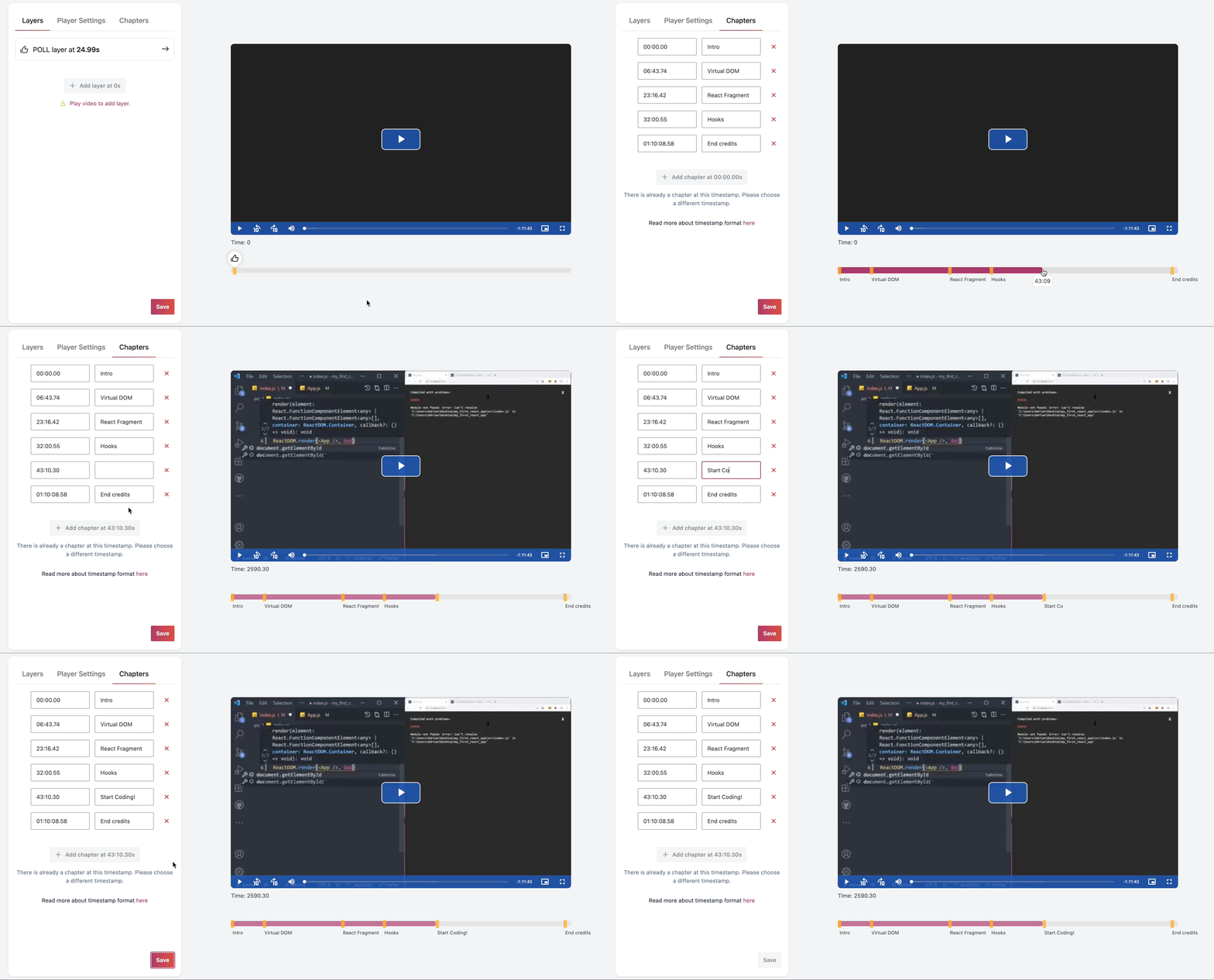
To add chapters in the video, follow the below steps:
- Go to Video Editor
- Choose a Video
- Click on Chapters Tab
- Play the video, alternatively click on the timeline at the bottom right at any timestamp you want to add the chapter at.
- Click on the “Add Chapter” Button
- Add the chapter Name.
- Click on Save once you’re done adding all the chapters
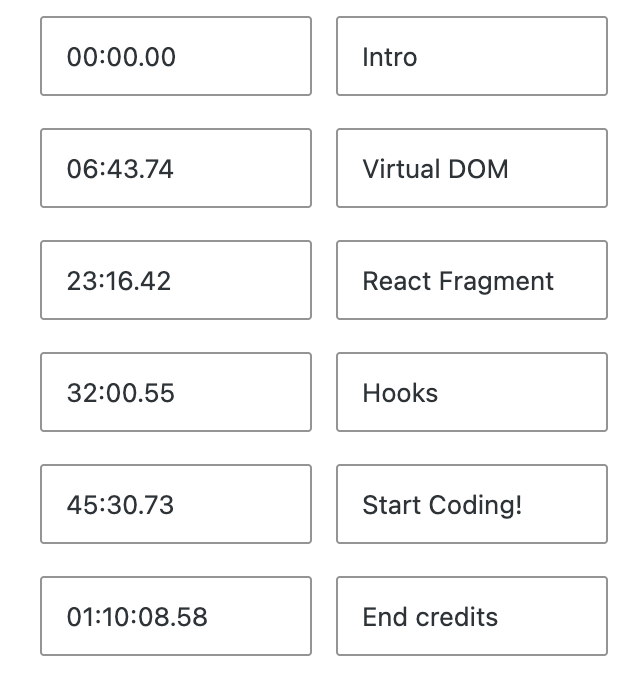
Timestamps formatting instructions
Chapter timestamp formatting rules:
- For videos under a minute, timestamps use
seconds.milliseconds - For videos between one minute and one hour, the format becomes
minutes:seconds.milliseconds - For videos over an hour, timestamps are shown as
hours:minutes:seconds.milliseconds
How to Delete a Chapter
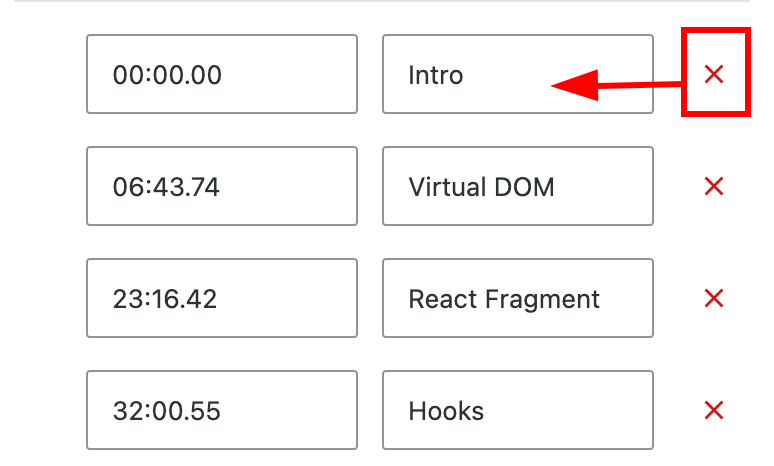
To delete chapters in the video, follow the below steps:
- Go to Video Editor
- Choose a Video
- Click on Chapters Tab
- Find the chapter you want to delete from the list of chapters and click on the cross icon next to it to remove the chapter.
- Click on Save once you’re done removing the chapters
How to Edit a Chapter
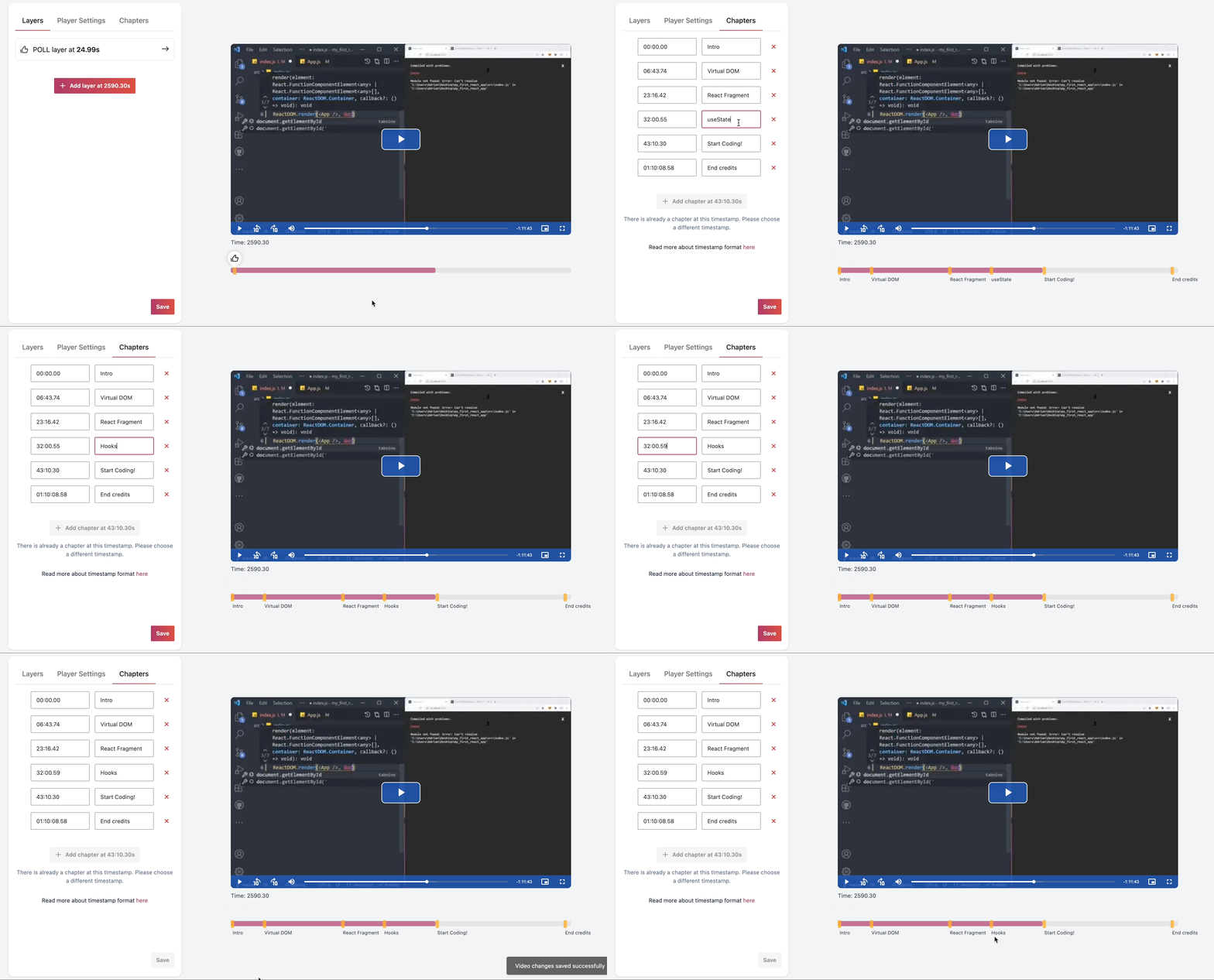
To edit chapters in the video, follow the below steps:
- Go to Video Editor
- Choose a Video
- Click on Chapters Tab
- Find the chapter you want to edit from the list of chapters and click on the field you wish to edit.
- Click on Save once you’re done removing the chapters
Note:
- No two chapters can be added at the same time stamp
- The time cannot be greater than the duration
- Timestamp cannot be empty
If you still try to save the chapter, the chapter will be discarded on the frontend.