
Share a specific folder with someone – a teammate who wouldn’t otherwise have access, or someone entirely outside the organization – without changing their role anywhere else in GoDAM.
What folder sharing is
In short, folder sharing lets an Owner or Manager, the folder’s owner, or anyone already granted the share tier on it give access to one specific folder, and everything inside it, to someone who wouldn’t otherwise have it, without changing their role anywhere else in GoDAM.
Specifically, that someone can be a teammate already in the organization, or someone entirely outside it. Either way, access stays scoped to that one folder: it exposes nothing beyond that folder, and changes nothing about their standing elsewhere in the app.
Two ways to do folder sharing
| Internal sharing | External sharing | |
|---|---|---|
| Who it’s for | A teammate already in your organization | Anyone outside the organization – no GoDAM account required to start |
| How they get in | Already logged in; access just appears | Invited by email, accept a link, sign up or log in |
| Becomes a team member? | No – no role change anywhere else | No – never, under any circumstance |
| Access expiry | Not supported | Optional, in days |
| Tiers available | Can edit, Can edit & share | Can view (default), Can edit, Can view, edit & share |
Folder sharing permission tiers
Access isn’t just on or off – three tiers control exactly what someone can do:
- Can view – browse the folder, its subfolders, and its files (video, image, audio, PDF). Opening a file opens the file itself in a new browser tab. Read-only. External collaborators only; internal teammates are always shared at Can edit or above.
- Can edit – upload files, create subfolders, and rename or move folders inside the share. It does not let anyone rename, move, publish or archive media files, and it never allows deletion.
- Can edit & share (shown as “Can view, edit & share” on the External tab) – everything Can edit does, plus inviting more people to the same folder.
In other words, each tier is a strict superset of the one before it. Share implies edit; edit never implies share.
Cascading access
Moreover, sharing a folder shares everything underneath it – subfolders, sub-subfolders, and anything added later – automatically. Furthermore, nobody has to re-share each new file or subfolder as the project grows.
However, cascading holds tightly in both directions: access never leaks upward to a parent folder that wasn’t shared, and never sideways to a sibling folder that happens to share the same parent.
Journey: sharing a folder internally
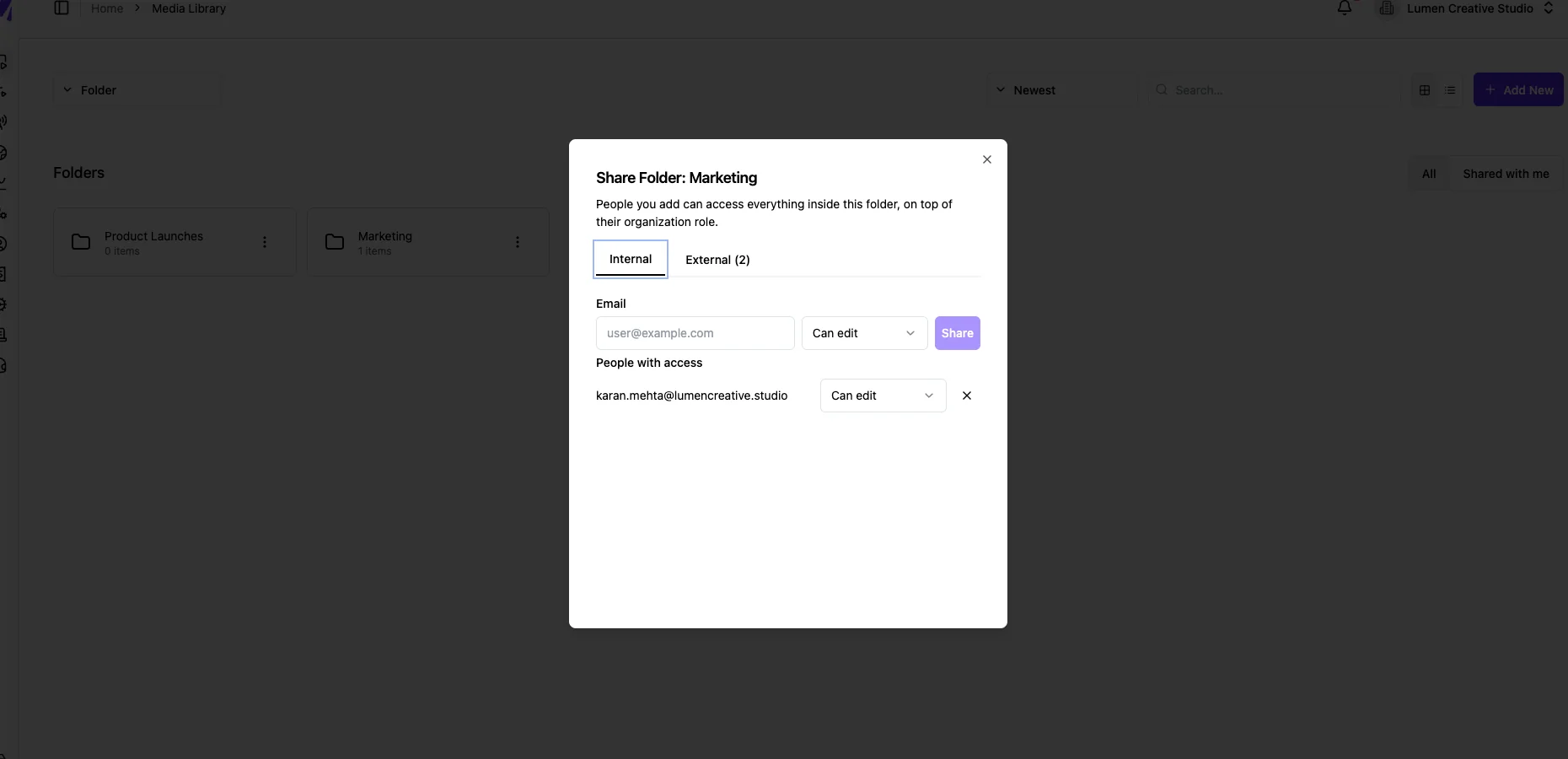
- From the folder’s ⋮ menu in Media Library, choose Share.
- On the Internal tab, enter the teammate’s email and pick a tier (Can edit or Can edit & share).
- Subsequently, click Share and access takes effect immediately – no invite link or acceptance step, since they’re already logged in.
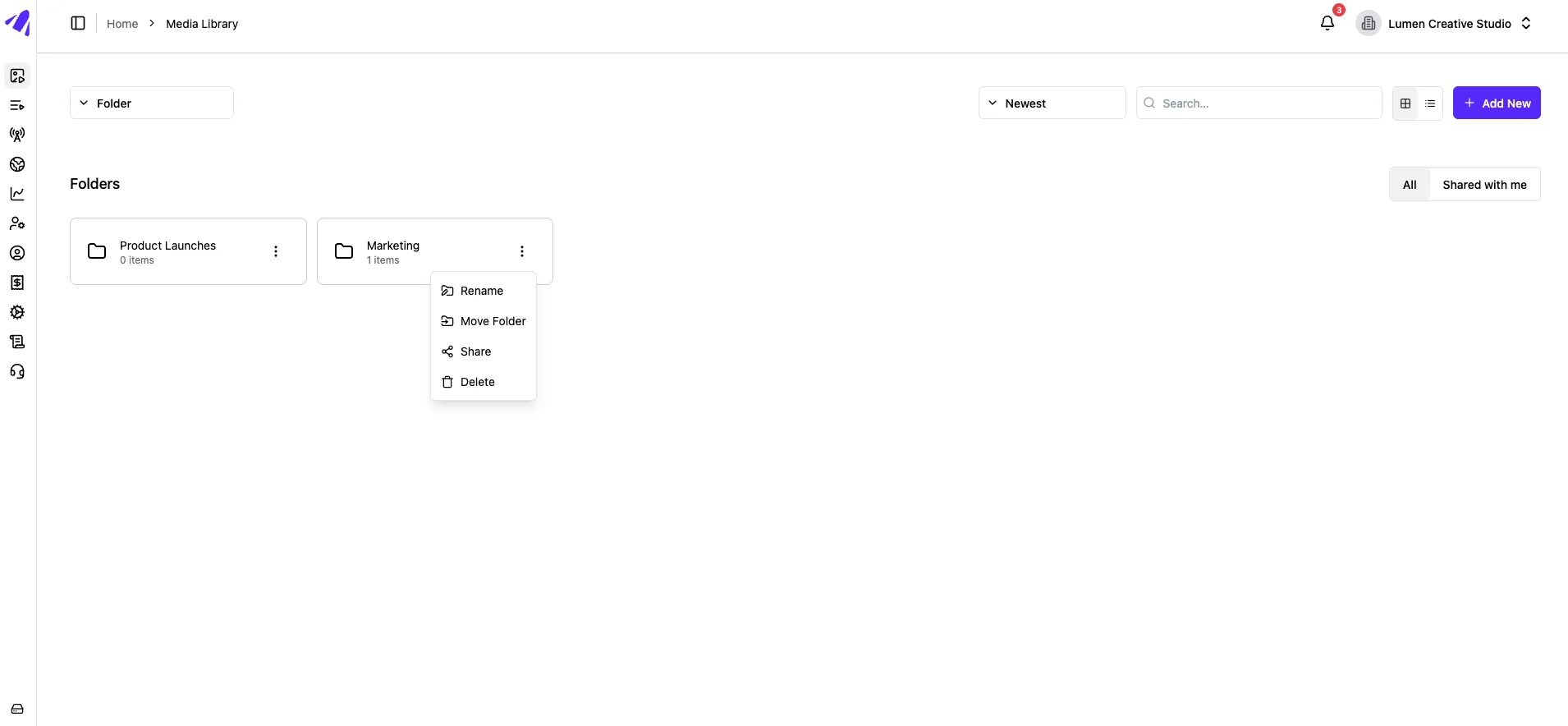
The folder’s own ⋮ menu is also where Rename, Move, Share and Delete live. A share tier can unlock Rename, Move and Share, but never Delete (see Who can do what).
Journey: inviting an external collaborator
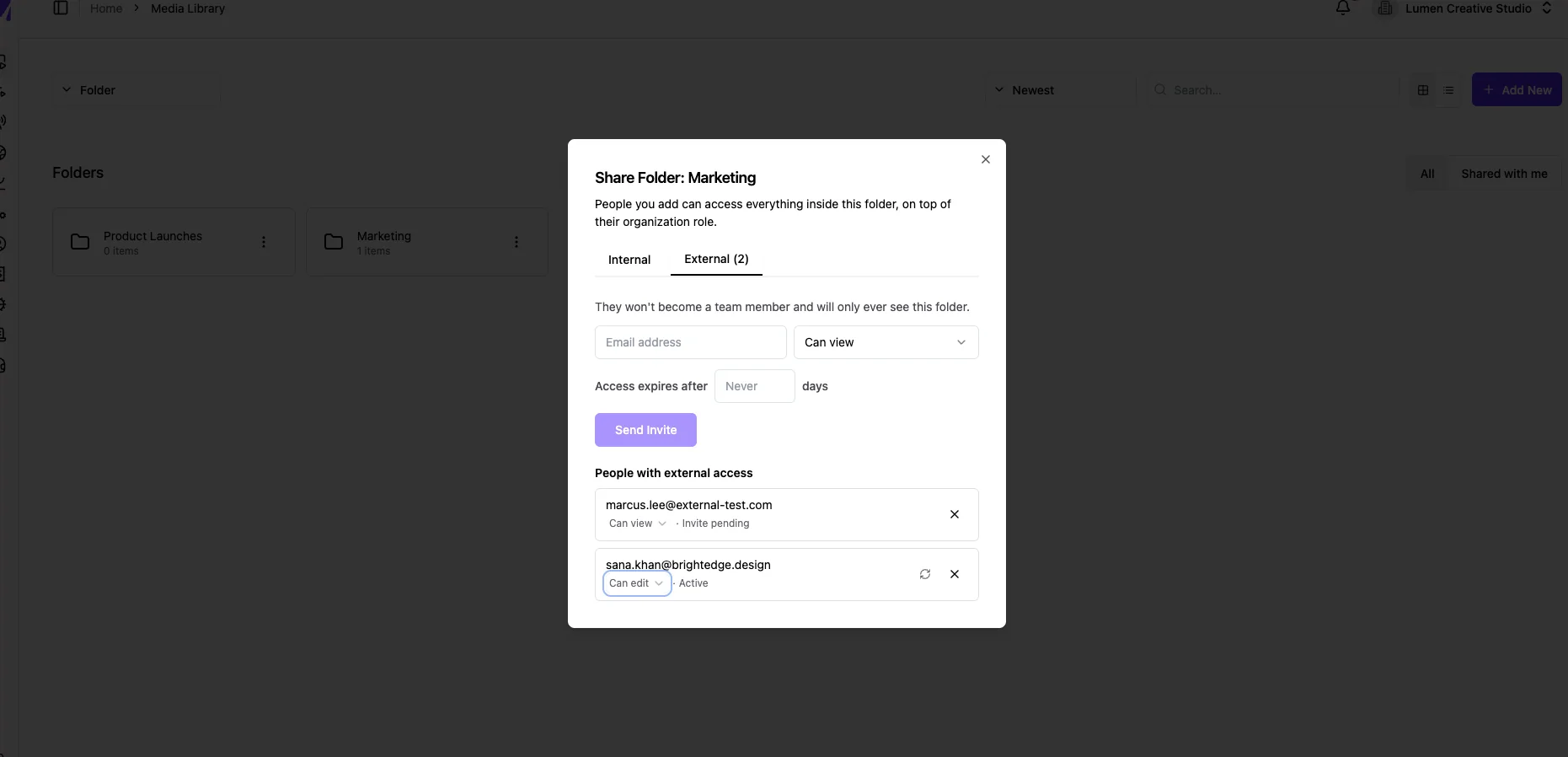
- In the same Share dialog, switch to the External tab.
- Enter their email, choose a tier (Can view, Can edit, or Can view, edit & share), and optionally set an expiry in days.
- Finally, click Send Invite – they receive an email with a link to accept.
The External tab also lists everyone who currently has access, their tier, and whether their invite is still pending or already active – so a folder owner can audit and manage external access at a glance. Revoking someone there cuts their access across the organization. The row then shows Reactivate, which restores it without a new invite.
What the external collaborator sees
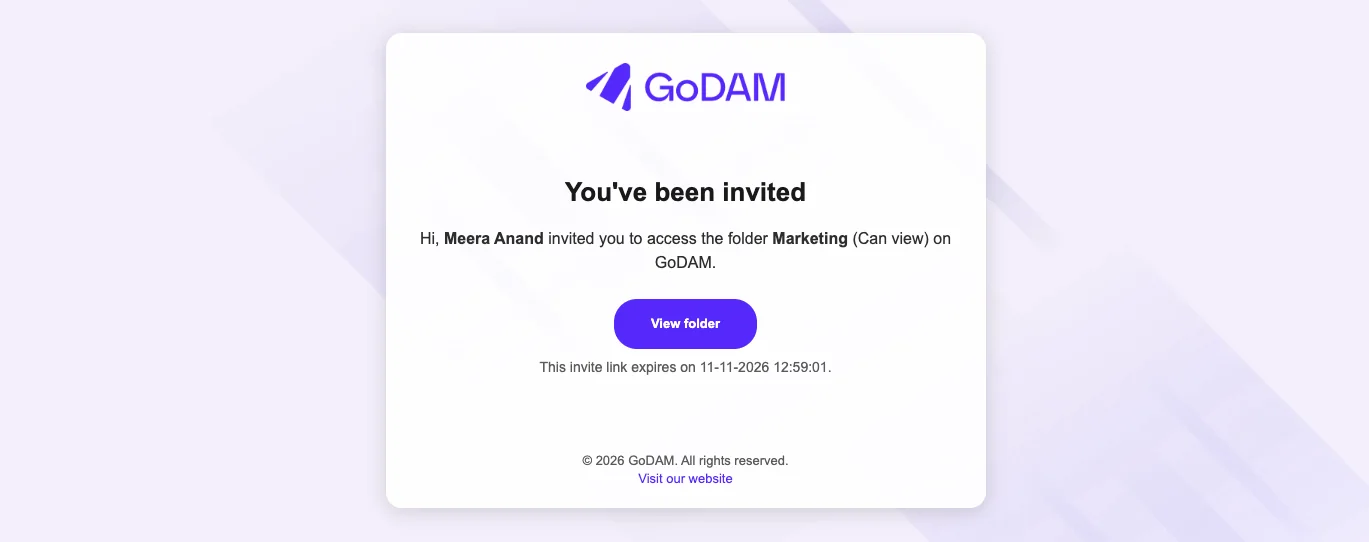
Specifically, they get a branded email naming the inviter, the folder, and their access tier – this one captured straight from a real invite, as delivered:
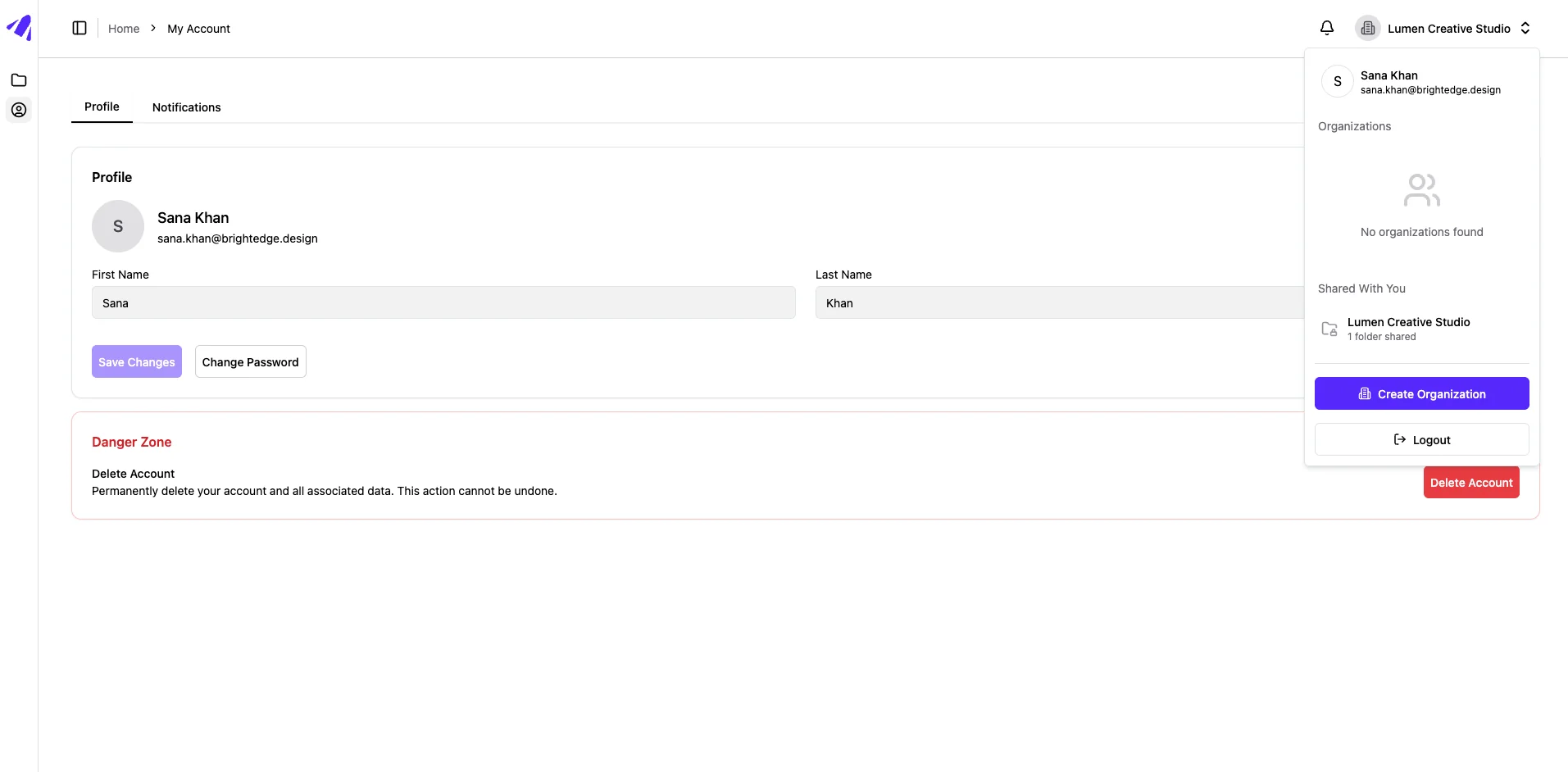
After that, clicking View folder takes them through sign-up (if they don’t already have an account) or straight to login. Once in, their account switcher shows a “Shared With You” section with an entry such as “<Org> · 1 folder shared”. Opening it shows the “Shared by <Org>” page listing every folder shared with them. Their navigation contains only Shared Folders and My Account:
Then, opening it lands them on a locked-down page scoped to exactly that folder – no team membership, no organization role, no visibility into anything else in GoDAM. Files appear as cards; clicking one opens the file itself in a new tab (there is no in-app player, preview, comments, or download button). With Can edit, an Add New button lets them upload and create subfolders, and they can rename or move folders in the share, but not media files. Can view, edit & share, they also get Share and can invite others (the collaborator list stays hidden from them). Can view, the page is read-only:
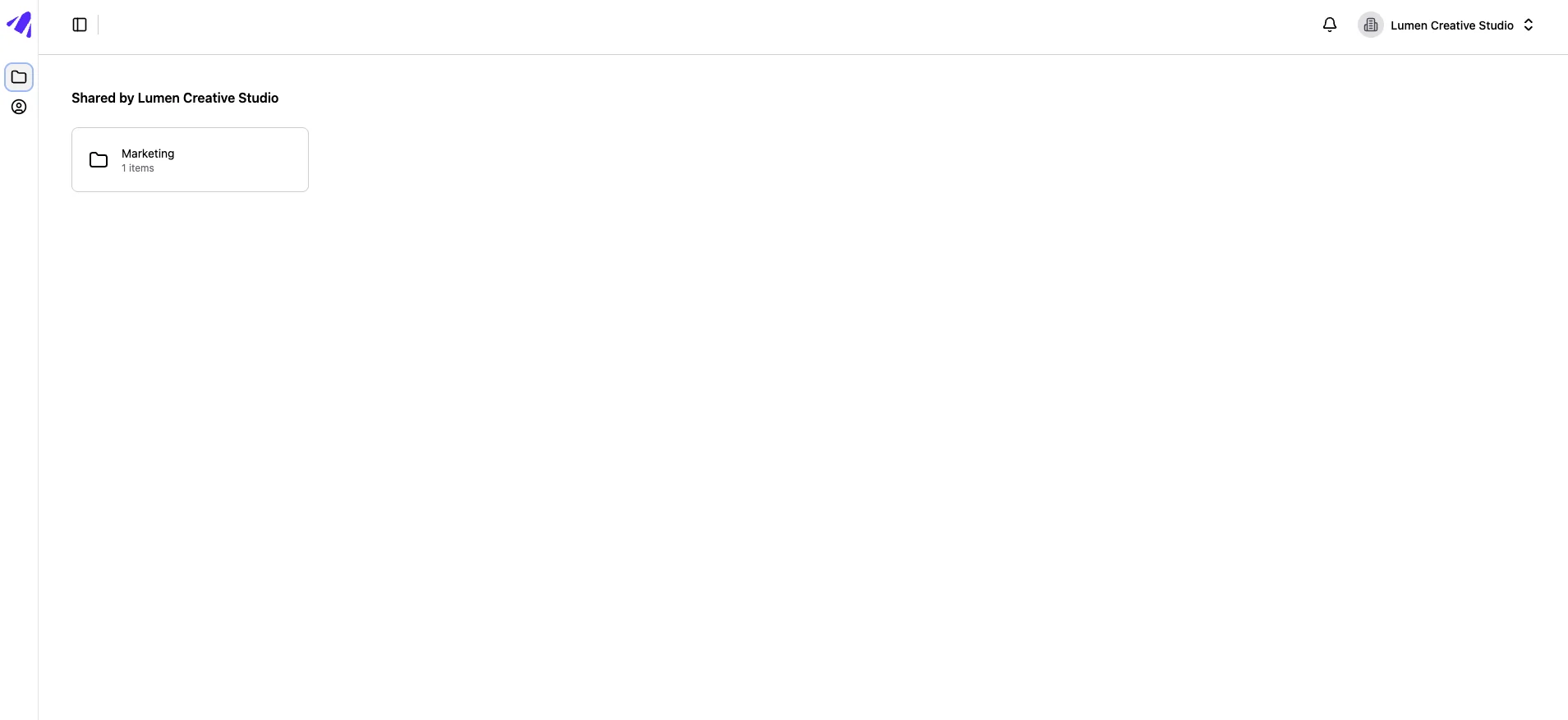
Indeed, they never see the wider media library, billing, team members, or any other organization data – this page and My Account are the entirety of their access in the app. Note that a file opened from the page is served from a direct, non-expiring file URL, which works outside GoDAM for anyone who has it.
Changing, revoking, and expiring access
Basically, changing someone’s tier is a single dropdown next to their name in the Share dialog – internal or external. Pick a new tier and it applies immediately; no need to remove and re-add them:
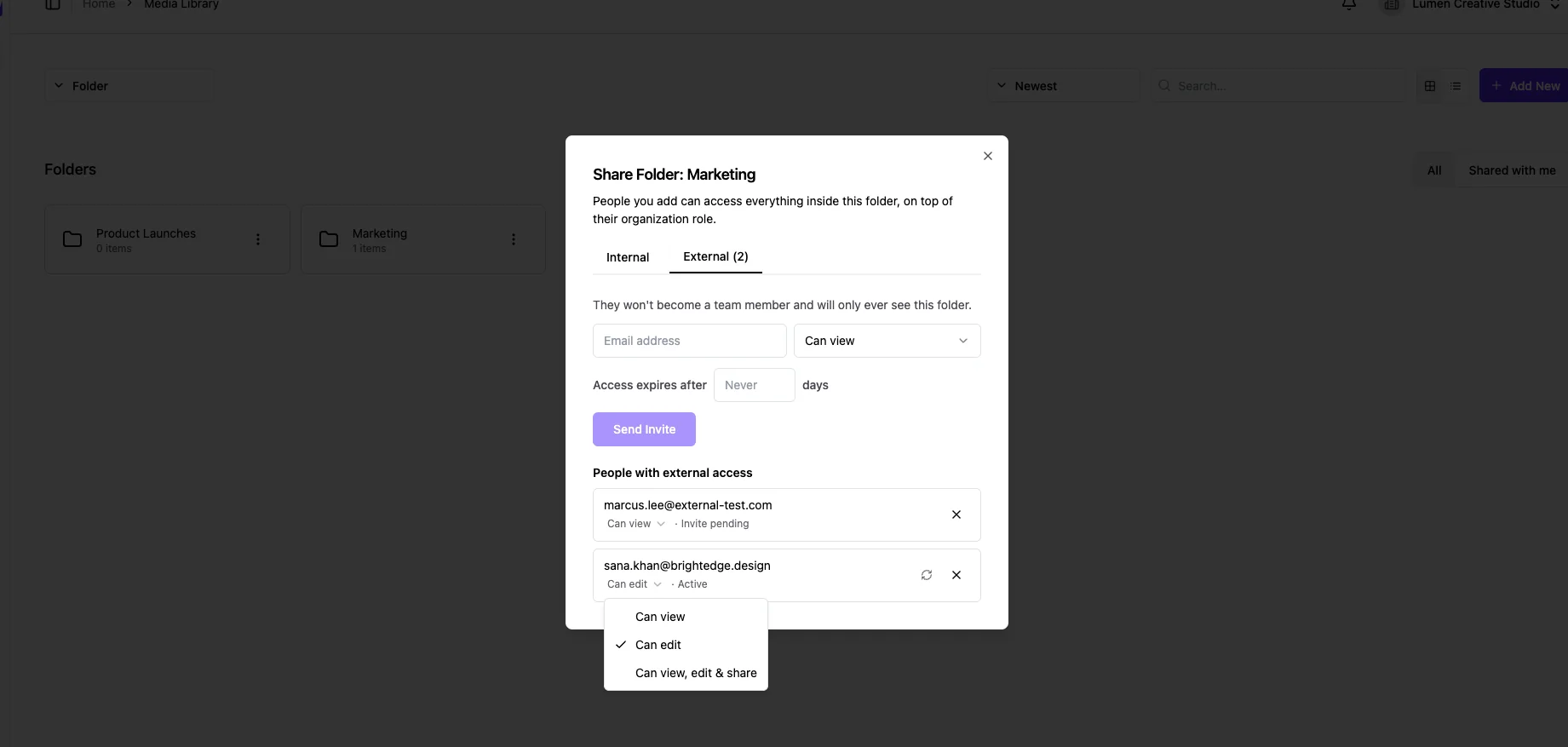
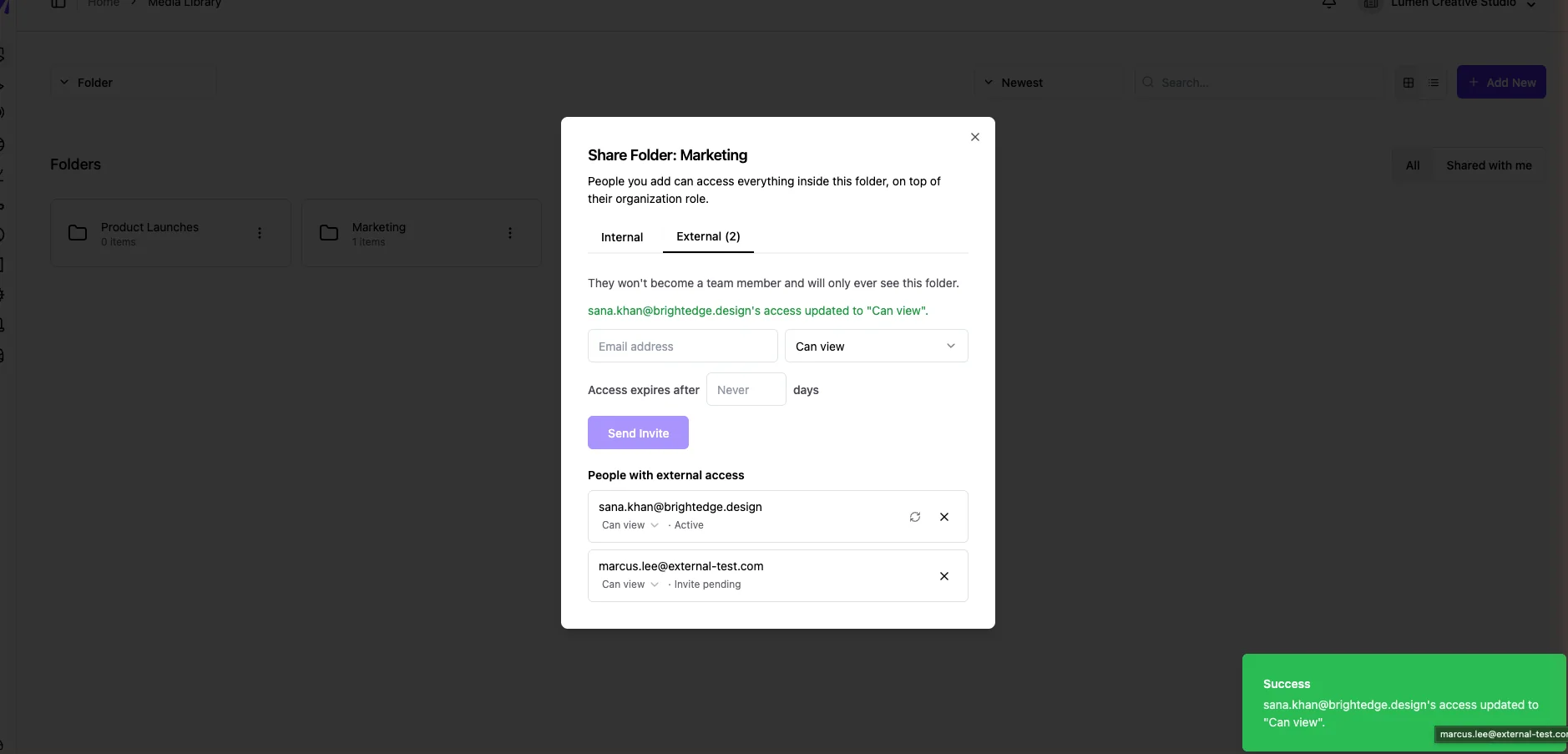
Revoking an internal teammate is the X button next to their name, and getting access back means re-adding them. Revoking an external collaborator is done on the External tab and applies across the organization. Their row then shows Reactivate, which restores access without a new invite.
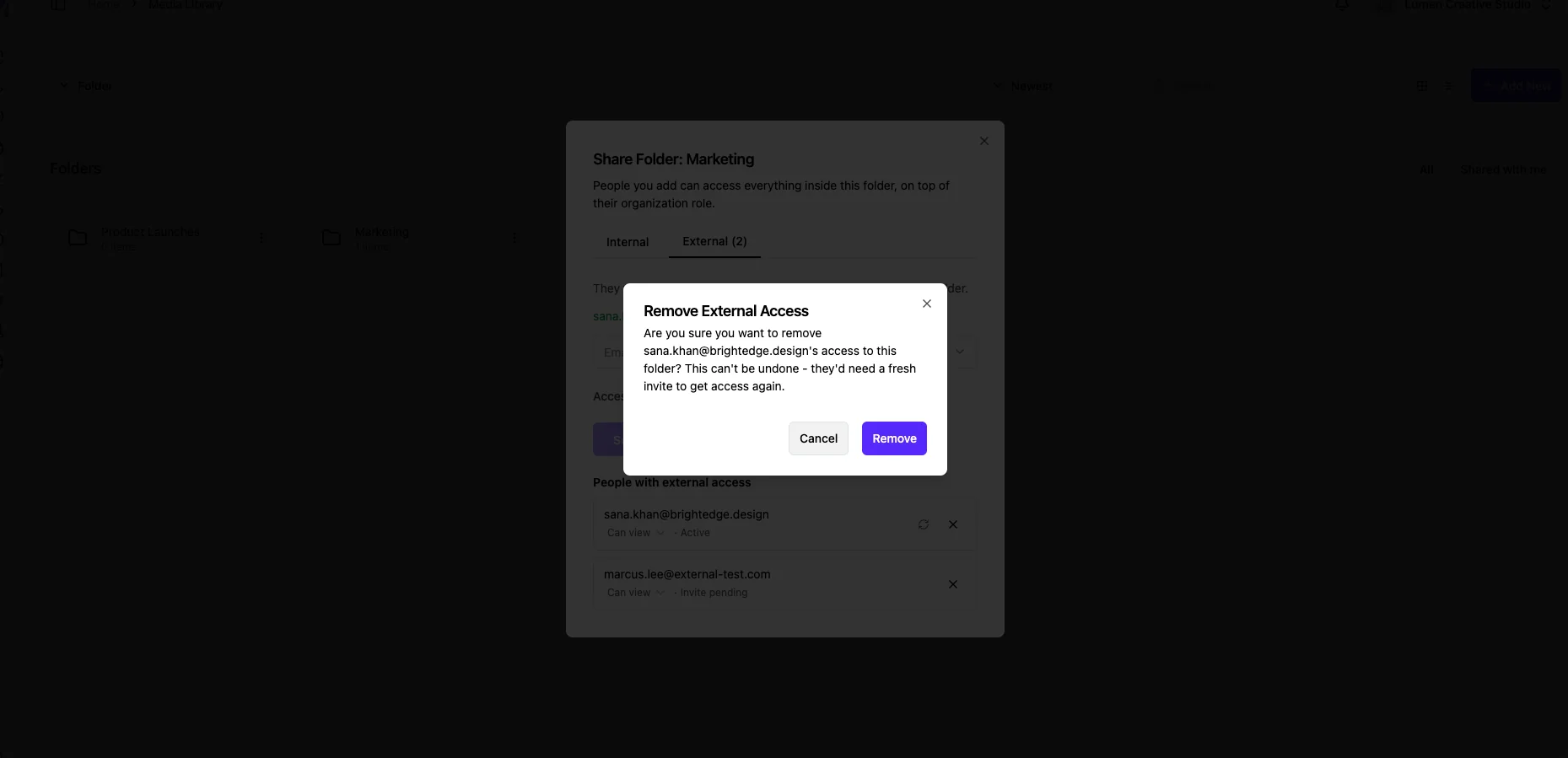
Most importantly, either change – a tier change or a revoke – takes effect immediately, even for someone with the folder open in another tab right now: the server applies the change at once, and the next action they take is refused. However, revoke and expiry close the folder in GoDAM, but they do not invalidate direct file links the collaborator already opened or copied.
Expiring access automatically is external-only: set a number of days when inviting or re-inviting, and access lapses on its own. After that, opening the folder takes them to My Account. (If a collaborator deletes their GoDAM account, their share is removed by a daily cleanup, not immediately.) Consequently, the countdown starts at acceptance, not at sending – so a slow-to-accept invite doesn’t quietly eat into the access window.
Who can do what
Generally, a share grant layers on top of someone’s existing organization role – it never replaces or overrides it. The folder’s action menu (Rename, Move, Share, Delete) shows whatever either the role or the grant allows, except Delete, which a grant never adds:
| Role / grant | Rename | Move | Share | Delete |
|---|---|---|---|---|
| Owner / Manager | Yes | Yes | Yes | Yes |
| Creator who owns the folder | Yes | Yes | Yes | Yes |
| Granted Can edit | Yes | Yes | No | No |
| Granted Can edit & share | Yes | Yes | Yes | No |
| No grant, no ownership | No | No | No | No |
These rows are for folders. Media files inside a shared folder can’t be renamed, moved, published or archived through a share. Moving a file to the organization root also needs the person’s own role to allow it, and once a file leaves the shared folder, the sharee loses access to it.
Delete is the one action a share grant never unlocks, no matter the tier – only the folder’s real owner, or an Owner/Manager, can delete it. As a result, this stops a share-level grant from ever letting its holder destroy something they don’t actually own.
Comments on shared content
Comments on files in a shared folder work as anywhere else for internal teammates. External collaborators have no comments view; their page only lists and opens files.
Summary
Overall, folder sharing grants access to one folder, and everything inside it, to a teammate (Can edit or Can edit & share) or to someone outside the organization (Can view, Can edit, or Can view, edit & share), without changing their role anywhere else. Internal access is immediate; external access goes through an emailed invite, can expire automatically, and can be revoked and reactivated. Changes apply on the server at once, though direct file links already opened are not invalidated. Delete always stays with the folder’s real owner or an Owner/Manager.