AI agents such as Claude Desktop, Claude Code and Cursor can work with GoDAM on your WordPress site through MCP (Model Context Protocol). The agent signs in as one of your WordPress users and can only do what that user is allowed to do.
What you need
- GoDAM 2.10.0 or later, and GoDAM for WooCommerce 2.5.0 or later for store features
- WordPress 6.9 or later
- The MCP Adapter plugin, version 0.7 or later, from WordPress.org
- An AI agent that supports MCP
Step 1: Install the MCP Adapter plugin
In your WordPress admin, go to Plugins > Add New, search for MCP Adapter, then install and activate it. GoDAM never installs it for you.
Step 2: Check the AI agents setting in GoDAM
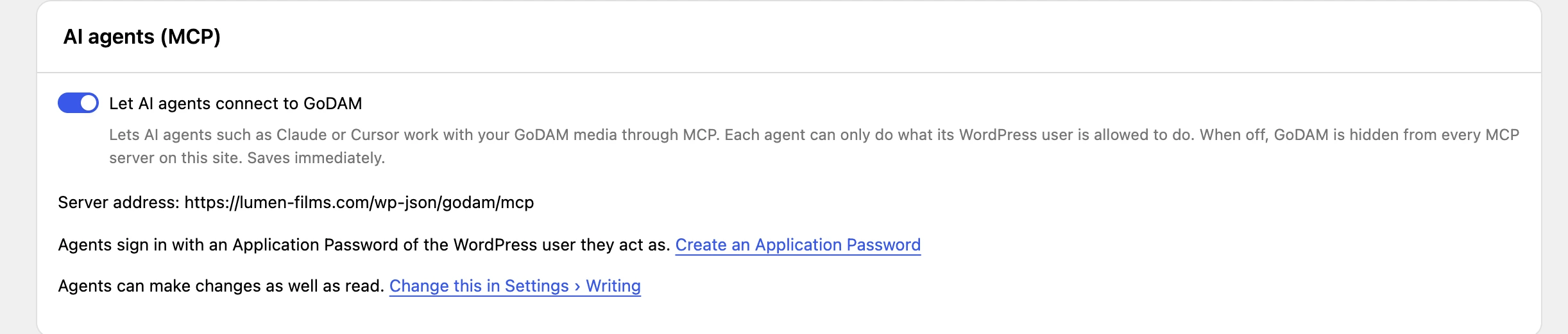
Go to GoDAM > Settings > General > AI agents (MCP). Let AI agents connect to GoDAM is on by default. The panel shows your Server address, which looks like https://your-site.com/wp-json/godam/mcp.
Step 3: Create an Application Password
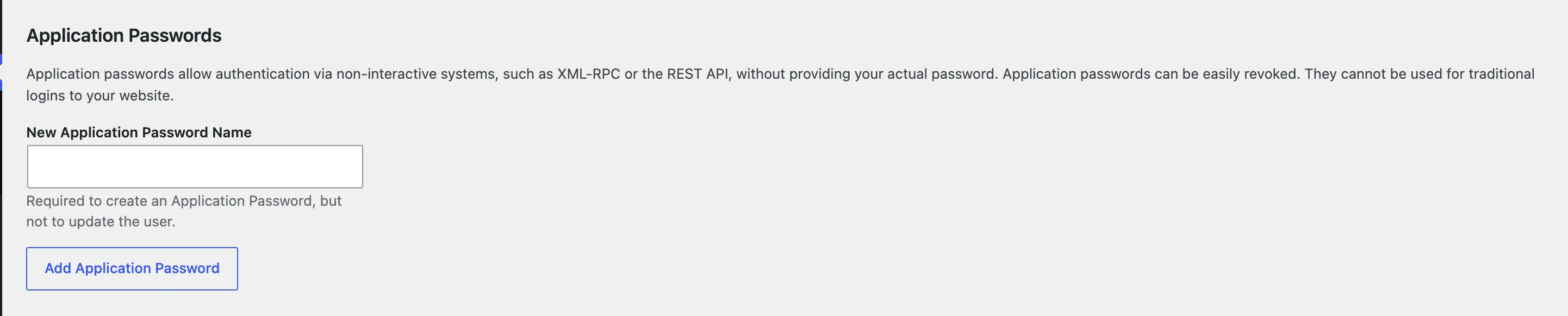
The agent signs in as a WordPress user. Choose the user whose permissions the agent should have, go to Users > Profile > Application Passwords, enter a name such as “Claude” and click Add Application Password. Copy the password: WordPress shows it only once.
An Author’s agent can change only that Author’s media, and sees the library like any Author. Use an Editor or Administrator account if the agent should change any media or page, or change settings.
Step 4: Add GoDAM to your AI agent
Claude Code
Run these two commands with your site address, WordPress username and Application Password. The username and password are encoded together, as one string:
# Encode "username:application-password" together, as one string
TOKEN=$(printf '%s' 'your-username:your application password' | base64)

claude mcp add --transport http godam https://your-site.com/wp-json/godam/mcp --header "Authorization: Basic $TOKEN"
Claude Desktop, Cursor and other agents
Add this to the agent’s MCP configuration file. It connects through the WordPress remote proxy:
{
  "mcpServers": {
    "godam": {
      "command": "npx",
      "args": ["-y", "@automattic/mcp-wordpress-remote@latest"],
      "env": {
        "WP_API_URL": "https://your-site.com/wp-json/godam/mcp",
        "WP_API_USERNAME": "your-username",
        "WP_API_PASSWORD": "your application password"
      }
    }
  }
}
Step 5: Try it
Ask your agent: “List my 5 newest videos in GoDAM.” Then try a change: “Create a folder called Lessons and move those videos into it.”
Control what agents can do
- Read only: go to Settings > Writing and clear GoDAM and AI agents. Agents can still find media and read analytics.
- Turn MCP off: turn off Let AI agents connect to GoDAM in GoDAM > Settings > General. GoDAM is then hidden from every MCP server on the site.
- Remove one agent: revoke its Application Password in the user’s profile.

Without an MCP client
While the MCP Adapter plugin is active, GoDAM’s abilities are also part of WordPress’s Abilities API, at /wp-json/wp-abilities/v1/abilities. Any signed-in user with an Application Password can list and run them there, within their WordPress role. Without the MCP Adapter they are not listed there. Turning off Let AI agents connect to GoDAM hides them from this route as well.
Troubleshooting
| You see | Do this |
|---|---|
| The agent lists no GoDAM tools | Check that the MCP Adapter plugin (0.7 or later) is active and that Let AI agents connect to GoDAM is on. |
| “Permission denied” | The WordPress user’s role does not allow that action. Use a user who can, or ask a site administrator. |
| “This needs a GoDAM plan” | Requesting transcripts, analytics, retranscoding and importing from GoDAM Central use GoDAM’s cloud. Add your API key in GoDAM > Settings. |
| “This file is too big to import” | Use a smaller file, or ask your host to raise the maximum upload size. |