learly using the pen or highlighter tools, store videos and screenshots directly in your GoDAM Central cloud workspace, and share a link that collects timestamped comments and emoji reactions – turning feedback into a conversation.
GoDAM Screen Recorder is a fork of Screenity, licensed under GPLv3.
How to use Chrome Extension
Prerequisite
You need an active GoDAM account – https://godam.io/pricing
Step 1: Install and Launch the Extension
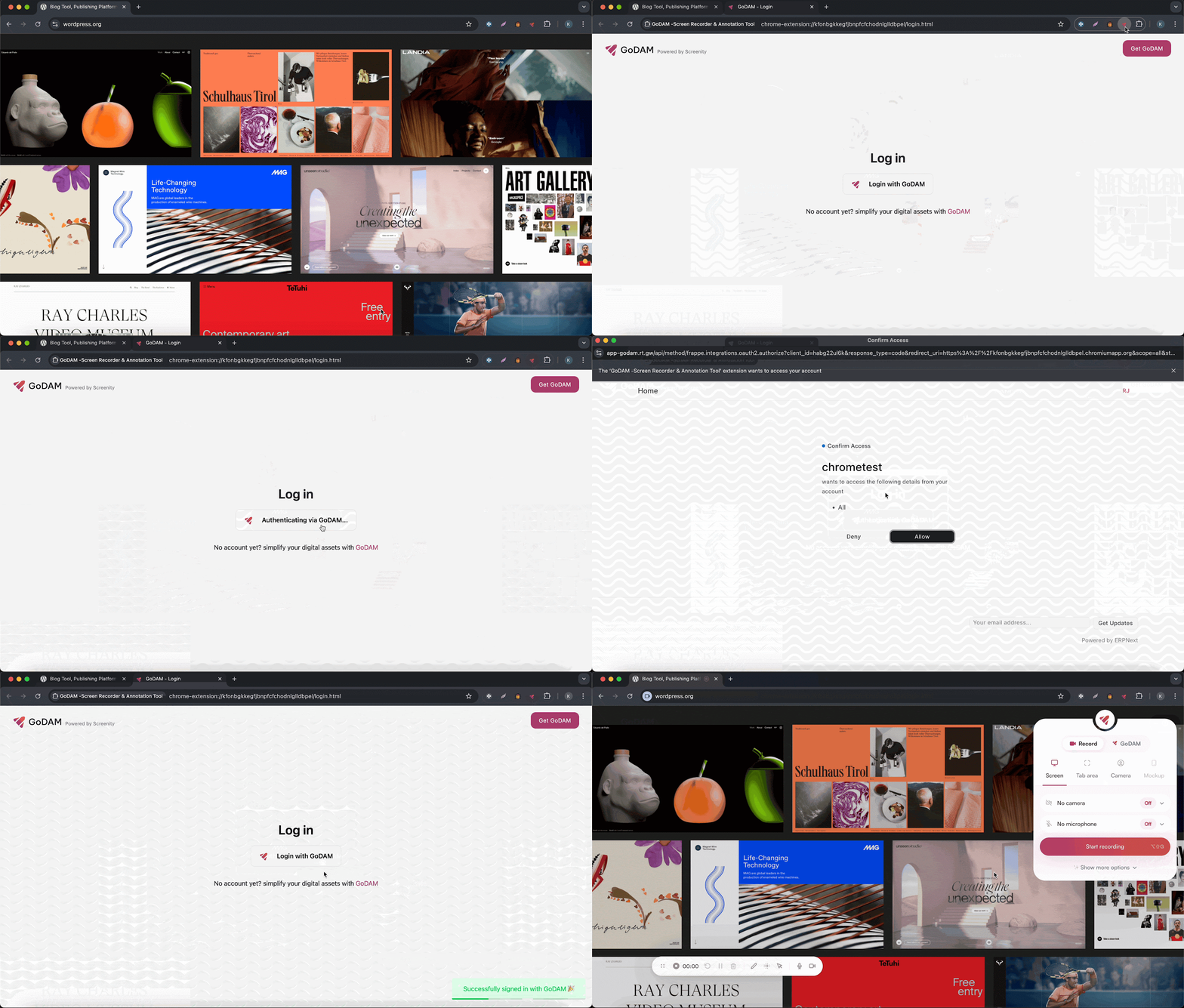
Head over to the Chrome Web Store and install the GoDAM Screen Recorder Extension. Once installed, you’ll see the GoDAM icon appear in your browser toolbar. Click on this icon to launch the extension and get started.
Step 2: Log in to Your Account
If you’re not already logged in, the extension will automatically redirect you to the GoDAM login page. Simply sign in with your credentials to access your workspace. This ensures your videos are securely stored and linked to your account.
If the user is not logged in with GoDAM:
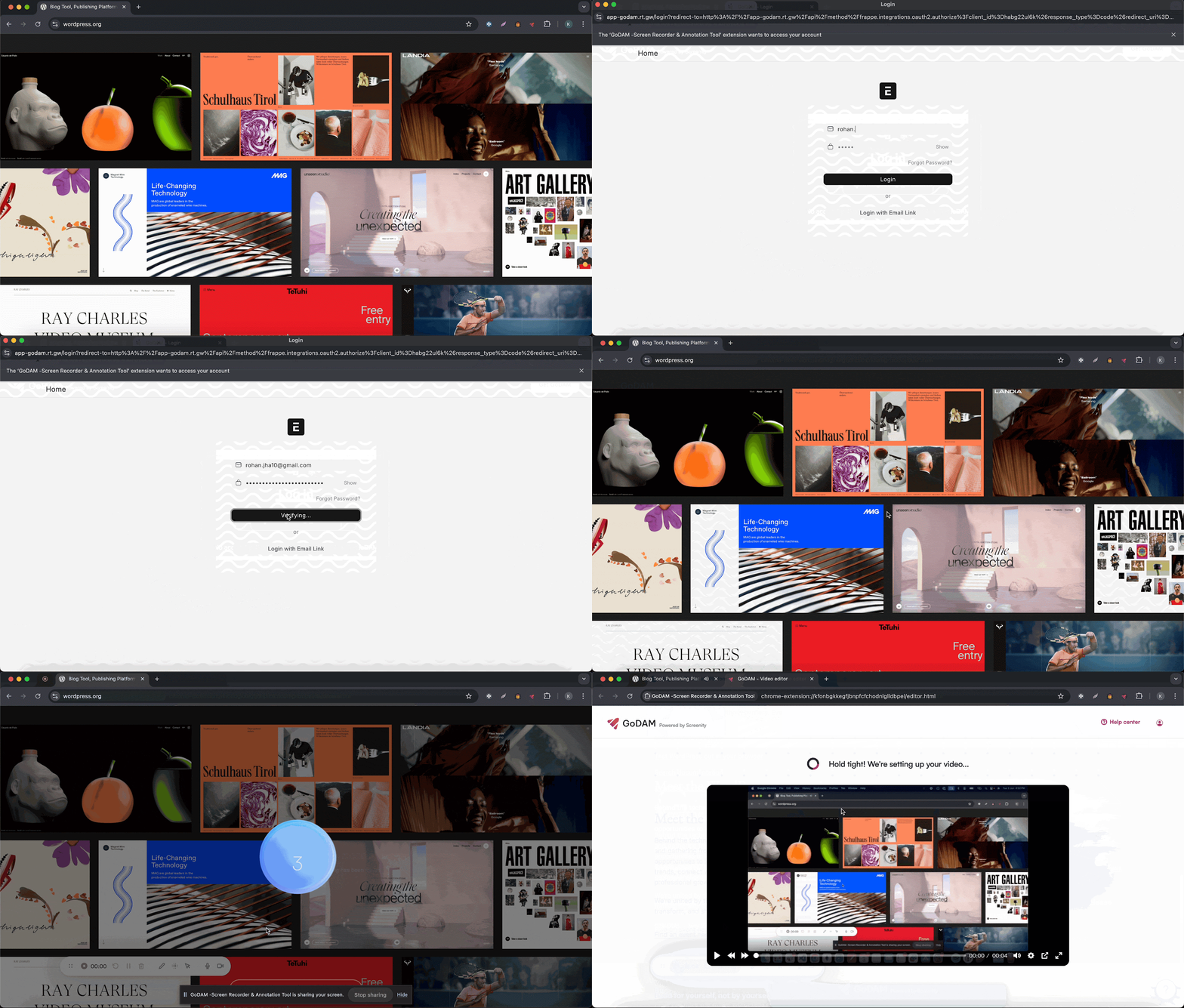
If the user is already logged in with GoDAM: