
The Image Transforms feature lets you resize, crop, and convert any image in your library by changing its address, without uploading a second copy. You pick a size in the editor, copy the link, and use it wherever you need it. The original file is never altered, and every version you create is produced on demand from it.
Note: Image Transforms is currently in beta. It is available for users to test, and you may notice some changes or improvements as the feature continues to evolve.
1. Turning Image Transforms On
- Only an organization Owner can turn this on. You will find the option in Settings, under your organization’s settings.
- Ticking the box opens a short confirmation explaining what will happen, because switching it on changes how your images are delivered.
- Setting up takes a few minutes and runs in the background. The page shows which step it is on. You can close it and come back.
- Once it is on, a Tools entry appears in your sidebar, and a Transform action appears on every image in your media library.
- Expect your images to load a little slower than usual for a short while afterwards. This is a one-off, and section 6 explains why.
- You can turn it off at any time. The Tools page and the Transform action disappear, and anything you saved is kept, so turning it back on later is quick.
2. Opening the Editor
- From your Media Library, open the menu on any image and choose Transform.
- Or open Tools from the sidebar and choose Select an image.
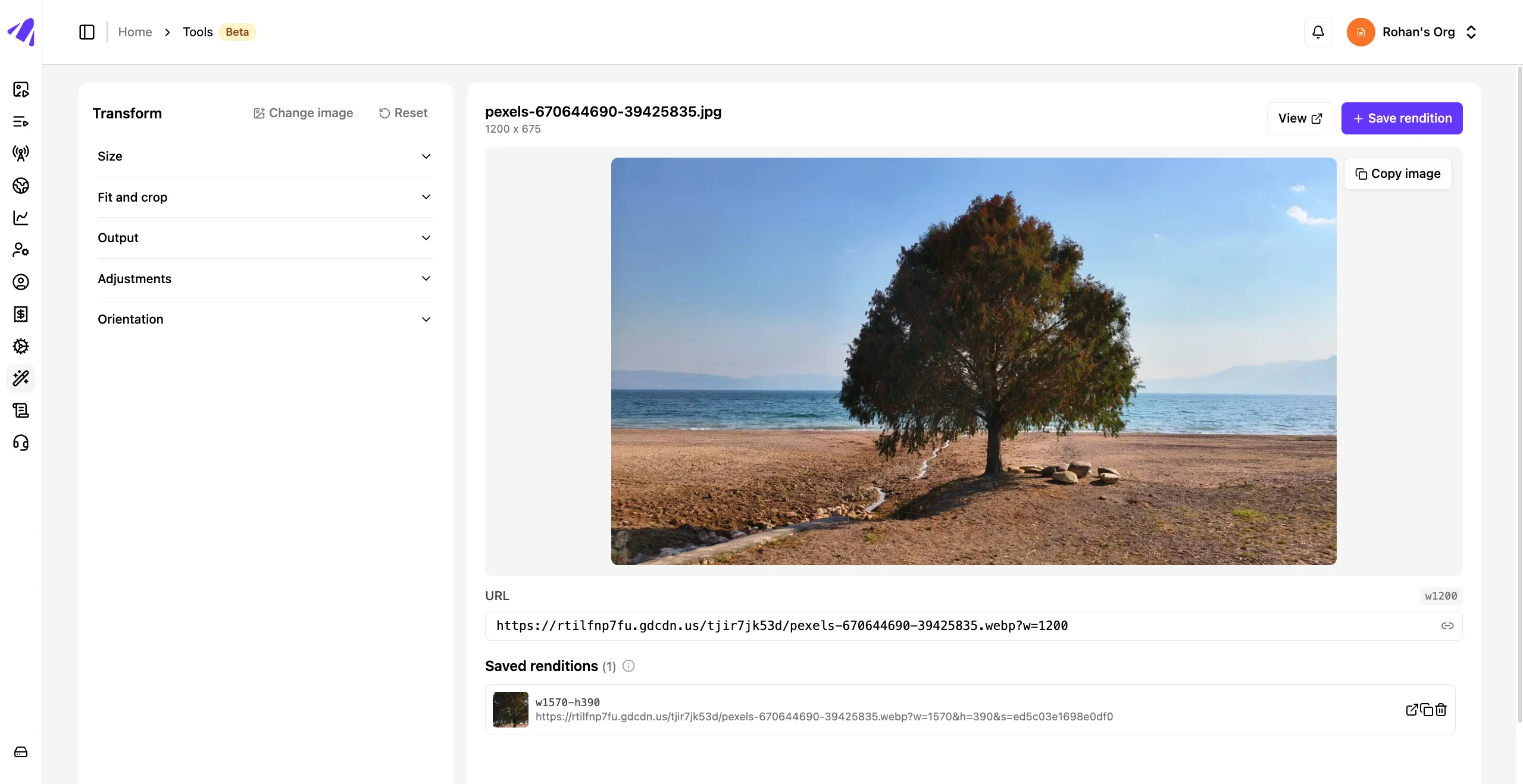
- The controls are on the left, grouped into Size, Fit and crop, Output, Adjustments, and Orientation. The preview, the link, and your saved sizes are on the right.
- Change image switches to a different image without leaving the page. Reset puts every control back to its default.
3. What Each Control Does
Size
- Width and Height: the size you want in pixels, up to 8192. Set one and the other follows the original proportions. Set both and the image is fitted to that box, using the Fit setting below.
- Pixel density: 1x, 2x, or 3x, for screens that pack more pixels into the same space. 2x at 600px is exactly the same picture as 1200px at 1x, so use whichever is easier to think in.
- Asking for something larger than the original gives you the original size back rather than a blurry enlargement. The editor tells you when this happens, and shows you the original’s dimensions so you can stay within them.
Fit and crop
- Cover: fills the box completely and crops off whatever does not fit. Nothing is distorted, but some of the picture is lost.
- Contain: fits the whole picture inside the box and pads the leftover space with a colour. Nothing is lost or distorted.
- Inside: shrinks the picture until it fits, with no padding and no cropping. The result may be smaller than the box you asked for.
- Fill: stretches the picture to the exact box. This is the only option that changes the proportions.
- Crop anchor: which part of the picture survives a Cover crop, for example North to keep the top. It only applies with Cover and both a width and a height, and is greyed out otherwise.
- Padding colour: the colour filling the gaps with Contain. It only applies with Contain, and is greyed out otherwise.
Output
- Quality: 1 to 100. Lower means a smaller file and more visible softening. The default is chosen per format and is usually the right answer, so change it only if you have a reason.
- Format: leave it on Auto and each visitor gets the best format their browser can read. Pick WebP, AVIF, JPEG, or PNG only when something at the other end needs one specific format.
Adjustments and Orientation
- Blur: 0 to 100. Useful for backgrounds and placeholders.
- Sharpen: 0 to 10. A little goes a long way on photographs that have been scaled down.
- Trim border: removes a plain, even border around the edge. This changes the finished size, so the result may not match the width and height you typed.
- Rotate: a quarter, half, or three-quarter turn. Arbitrary angles are not available.
- Flip and Mirror: reflect the picture vertically or horizontally.
Effects on their own are not enough. A width or a height is always sent along with them, because that is what tells us to produce a new version of the picture at all.
4. The Link, and Copying It
- The URL box under the preview always shows the exact address for what you are looking at. It updates as you change the controls.
- The small button inside the box copies it. The button shows a tick for a few seconds so you know it worked.
- Copy image sits on the picture itself and copies the picture to your clipboard, ready to paste into a document or a chat.
- View opens the result in a new tab, which is the quickest way to check it at full size.
- You can also paste a link into the URL box. If it is a link to this same image, the controls move to match it, which is handy for adjusting a size someone sent you. Anything in the link we do not recognise is listed and ignored rather than rejected.
5. Saved Renditions, and Why They Matter
A rendition is one particular version of an image: a size, a crop, a format, and any effects, taken together. Save rendition keeps the one you are looking at. This is the single most useful thing on the page, and it is worth understanding why.
- A saved rendition is kept. An unsaved one is not. Sizes you try while experimenting are treated as temporary and are cleared away on their own after a while. A saved one stays available for as long as you want it.
- Saved renditions are delivered better. They can be sent in newer, smaller formats such as AVIF where the visitor’s browser supports it, and they are allowed to be larger. Unsaved previews are held to a smaller limit, because they are meant for looking at rather than publishing.
- Save anything you are going to publish. If a link is going on a website, in an email, or into a document, save it first. Use unsaved previews for deciding, not for shipping.
- Saved renditions appear in a list below the picture, each with its own open, copy, and remove buttons. The list scrolls once you have a few.
- With two or more saved, Copy as srcset copies them all in one go in the form a web page expects, so a browser can pick the right size for each visitor’s screen.
- Saving the same size twice does not create a duplicate, it refreshes the one you have. You can keep up to 50 per image.
- Removing a saved rendition takes it off the list. Any link you had already shared to it may keep working for a while, so treat removal as tidying up rather than as revoking access.
6. Why the First Load Is Slower
- The first time anyone asks for a particular size, it has to be produced. That request is a cold one and takes a moment. The editor shows a spinner and tells you it is rendering this size for the first time.
- After that, the result is held close to your visitors and served instantly. Those are hot requests, and they are the overwhelming majority in normal use.
- This is why every change you make in the editor is slow once and then quick. It is also why moving a slider in small steps is worth avoiding: every distinct size you stop on is produced separately.
- Turning the feature on clears what was held for your images, so everything is cold for a short while and your site may feel slightly slower. It warms back up on its own as visitors arrive.
- Very large sizes are previewed smaller than you asked for, to keep the editor quick. The editor says so under the controls. Saving still gives you the full size.
7. Good to Know
- Your original is never changed. Every version is produced from it on request, so you can always go back to it and you can always change your mind about a size.
- Links that carry no settings behave exactly as before. Anything you have already embedded keeps working untouched.
- Replacing an image updates its renditions. Your saved sizes follow the new file, so links you have already shared show the new picture at the same dimensions.
- Saving a rendition is recorded in your Activity feed, so you can see who saved or removed which size and when.
- If the service is briefly unavailable, your images still appear. They come back at their original size rather than the size you asked for, so a page looks heavier for a few minutes but never broken.
8. If You Turn On Content Signing
Sign delivery URLs is a separate setting under Content Security. It makes every media link short-lived, so a link that leaks stops working instead of being usable forever. It is worth turning on if your media is private, but it changes how links behave, and it interacts with everything above.
- Links you have already shared stop working. Anything copied, embedded, or emailed before you switched it on no longer carries what the link now needs. Plan for this before turning it on.
- New links expire after about 20 minutes. They are fine for checking something or sending to a colleague who will open it now. They are not suitable for anywhere lasting.
- Your saved renditions do not expire. The size itself is kept and keeps working inside the app. It is only the copy of the link you take away that stops working. The editor tells you this, and gives you the exact lifetime, wherever you can copy a link.
- Everything goes cold once. Switching it on or off clears what was held for your images, so expect the slower first loads described in section 6 again.
- Give it a few minutes to settle. The setting applies here immediately and takes a little longer to reach every part of the delivery network. If an image refuses to load right after you change it, wait a moment and reload before assuming something is wrong.
- Existing videos are updated in the background and may take a while, depending on how much media you have. Newly uploaded media is covered straight away.
- Publishing to a website is still fine. Our WordPress plugin asks for a fresh link each time a page is built, so pages keep working even though individual links are short-lived. If you publish through something else, ask us before turning this on.
- You can turn it back off at any time, and links start working the ordinary way again.