GoDAM streamlines your workflow with native media-syndication features that let you publish and synchronize content across YouTube, Vimeo, and Wistia directly from your media library. You can connect multiple accounts per platform, publish transcoded videos to as many channels as you like, and customize unique titles, descriptions, tags, visibility settings, thumbnails, and captions for each destination. When details change, a quick Resync pushes only the updated metadata to keep every platform aligned. This guide walks you through connecting your channels, publishing and tailoring media, adding subtitles, and maintaining cross-platform synchronization without ever leaving your library.
Prerequisites
Each platform needs a little setup on its own side before the Connect button in GoDAM will get you all the way through. Here’s what to have ready.
Vimeo Prerequisites
To connect Vimeo to GoDAM you have to create an API app from developer.api.com. Once the app is created make sure you get the upload access for the application (tip: To expedite the process get in touch with Vimeo support). Once you have the upload access for the app, go to the bottom of the app settings page edit the callback url set it to godam.io/we/settings?setTab=channels.
For more check this link on how to create a Vimeo APP.
YouTube Prerequisites
For GoDAM to be able to update YouTube video’s thumbnails you need to have the YouTube account phone verified. If your account isnt phone verified then you wont be able to update the published video thumbnail.
Wistia Prerequisites
To connect Wistia account to GoDAM go to Account Settings and then go to API Home create a new Wistia token, give the permissions Read update & delete anything. Copy the token and save it, generate secret key which you will use in the next steps ,then go to Webhooks setup 2 webhooks endpoint, one webhook with only delete event to the url https://app-godam.io/api/method/godam_core.api.media_sync.platform_media_deleted?platform=wistia another webhook with only media update event to the url https://app-godam.io/api/method/godam_core.api.media_sync.wistia_swap_completed use the token while you setup the webhooks.
Connecting to Platforms
Vimeo
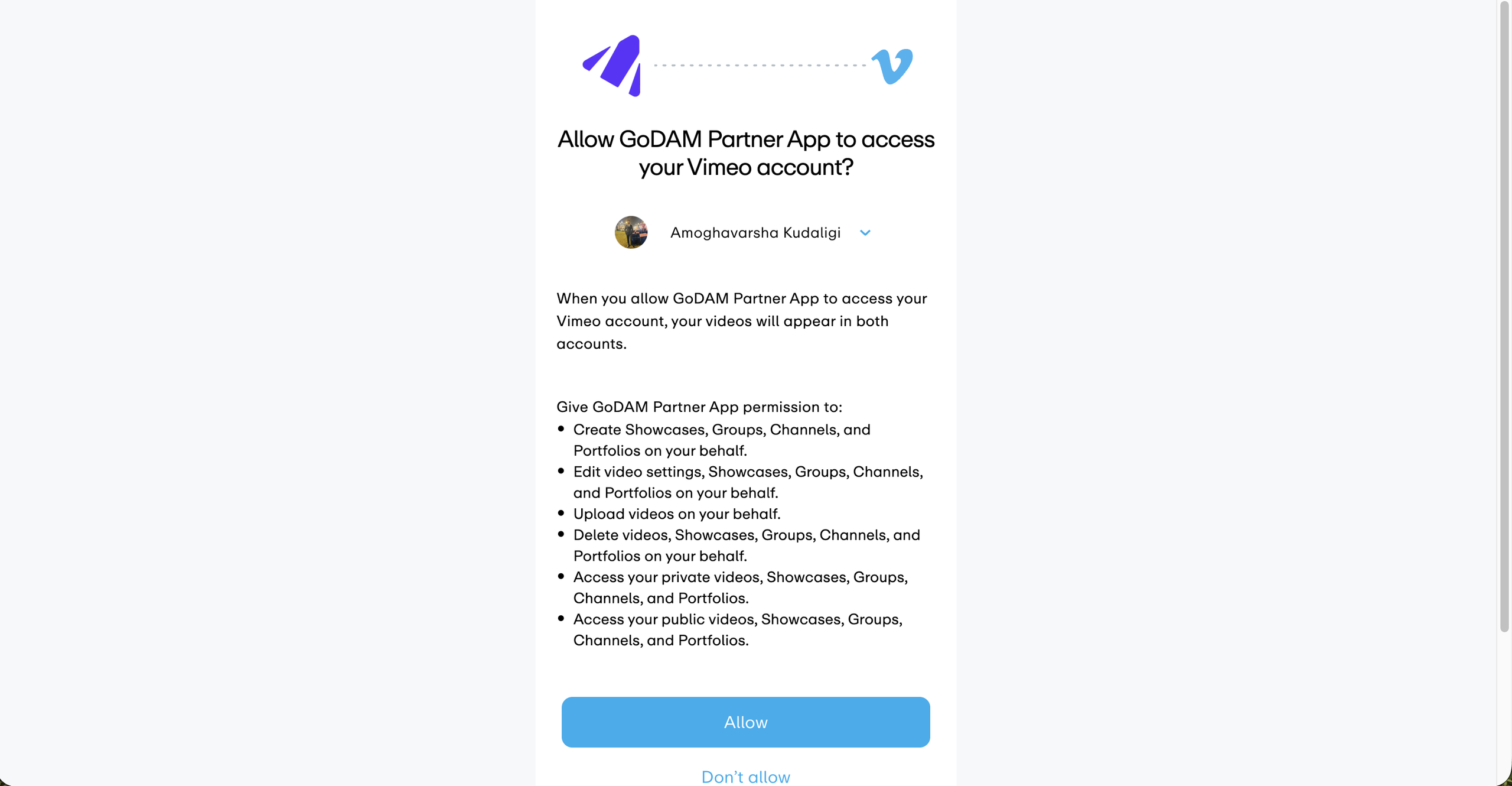
Use the Client ID and Client secret from the app you set up in developer.vimeo.com. Go to GoDAM settings, head over to integrations tab. Click on connect in Vimeo card. Add the Client ID and Client Secret in the dialog box. Once done you will be taken to Vimeo.com with a screen to authorize GoDAM like the one below to connect to Vimeo.
Wistia
Go to GoDAM settings, head over to integrations tab. Click on connect in Wistia card, in the dialog add the Wistia token and the secret token that you used in while setting up the webhook.
YouTube
Go to GoDAM settings, head over to integrations tab. Click on connect in YouTube card, and just login with your account.
Publishing a Video
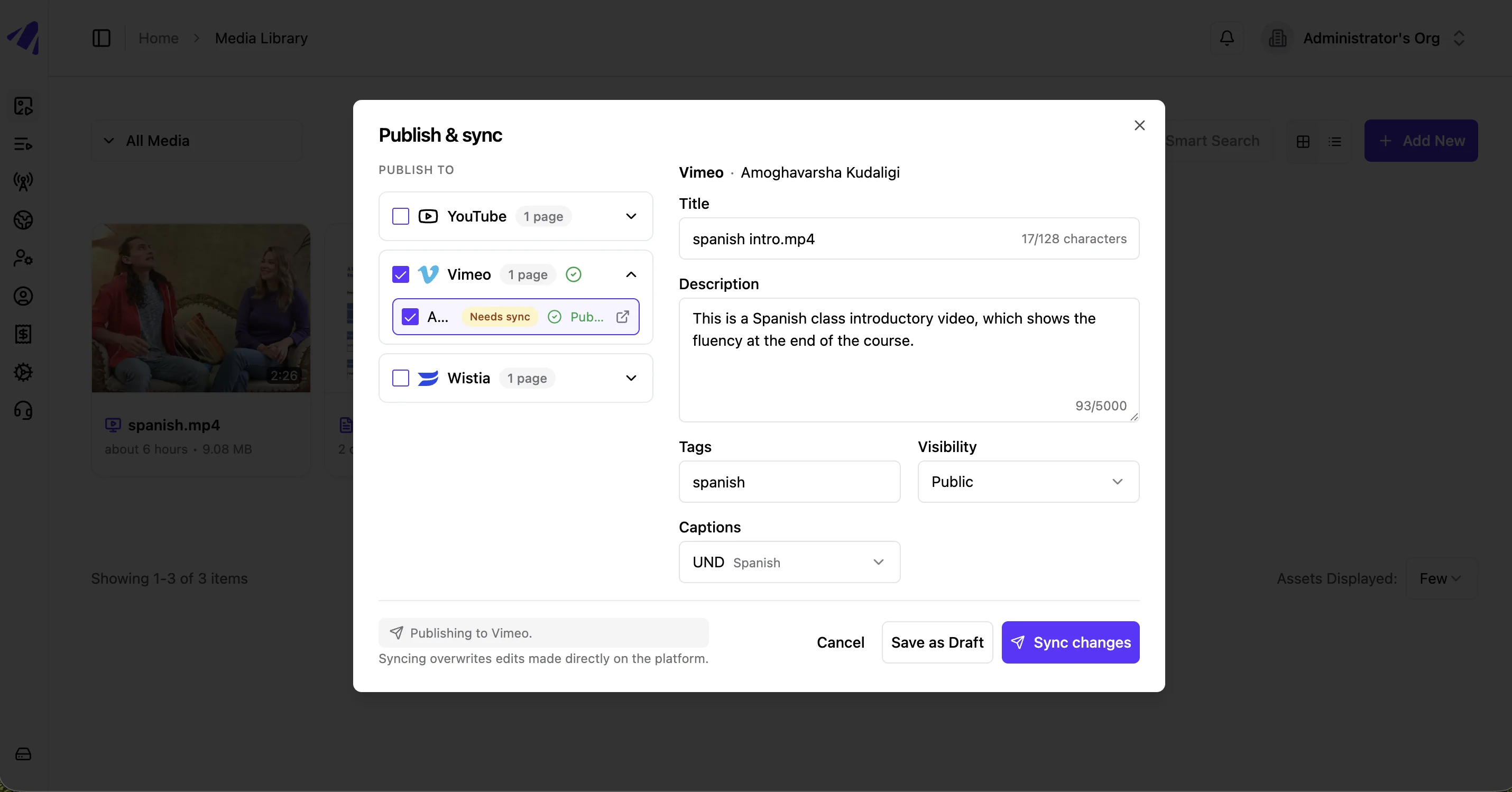
Open a video that has finished transcoding. Publishing is available to editors on fully-transcoded videos — you’ll find it two ways:
- The Publish button in the video’s action bar.
- The Publish item in the overflow (⋯) menu.
Clicking either opens the Publish wizard, a three-step flow:
- Select the account of the platform to which you want to publish.
- Click on the account which you want to publish the form will change on the right side.
- Add the required details once finalized click on Publish button (Publish for new channels, Sync for already published channels or Publish & Sync for a mix).
Keeping your channels in sync
After a video is live, editing its details in GoDAM does not automatically change the published copy. Instead, GoDAM shows a Needs sync badge on any channel with pending changes, and you push them when you’re ready.
To sync:
- Reopen Publish modal of the video.
- Channels that need syncing are flagged Needs sync.
- Review and click Sync changes. GoDAM pushes only what actually changed — a title edit updates the title, a new thumbnail updates the thumbnail, and so on.
Removing captions during a sync. If a sync would remove caption languages that are still live on the platform, GoDAM opens a Remove these captions? dialog listing them per channel: “These languages are live on the platform but no longer selected here. Confirming removes them from the channel — this can’t be undone.” Choose Remove captions to proceed or Cancel to leave them live (the channel keeps showing Needs sync until you decide).
Automatic file sync on a new version. There’s one thing GoDAM syncs for you automatically: if you publish a new version of the video (so its live playback file changes), GoDAM pushes the updated file to every channel that supports in-place file replacement — Vimeo and Wistia — keeping the same links and embeds. Since replacing the file on those platforms can reset the thumbnail and drop caption files, GoDAM also re-applies your chosen thumbnail and captions for that channel right after — you don’t need to redo that selection (a caption removal still waits for your confirmation, same as always). YouTube can’t replace a file in place, so instead GoDAM notifies you that the YouTube copy is now out of date, and you can decide what to do.
Managing and disconnecting channels
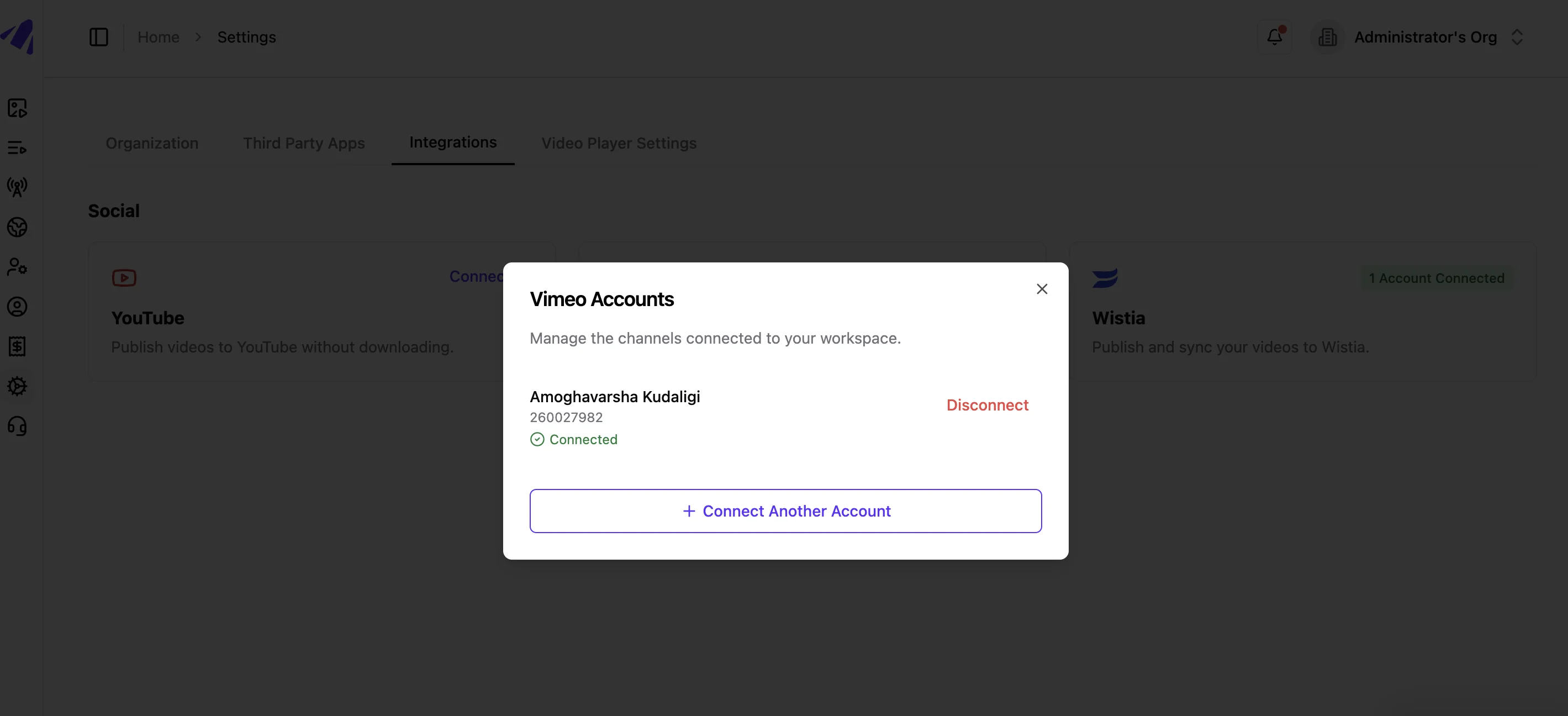
Back in Settings → Channels, each connected account has its own row. Each card shows the number of accounts connected to it. Clicking on the card opens a modal with rows of account listing in the modal.
- A healthy account shows a green Connected check.
- An account that needs attention shows an amber Needs reconnect warning and a Reconnect button, which re-runs the sign-in flow.
- To remove an account, click the trash icon on its row. GoDAM asks you to confirm — “This revokes GoDAM’s access to {account} and freezes all media already published through this channel to the ‘Orphaned’ state — it will stay in your history but can no longer be synced or retried.”
Reconnecting the same account brings its published history back to life — its videos become syncable again automatically.
Un-publishing a Video
You can remove a video from a platform without leaving GoDAM. In the Publish & sync panel, every account row where the video is Published shows a trash icon next to the link icon. Only workspace Owners, Admins, and Managers can remove the video from that channel. As this action is permanent, GoDAM requires you to type DELETE before you can remove the video from the platform’s dialog.
The video is permanently deleted on the platform. Its views, comments, and embeds there are gone, and it disappears from any platform playlists, showcases, or projects it was in.
GoDAM media stays in the video. The channel’s saved details (title, description, thumbnail, and caption choice) are not changed, and later re-published videos do not need re-setup.
Once removed, the account row simply returns to Not published and a “Removed from {platform}” toast confirms it.
Publishing a Playlist
You can publish the playlist on YouTube, Vimeo, or Wistia. Open the playlist and click the Publish playlist button in the header. This is available to editors and is enabled once at least one video is playable. The Publish playlist dialog shows the same checkboxes and platform cards on the left and the publish settings plus a per-video breakdown for the selected account.The collection’s title and description are the playlist’s own — edit the playlist itself to change them; republishing pushes the update.
Visibility. One Public/Private choice applies to the whole publish (it starts from the playlist’s own privacy in GoDAM). What it means differs per platform:
- YouTube — the playlist’s privacy is set to public or private.
- Vimeo — showcases can only be made private with a password: choosing Private with a Vimeo account checked reveals a required Password field. GoDAM passes the password to Vimeo and never stores it.
- Wistia — the project’s public flag is switched on or off.
What happens to each video. GoDAM never duplicates a video:
- A video already published to that account is simply linked into the collection — the row reads “Will be linked” (or “Already in this playlist/showcase/project” once it is).
- A video not yet published there is published first, using its GoDAM title and description and the visibility you chose, then linked — the row reads “Will be published”. If you’d already drafted a stricter visibility for that video on that channel, GoDAM keeps the stricter one — a playlist publish never makes a video more public than you’d chosen.
- Videos that can’t be published (for example, not added from GoDAM) are skipped with a reason, and the rest proceed.
Large playlists. The first 10 videos that need publishing are uploaded immediately; the rest are queued — the dialog tells you up front: “The first 10 videos publish now — the remaining N are queued and publish automatically in the background.” GoDAM works through the queue on its own (roughly 10 more per account each hour) until the playlist is fully published; queued rows read “Queued — publishes automatically”. A queued video that keeps failing is marked failed with its reason after a few attempts, so nothing waits forever.
If you add an already-published Wistia video to the new project, remove it from its old project. Only a workspace Owner, Admin, or Manager can do this, and Wistia does it in the background. Freshly published videos stay in the project.
Click the footer button to show the progress of each video, the account status, and the playlist status. The dialog stays open, and each video row shows its progress, the account row shows its running counter, and a toast says “Playlist published to {platform}” with a View link. If the checked accounts need nothing, the footer shows “Everything is up to date”.
Re-running a publish. Republish any time to complete or update a collection — it re-pushes the playlist’s title and description, applies a changed visibility, and links or publishes videos added since. Nothing is ever duplicated or removed: taking a video out of the GoDAM playlist (or failing partway) never deletes anything remotely — just republish to finish the job.
Ordering: YouTube: videos are added in your GoDAM playlist order, and later videos are added at the end. Vimeo: videos are added in order, but the showcase’s own sort setting determines how they display. Wistia: project ordering is not controllable.