
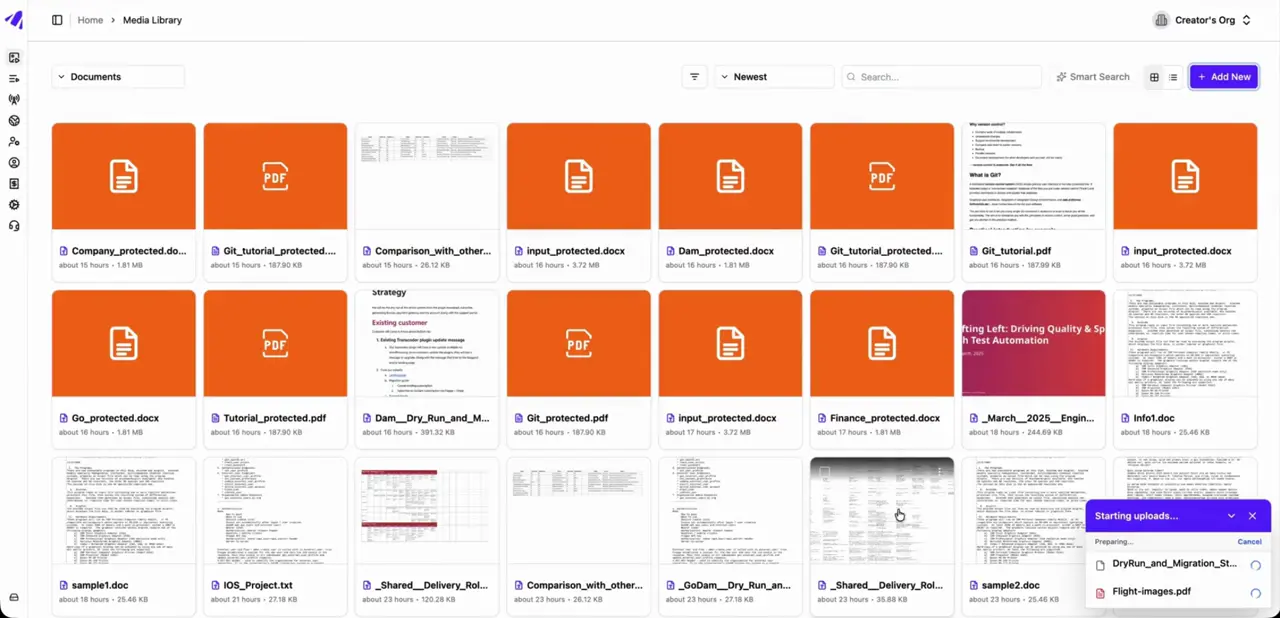
GoDAM Central lets you store, preview, and share documents alongside your videos, audio, and images. Documents appear under the Documents tab in the media library, making it easy to manage all your content from one place.
1. Supported Document Formats
GoDAM Central supports a range of commonly used document, spreadsheet, presentation, and text formats.
- Word: .docx, .doc
- Excel: .xlsx, .xls
- PowerPoint: .pptx, .ppt
- OpenDocument: .odt, .ods, .odp
- Text: .txt, .csv
- PDF: .pdf
The maximum supported size for a document is 50 MB.
2. Uploading Documents
- Drag and drop documents into the media library, or use the upload button to add files.
- Uploaded documents automatically appear under the Documents tab.
- Each document gets a thumbnail generated from its first page, making it easier to identify files at a glance.
3. Previewing Documents
- Click any document to open and read it directly in your browser.
- Document previews work across Chrome, Firefox, and Safari.
- Spreadsheets are rendered with gridlines and consistent page sizes. Very large spreadsheets are automatically split across multiple pages.
- Previews are generated versions of the original files. Complex layouts or unusual fonts may look slightly different from the original document.
- The viewer displays a note when a document is likely to have rendering differences, including files using legacy formats such as .doc, .xls, and .ppt.
4. Sharing and Downloading Documents
- Share documents using a share link, just like other media assets in GoDAM Central.
- Shared links provide access to the document according to its configured sharing and privacy settings.
- When a document is downloaded, GoDAM delivers the original file rather than the generated preview.
5. Replacing Documents
- You can replace an existing document while keeping the same document type.
- For example, a spreadsheet can be replaced with another spreadsheet, while a spreadsheet cannot be replaced with a presentation.
- The replacement must use the same document kind as the original file.
6. Finding Documents
- Smart Search indexes each document automatically when it is uploaded.
- Use Smart Search to quickly find documents across your GoDAM media library.
Refer to the Smart Search documentation to learn more about finding content in GoDAM.
7. Password-Protected Documents and Other Limitations
- GoDAM supports password-protected documents, so you can upload and store protected files in your media library.
- For password-protected documents, GoDAM does not generate or display a document preview.
- PDF files are an exception and can still be previewed when supported by the PDF viewer.
- Markdown (.md) files are not supported at this time.