A form layer shows a HubSpot or Marketo form over your video at a time you choose, for example Enter your email to keep watching. The video pauses, the viewer fills in the form, and the contact or lead goes straight into your marketing tool. Form layers work wherever the video plays: on websites using the GoDAM Embed Code or an iframe, and on the GoDAM share page.
1. Who Can Add Form Layers
- An organization Owner or Manager can add and change form layers on any video in the organization.
- A Creator can add and change form layers on videos they uploaded.
- Viewers of a shared or embedded video see the form and can fill it in, but cannot change the layer.
- Form layers are available for videos, not audio files.
2. Before You Start
- Connect the tool. HubSpot or Marketo must be connected under Settings > Third Party Apps (see HubSpot and Marketo Integrations). Video tracking does not need to be on: form layers work on their own.
- Create the form in your tool. GoDAM shows forms you have already built in HubSpot or Marketo. In Marketo, the form must be approved.
3. Adding a Form Layer
- Open the video in the editor and go to the Layers tab.
- Move the playhead to the moment the form should appear.
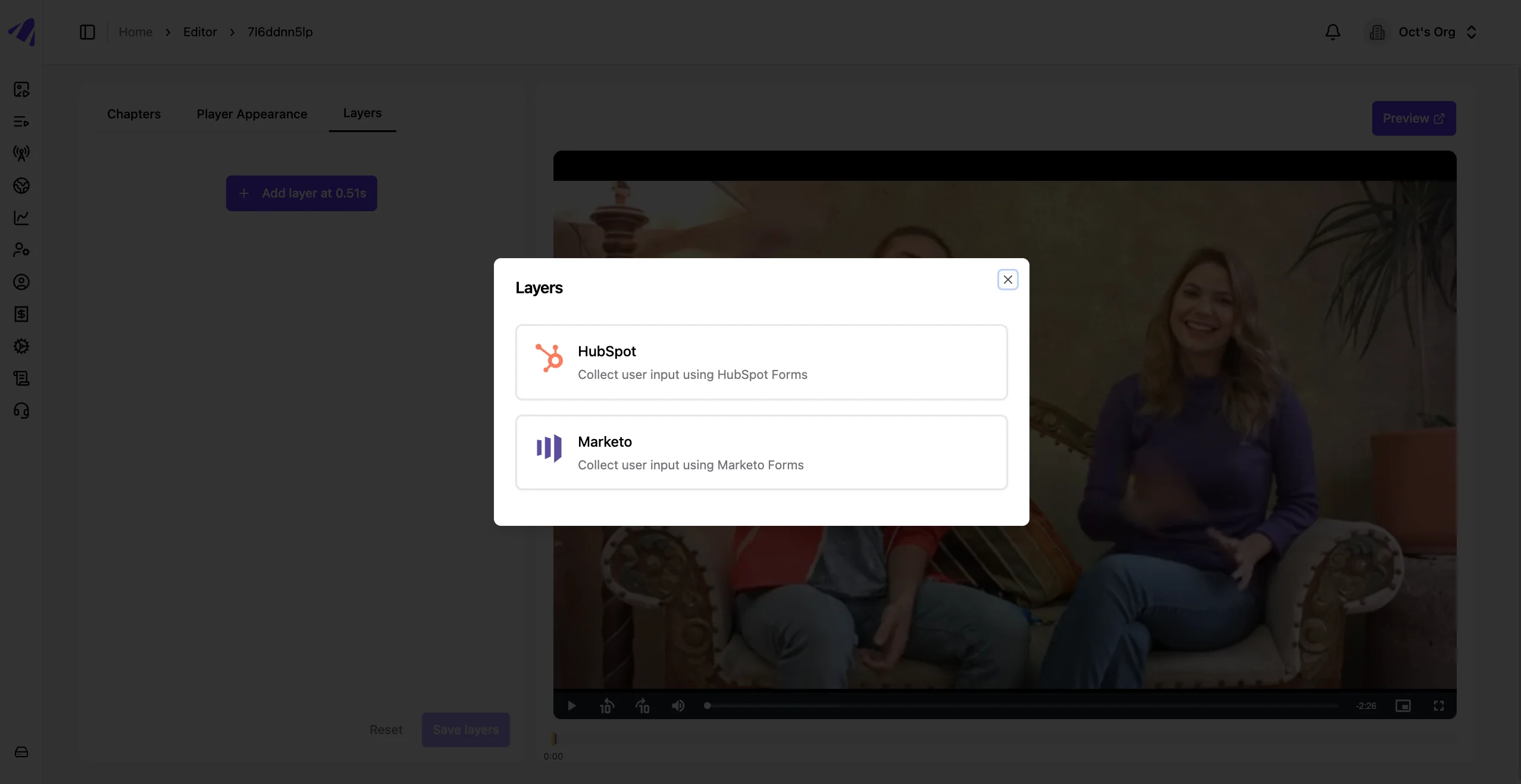
- Click Add layer at …s. The button shows the current time.
- Choose HubSpot or Marketo. A tool that is not connected says so and links to Settings, and cannot be chosen.
- Under SELECT FORM, choose the form from the list. The list shows the forms in your HubSpot account, or the approved forms in your Marketo instance.
- The form appears over the video in the editor straight away, so you can check how it looks.
- Adjust the layer’s settings if you want (see section 4), then click Save layers. You see Layers saved.
Things to know when adding a layer:
- Entering a Marketo form ID. If Marketo is connected for forms only (without a Client ID and Client Secret), or its forms could not be loaded, the list is replaced by a MARKETO FORM ID field. Enter the form’s number: you can find it in the form’s embed code (mktoForm_1234 means 1234) or in Marketo’s Design Studio.
- Empty list. If the list says No forms found in HubSpot (or Marketo), create a form in your tool, then open the list again.
- One layer per moment. Two layers cannot start at the same time. If the playhead is on an existing layer, you see There is already a layer at this timestamp. Move the playhead first.
- Every layer needs a form. Saving with a layer that has no form chosen is refused with Select a form for the layer before saving.
- A video can have up to 50 layers. Each layer shows a marker with the tool’s logo on the seek bar.
4. Layer Settings
- Allow user to skip: shows a Skip button so viewers can continue the video without filling in the form. When it is off, viewers must submit the form to continue.
- Advanced > Layer Background Color and Layer Background Opacity: the colour shown behind the form, over the video.
- Advanced > Custom CSS: style the form and the layer. Your CSS applies only inside this layer, so it never changes other forms or the rest of the page. The editor starts you off with the layer’s own class name, .godam-layer-<id>-custom-styles.
5. Changing and Removing Layers
- The Layers tab lists every layer with its tool and start time. Click a layer to open it; the player jumps to that moment.
- To remove a layer, open it and click the delete (bin) icon.
- Changes are kept only after you click Save layers. Reset discards every change you have not saved yet.
- If you reload or close the tab with unsaved changes, your browser asks you to confirm first.
6. What Viewers See
- At the layer’s time, the video pauses and the form appears over it.
- After a viewer submits the form, the contact (HubSpot) or lead (Marketo) is created or updated in your tool, and a Continue button lets them carry on watching. Marketo forms do not redirect the page after submitting, so viewers stay on the video.
- With Allow user to skip on, a Skip button lets viewers continue without submitting.
- On a small player, a tall form scrolls inside the video, starting from its top.
- If a form cannot be shown, viewers are never stuck. If the tool has been disconnected, the layer says This form is unavailable because HubSpot is not connected (or Marketo). If the form does not load within 15 seconds, for example because it was deleted, the layer says This form could not be loaded. In both cases a Continue button appears, even when skipping is off.
7. Good to Know
- Layers always use your current connection. The form is loaded from the HubSpot account or Marketo instance connected when the video plays. If you switch to a different account, layers that use forms from the old one can no longer load them. The editor marks such a layer with The selected form is not in the connected HubSpot account: pick another form and save.
- Reconnecting brings forms back. If you disconnect a tool and later reconnect the same account, its layers work again without any change.
- Form submissions and video views are separate. A form filled in inside the video creates or updates the contact, but does not link the viewer’s browser for video tracking, because the player runs on GoDAM’s site rather than yours. To record how far someone watches, they must be known through a form or email on your own website (see HubSpot and Marketo Integrations).
- Changes reach your sites when the video is next loaded. A page that is already open keeps showing the layers it loaded until it is reloaded.
- Saving layers is recorded in the Activity Log under Media, for example Updated form layers for media “Product tour.mp4”.
- WordPress videos. Videos played through the GoDAM WordPress plugin’s own player use the plugin’s form layers, which are set up in the plugin’s video editor.