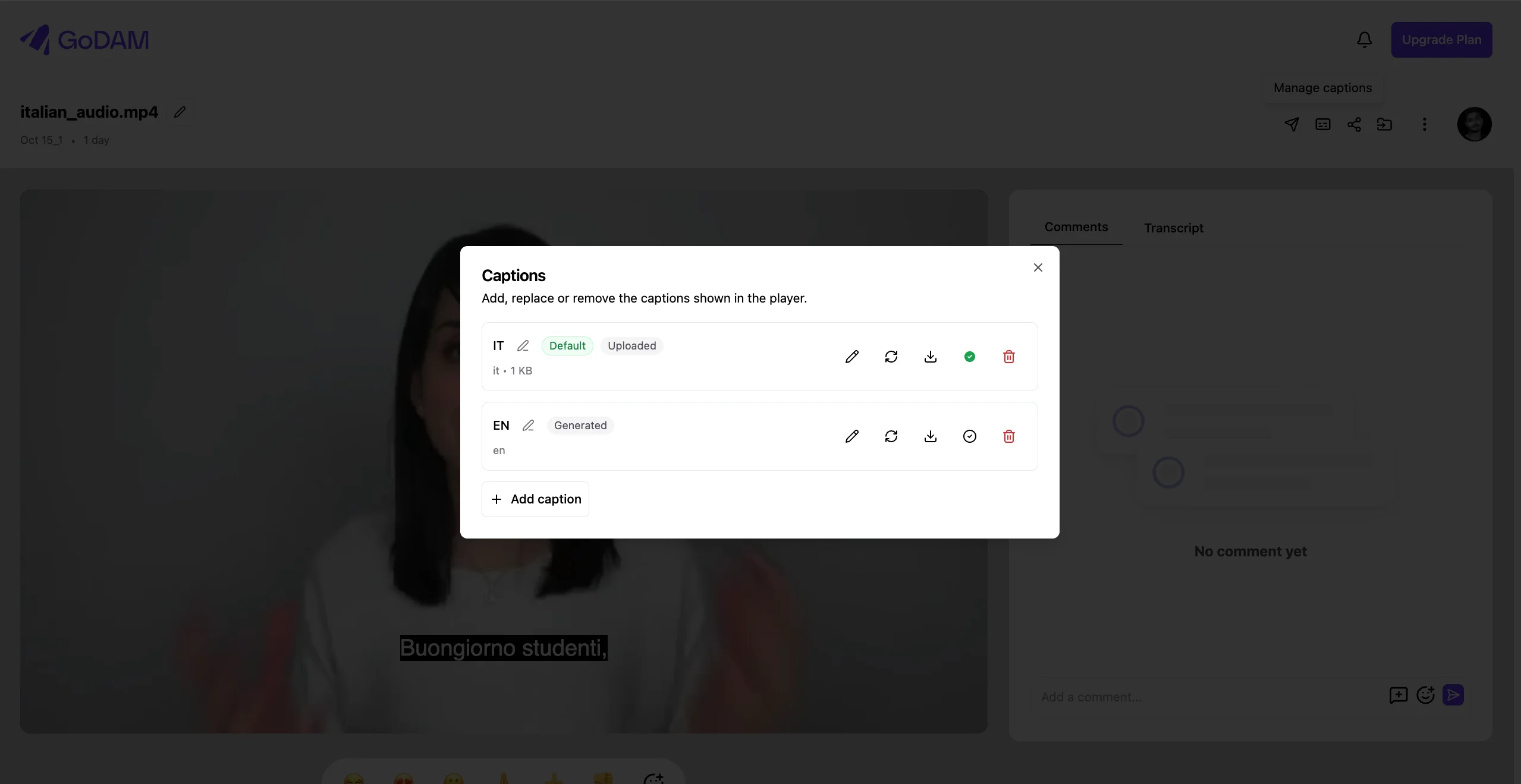
The caption manager is where you add, edit, and remove the captions on a video or audio file. You can upload your own caption files in VTT or SRT format, correct the words in any caption, choose which caption the player turns on by default, and download or delete captions. Captions you upload appear in the player’s subtitles menu next to the transcripts GoDAM generates, and both can be read in the Transcript tab. A file can have up to 20 captions, so you can offer the same video in several languages.
1. Who Can Manage Captions
- An organization Owner or Manager can manage captions on any media in the organization.
- A Creator can manage captions on media they uploaded.
- Members with the Viewer role, and anyone watching a shared or public video, can turn captions on in the player and read them in the Transcript tab, but cannot change them.
- Captions can be managed while the organization’s subscription is active, and once the media has finished transcoding.
2. Opening the Caption Manager
- Video: open the video and select the Manage captions (CC) icon next to the AI Transcription icon, above the player.
- Audio: open the audio file, go to the Transcript tab, and click Manage captions.
The caption manager lists every caption on the file, one per row. Each row shows the caption’s name, a Default badge on the caption the player turns on, whether it is Generated by GoDAM or Uploaded by you, its language code, and its file size.
3. Adding a Caption
- In the caption manager, click Add caption.
- Click Choose a .vtt or .srt file and pick your caption file.
- Choose the Language. If your language is not in the list, choose Other and type its language code, for example cy for Welsh or pt-BR for Brazilian Portuguese.
- Check the Label. This is the name viewers see in the player’s subtitles menu. It is filled in from the file name, and you can change it. Labels can be up to 120 characters.
- Click Add caption. The caption appears in the list and in the player straight away.
Things to know when adding a caption:
- SRT files are converted to VTT when you upload them. The download is always a VTT file.
- The file is checked before it is added. If something is wrong, the caption is not added and a message under the form says what to fix (see section 7).
- Length warning. If the subtitles stop well before the end of the media, or run past it, an amber warning appears as soon as you pick the file, for example These subtitles stop 2 min before the end of the video. This usually means the file belongs to a different cut. The warning does not stop you: you can still add the caption. A difference of a second or less is ignored.
- The first caption you add becomes the default if the file has no usable default yet, for example when its generated transcript is empty because no speech was detected.
- Two captions cannot share the same language and label. Give the second one a different label, such as English (SDH).
4. Managing Captions
Each caption row has these actions. Hover over an icon to see what it does.
- Rename (pencil icon next to the name): change the label shown in the player’s subtitles menu. Press Enter or click Save to keep it, or Escape to cancel.
- Edit words: correct the text of the caption. See section 5.
- Replace file: upload a new VTT or SRT file in place of the current one. The caption keeps its name, language, and default setting, and the new text shows in the player and the Transcript tab.
- Download: open the caption file so you can save it.
- Show this caption by default: make this the caption the player turns on. The current default is marked in green and reads Shown by default. Only one caption can be the default.
- Delete: remove the caption. Deleting an uploaded caption removes it completely. Deleting a generated transcript clears it and puts that audio track back to Pending, so you can generate it again with AI Transcription. If you delete the default caption, the next caption that has a file becomes the default.
A row that shows No speech detected is a generated transcript that came back empty, which happens when GoDAM could not hear any speech in the audio. Upload a caption, or choose another one as the default, so viewers see text.
5. Editing Caption Text
You can open the editor in two ways: click Edit words on a caption in the caption manager, or click Correct in the Transcript tab, which edits the caption you are reading. Both open the same editor.
- Click any word to change it, and type the new word.
- Choose This instance to change only that word, or All instances to change it everywhere it appears in the caption. Punctuation next to the word is kept.
- Repeat for any other words. Undo All discards every change you have not saved yet.
- Click Save. The corrected text shows in the player and the Transcript tab.
- The editor changes words, not timing. To change when a subtitle appears, edit the file and use Replace file.
- Line breaks inside a subtitle are kept when you save.
- Some files can only be replaced, not edited. If a caption uses positioning (such as align or line settings), styles, regions, notes, or cue identifiers, the editor could not save it without losing that formatting. For these captions Edit words is turned off, with the message This file uses formatting the editor cannot keep. Replace it instead., and Correct does not appear in the Transcript tab. You are told when you upload such a file.
6. Captions in the Player and the Transcript Tab
- Player: every caption that has a file is listed in the player’s subtitles (CC) menu by its label. The default caption is the one turned on when viewers turn subtitles on.
- Transcript tab: shows the text of one caption at a time, with a timestamp for each line. Click a timestamp to jump to that point in the media. When a file has more than one caption, a dropdown at the top lets you pick which one to read.
- The player and the Transcript tab stay in step. Choosing a caption in the dropdown switches the player’s subtitles to it, and choosing subtitles from the player’s CC menu switches the Transcript tab.
- Copy copies the whole transcript, and the copy icon on a line copies just that line. Search highlights every match and lets you step between them.
- While the media plays, the Transcript tab follows along and highlights the current line. If you scroll away, a Resync button appears at the bottom to jump back to the line being played.
- If the caption you are reading is empty, the Transcript tab says No speech was detected and you can pick another caption from the dropdown. When a file’s default caption is known to be empty, the Transcript tab opens on a caption that has text instead.
- Captions stay in sync with WordPress (GoDAM plugin 2.8.0 or later): a caption you add in the WordPress Transcription tab also appears in this video’s Caption Manager in GoDAM Central, and a caption you add in GoDAM Central also appears in WordPress.
7. File Requirements
A caption file is accepted when it meets all of these. If it does not, it is refused with a message that says what is wrong.
- Format: a VTT or SRT file, ending in .vtt or .srt. A different file renamed to .vtt is refused.
- Size: 1 MB or less.
- Encoding: UTF-8 text. If your subtitle tool saved the file in another encoding, re-save it as UTF-8. Files saved with a byte order mark, as some Windows tools do, are fine.
- Content: at least one subtitle, and every subtitle must end after it starts. Each timestamp must be readable, in the form 00:01:02.500 or 01:02.500. SRT’s comma (00:01:02,500) is accepted too. If a timestamp cannot be read, the message names the line to fix.
- Markup: only the formatting tags that captions support: bold, italic, underline, voice, class, ruby, and language tags. Files with any other markup, such as scripts, links, or images, are refused.
- Language: a valid language code, such as en, fr, or pt-BR. Any language can be uploaded, including ones that AI Transcription does not support.
- Limit: up to 20 captions per file.
8. Good to Know
- Uploaded captions stay with the media. Re-transcoding, replacing the file with a new version, or switching versions does not remove or change captions you uploaded.
- Generated transcripts belong to one version of the file. When you replace the file with a new version, its generated transcripts go back to Pending so they are made again for the new version. Switching back to an earlier version brings back that version’s transcripts.
- Changes can take a few moments to reach your sites. GoDAM refreshes the caption on its delivery network after each change, but a page that already loaded the old caption shows the new one after a reload.
- Publishing to YouTube, Vimeo, or Wistia uses generated transcripts. Captions are chosen per audio track in the Publish & sync dialog, so captions you upload are not sent to those platforms yet. Editing a generated transcript marks its published copies as having caption changes to sync.
- Caption changes are recorded in the Activity Log. Adding, editing, replacing, renaming, and deleting a caption, and choosing a different default, each add an entry under Media, for example Added caption “English” (en) to media “Foo.mp4”. Changes made from a connected WordPress site are recorded too. Generating a transcript with AI Transcription is an automatic processing step and is not recorded.
- Captions work on audio files too. Everything on this page applies to audio, except that audio has no subtitles menu, so captions are read in the Transcript tab.