


Conversion rates are dropping because most WooCommerce stores still rely on static content. Visitors come, browse, and leave – not due to lack of interest, but because images no longer help them decide.
Today’s shoppers want to see products in action, and modern shopping has clearly shifted to video-first experiences. Yet many stores haven’t adapted.
You’re already investing to bring traffic in – why lose customers at the final step?
Add video, reduce friction, and turn intent into conversions – you must shift to video commerce in your website to win big in ecommerce in 2026.
What Is Shoppable Video for WooCommerce?
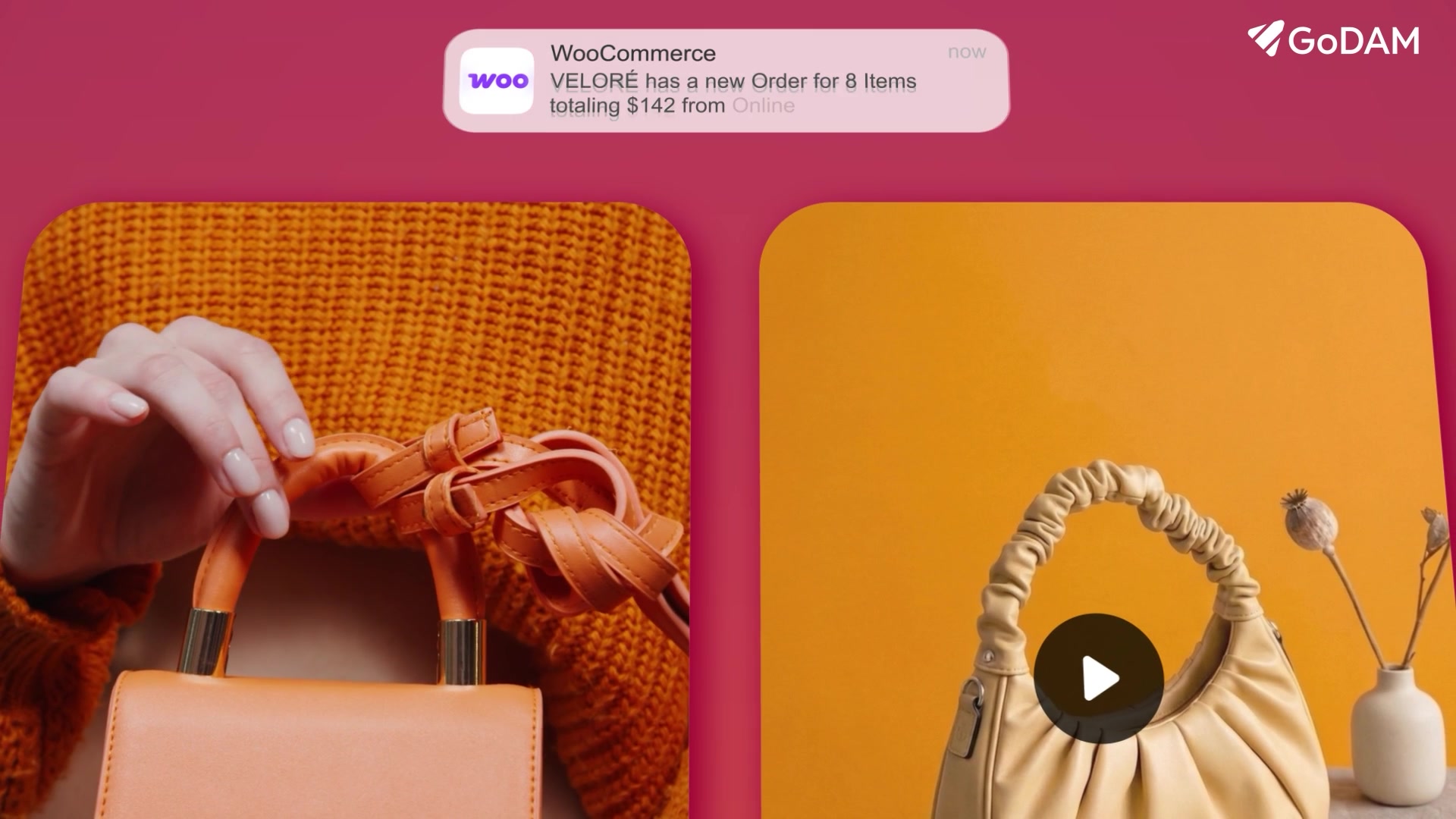
Shoppable video transforms your product videos into interactive shopping experiences.
Instead of making users search for a product, you let them:
- Tap directly on the product inside the video
- Click the “Buy Now” button instantly
- Purchase without leaving the video player
It’s the closest thing to bringing a store assistant inside your video, which reduces the friction of searching the product after watching the video.
Why Your Store Needs Shoppable Video
Integrating video into your shopping journey isn’t just a design choice; it’s a proven growth strategy. Research shows that 98% of people have watched an explainer video to learn more about a product or service.
By adding interactive “Buy Now” buttons, you achieve:
- Higher Conversions: Shoppable videos shorten the path from interest to action, dramatically increasing conversion rates compared to passive videos.
- Reduced Friction: By placing clickable buttons or hotspots directly on products within the video, you eliminate the need for users to search for links or navigate away.
- Massive Engagement: TikTok and Reel-style discovery turn passive viewers into active participants, leading to longer watch times and stronger brand recall.
How to Add a “Buy Now” Hotspot with GoDAM
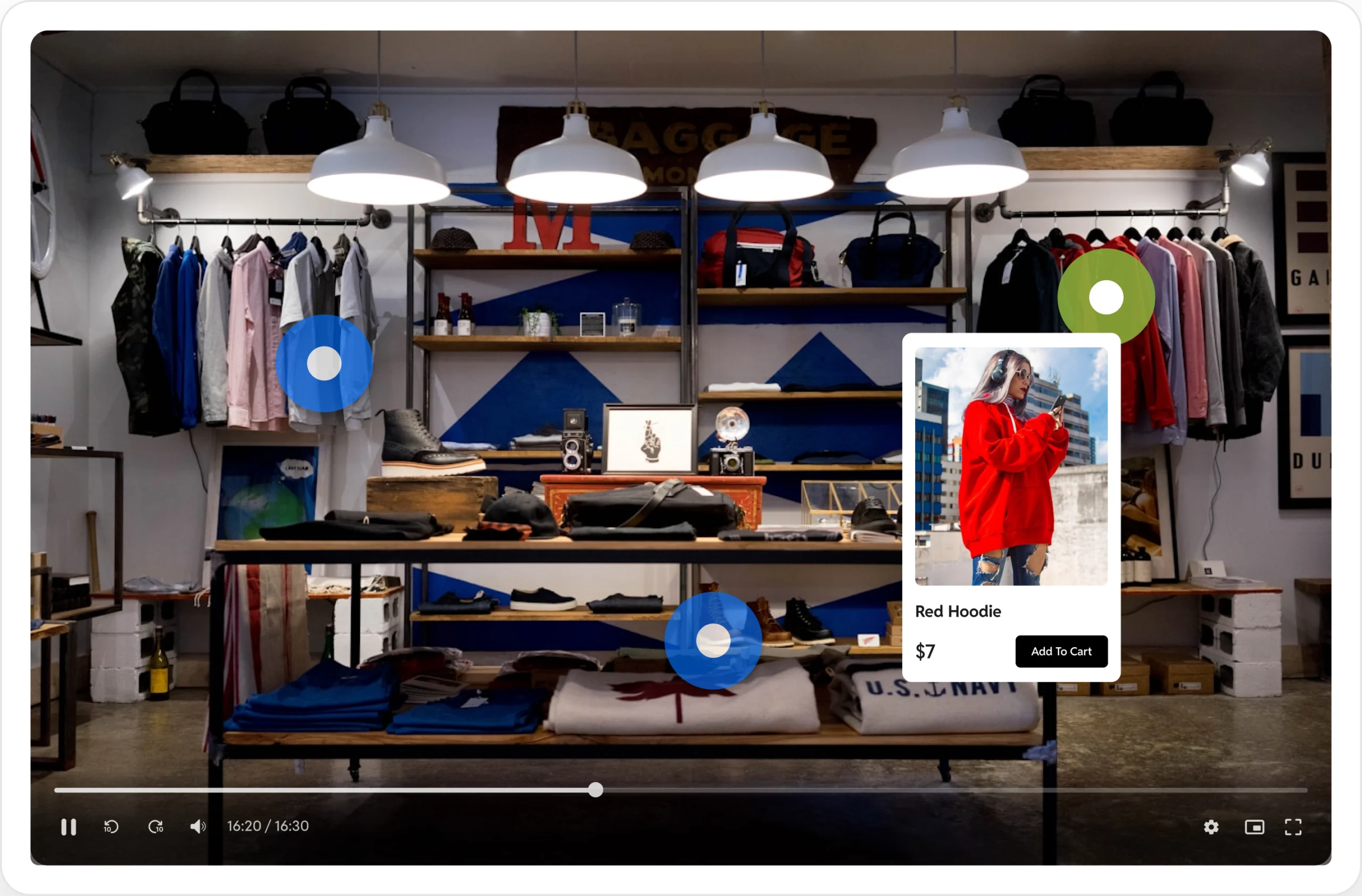
To add “Buy Now” Button Hotspot, you will need both GoDAM and WooCommerce.
- Step 1: Upload your video
- Step 2: Add a hotspot inside the video (Buy Now Button)
- Open the GoDAM Video Editor
- Move the timeline to the moment where the product appears
- Click “Add Layer” → “Hotspot”
- Position the hotspot directly over the product
- Pro tip: Place it when user intent is highest (e.g., product close-up)
- Step 3: Link your WooCommerce product
- Attach the product URL to the hotspot
- Click on save
- Step 4: Embed the video anywhere on the page, post or your landing pages
- You can easily add your shoppable video using:
- Gutenberg block
- Elementor widget
- WPBakery element
- You can easily add your shoppable video using:
For best results
Track Video Insights – Use heatmaps to understand:
- Where users drop off
- What they rewatch
- When to place CTAs
Leverage UGC & Video Reviews – Authentic customer videos convert better than polished ads. Turn reviews into shoppable assets.
Final Thoughts
The move from static content to shoppable video is becoming essential for brands in today’s video-first world. By using GoDAM to turn your videos into direct pathways to revenue, you can increase product clicks and conversions without increasing your ad spend.
Leave a Reply